How to Create and Use an Instagram Profile QR Code
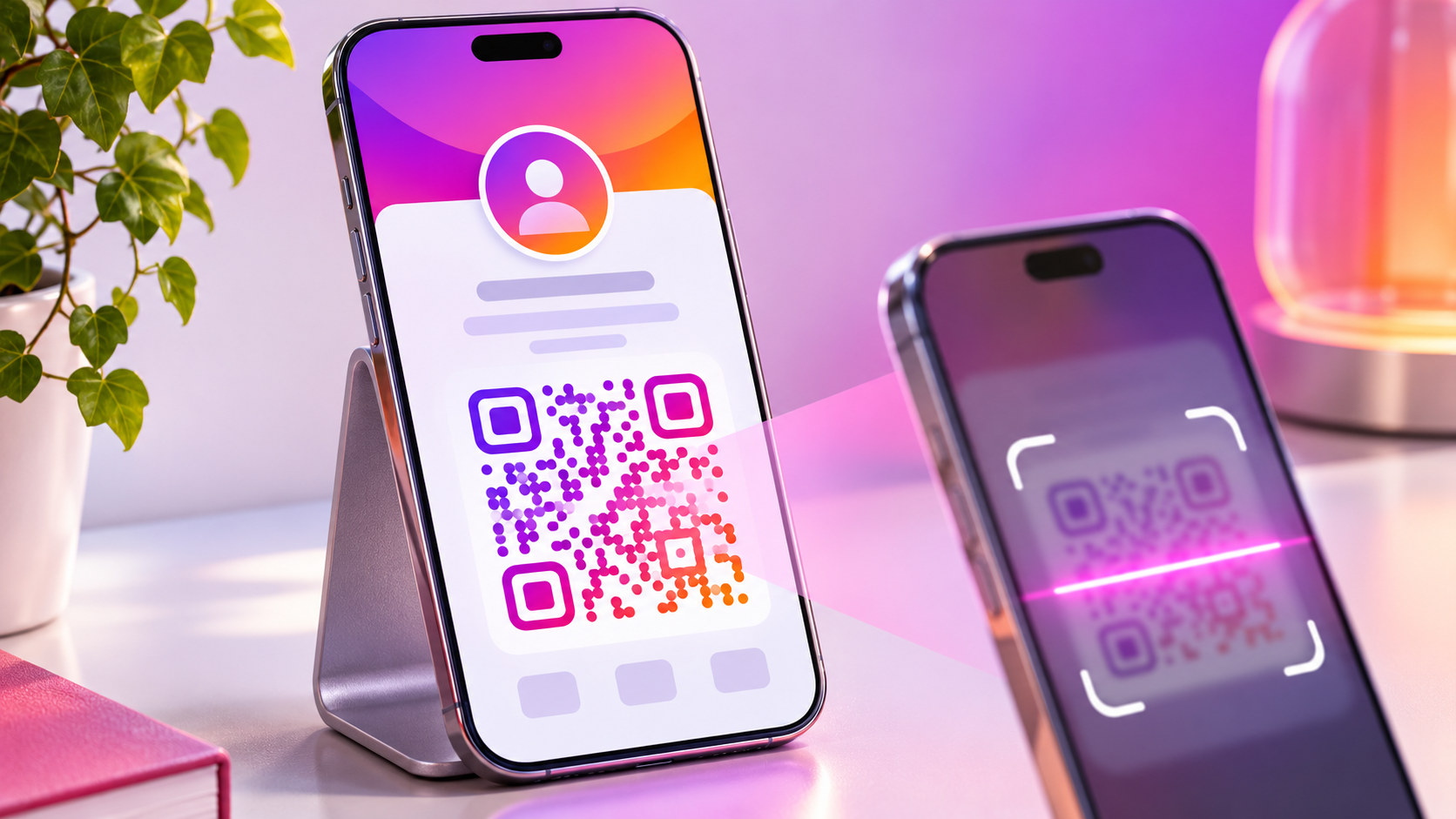
TL;DR: Open your Instagram profile and tap Share profile to find its QR code. Depending on your interface, you may see a standalone code or a profile card with the code on the other side. Customize the available design options, then download or share it. To scan a code, point a compatible phone camera at it and tap the detected link. Test the saved image and any printed version before distributing them.
A beautifully printed business card can still send someone to the wrong Instagram account. Check the destination first.
At Dumpor, we recommend checking the profile first, choosing a readable design second, and testing the actual file you intend to share. Instagram already provides a profile QR code, so creating one usually means finding and saving it rather than building anything from scratch.
What an Instagram profile QR code does
A profile QR code provides a scannable route to an Instagram account. It saves someone from typing a username, remembering punctuation, or choosing between similarly named profiles in search results.
Scanning does not automatically follow the account. The visitor still decides whether to follow, send a message, or explore the profile. For a private account, normal access restrictions remain in place; the code does not grant access to private posts.
The destination also matters. A profile code points toward the profile, rather than directly to a booking form, product page, or individual Reel. If the intended next step is an enquiry, make that route easy to find after the visitor arrives.
You do not need to switch to a professional account merely to share your profile this way.
How to find your Instagram QR code on iPhone or Android
Start in the Instagram mobile app and confirm that you are using the intended account, especially if you manage several profiles.
-
Tap your profile picture to open your profile.
-
Find Share profile, usually below the bio.
-
Tap it to open the sharing screen.
-
If a profile card appears, swipe or flip it to reveal the QR-code side.
-
Check the username shown with the code.
Some app versions place a QR code option in the profile menu. Older tutorials may refer to that route or to Instagram’s earlier Nametag feature. Begin with Share profile rather than searching for a button whose location may have changed.
If the option is missing, update Instagram and reopen the app. Check from your own profile, not another person’s page. Different accounts can receive different layouts, so another account on the same phone may not look identical.
Finding the code on a computer
On Instagram’s website, open your profile and look for the settings control near the profile header, then QR code, where available. The web version may offer fewer customization choices than the app.
If that option is absent, use the mobile sharing screen and transfer the saved image to your computer. Keep the original file.
Customize the QR code or profile card
Instagram has used several designs for profile sharing. Your available controls may include background colors, emoji patterns, selfie-based designs, or a profile-card editor with a pencil icon.
Use the options actually shown on your screen. A card editor and an older QR design screen do not necessarily offer the same tools.
|
Option you may see |
What it changes |
A useful check |
|---|
|
Color |
The available color scheme or background |
Does the code remain easy to distinguish? |
|
Emoji |
A decorative emoji pattern |
Is the surrounding design distracting? |
|
Selfie |
A photo-based background with available effects |
Is this suitable for the account’s audience? |
|
Pencil or edit control |
Supported profile-card styling |
Are you editing the background or the profile itself? |
|
Profile details |
Information displayed on the card |
Is the name, bio, and profile picture current? |
Where Color, Emoji, and Selfie modes are available, tapping the screen or the control at the top lets you change the design. On a profile card, use the edit controls provided.
Choose the simplest treatment that suits the purpose. A playful background may work well in a message to friends. A counter sign needs to remain readable under shop lighting, from an ordinary phone, without careful positioning.
Avoid painting over the code’s squares, placing a logo across them, or stretching the image to fit a narrow space. Put branding around the code instead. The pattern is functional.
Download or save your Instagram QR code
Look for Download, a save icon, or a sharing control on the profile-sharing screen. If Instagram offers a choice between a QR image and a profile-card video, choose the still QR image for printing.
Open the saved file before using it. Make sure the code is complete, its edges are sharp, and the visible username belongs to the right account.
If no download control is available, a screenshot can work:
-
Display the QR code clearly and at a useful size.
-
Take a screenshot using your phone’s normal controls.
-
Crop away unrelated interface elements.
-
Preserve the entire code and its surrounding clear margin.
-
Save the image and test it from another device.
Do not crop tightly against the outermost squares. QR readers need a clear border to distinguish the symbol from nearby text and graphics.
Share the code online or in person
The appropriate format depends on where someone will encounter it. A person standing beside you can scan your screen. Someone reading an email on the same phone may find a clickable profile link more convenient.
|
Situation |
Practical sharing method |
Helpful addition |
|---|
|
Meeting someone in person |
Display the code on your phone |
Keep the screen still |
|
Sending a message |
Share the profile card or saved QR image |
Include a clickable profile link |
|
Publishing a Story |
Use the available card-sharing option or image |
Keep the code unobstructed |
|
Adding an email signature |
Insert a clear QR image if useful |
Provide a text link as well |
|
Printing packaging or a flyer |
Use the tested still image |
Print the username below it |
|
Displaying a shop sign |
Use a larger code on a stable surface |
Explain why someone should scan |
Instagram’s sharing screen may offer Share, Copy link, or Add to Story. Use whichever matches the destination.
For printed materials, include a short instruction such as “Scan to view our latest work” or “Find opening updates on Instagram.” Make the promise specific and accurate. “Scan for booking” is misleading if visitors must search through unrelated posts before finding a booking link.
How to scan an Instagram QR code
Most current phones can recognize standard QR codes through a built-in camera or scanning control. You generally do not need a separate Instagram scanner.
Scan with an iPhone
-
Open Camera and use Photo mode.
-
Point the camera at the complete QR code.
-
Hold the phone steady while it recognizes the pattern.
-
Tap the link that appears.
-
Check that the destination is the profile you expected.
You can also use the Scan Code control in Control Center if it is available. If recognition fails, move slightly farther away, reduce reflections, and make sure the code is in focus.
Scan with an Android phone
Open the camera and point it at the code. On supported phones, a link or action appears automatically. Tap it to continue.
If nothing happens, inspect the camera settings for QR scanning or scan suggestions. Some devices provide a scanner in Quick Settings or use Google Lens. The exact route depends on the manufacturer and camera app.
Scan a code saved on the same phone
You do not need to photograph your own screen. Open the saved image in a compatible photo app and use its link-recognition or image-scanning feature.
In Google Photos, select the image and open Google Lens; depending on the layout, Lens may be under the More menu. Let it examine the code and choose the detected link. On supported iPhones, Photos may recognize a QR link when you press and hold the code.
If your photo app offers neither option, display the image on another device and scan it with the phone’s camera. For a message from someone you know, requesting the profile link is often simpler.
Prepare a QR code for printing
A code that scans from a bright screen can fail on glossy packaging or a poorly lit display. Test the physical version.
Keep the image square, use clear contrast, and leave an uncluttered margin. Standard QR symbols require a quiet zone at least four modules wide on every side; a module is one small square in the pattern. Preserve that space instead of using it for a border, slogan, or decoration.
There is no single print size that works for every layout. Code density, print quality, scanning distance, and lighting all matter. As a practical starting point for a handheld card, allow roughly 3 cm square for the code area, plus its clear margin, and test before reducing it. This is a working suggestion, not a universal minimum.
A poster viewed from farther away needs more space. Avoid placing the code across a fold, around a sharply curved bottle, or directly beneath a reflective finish.
A short print test
Before ordering a full batch:
-
Print one sample at the intended final size.
-
Scan it with at least two phones if available.
-
Test it under the lighting where it will be used.
-
Try the expected scanning distance without zooming.
-
Confirm the correct profile opens.
-
Check that the printed username matches the destination.
Test the complete design, not just the source image. Exporting, resizing, and inserting the code into a layout can introduce problems that were absent from the original.
Give visitors a clear next step
Scanning solves the problem of finding you. The profile still needs to explain why someone should stay.
Before placing the code on a display, review the name, bio, recent content, and enquiry route. A visitor arriving from a product label should recognize the same business immediately.
If several destinations matter, our guide to adding multiple links to your Instagram bio explains how to organize them. Use descriptive titles so visitors can distinguish a shop, booking page, or enquiry form.
A useful introduction can also sit near the top of the grid. See how to pin and reorder Instagram posts and Reels if new visitors need a prominent explanation of your products or services.
For example, a furniture maker could place a code beside a finished table, with “See recent commissions” above it. The profile should then show current work and a clear way to discuss a project. The printed invitation and the destination should tell the same story.
Native Instagram code or a separate QR generator?
Instagram’s built-in code is usually sufficient when the goal is simply to help someone find your profile. A separate generator may be useful when you need a different file format, a particular print workflow, or a destination outside Instagram.
A static code stores a fixed destination. A dynamic-code service typically stores a redirect address whose destination you can change through that service. The printed pattern itself does not change.
Before choosing a third-party option, check:
-
Whether it points directly to Instagram or through a redirect.
-
Whether continued operation depends on a subscription.
-
What happens when a trial ends.
-
Which download formats are available.
-
Whether scan analytics collect information you need to disclose.
-
Who will maintain the account controlling the destination.
Do not confuse scan counts with followers or enquiries. Several scans can come from one person, and a scan does not prove that someone followed the profile.
Troubleshoot a QR code that does not work
|
Problem |
Likely area to inspect |
What to try |
|---|
|
The camera detects nothing |
Size, focus, contrast, or clear margin |
Use a larger, sharper version and remove visual clutter |
|
The code works on screen but not on paper |
Printing or surface finish |
Test a cleaner print on a flatter, less reflective surface |
|
The wrong account opens |
The saved code’s destination |
Reopen the intended profile and save a fresh code |
|
A link appears but the profile will not load |
Connectivity, account availability, or login requirements |
Open the profile manually and compare |
|
The image works before sending but fails afterwards |
Compression or resizing |
Send the original file |
|
The code is trapped in a video |
The chosen export format |
Save a still QR image for print |
|
An old print fails after a username change |
The previous destination |
Generate a fresh code and review existing materials |
If Instagram opens in a browser instead of the app, that is not necessarily a faulty code. The result depends on the device, installed apps, and link-handling settings. Some visitors may encounter a login or app-install prompt.
Do not promise that an old code will keep working after a username change. Test existing copies, generate a fresh version, and update digital assets before commissioning new print runs.
FAQ
Is an Instagram profile QR code free?
Does scanning the code automatically follow me?+
No. Scanning helps the visitor reach your profile; following remains their choice. Use an accurate invitation and make the profile useful enough to justify that choice. A code is an access shortcut, not a mechanism for adding followers without consent.
Can people scan the code without Instagram installed?+
A compatible camera can usually read the QR pattern without Instagram. What happens next depends on the destination and device: it may open a browser or show an Instagram login or installation prompt. Scanning does not guarantee unrestricted browsing without an account.
Can I use a profile QR code for a private account?+
Yes, but sharing the code does not change the account’s privacy settings. People may reach the profile and request to follow; they do not gain access to private posts merely by scanning. Review the profile information you make visible before displaying the code publicly.
Does my Instagram QR code expire?+
The built-in profile code is not a timed invitation. However, its usefulness depends on the destination remaining available and the image remaining readable. Account changes can affect access. Third-party redirect codes can also depend on a provider’s service or subscription, so check their terms separately.
Can I change the destination after printing?+
You cannot edit the data inside an already printed QR pattern. A code using a managed redirect may let its owner change the destination behind that redirect. For Instagram’s own profile code, treat it as a route to that profile and create a different code if your campaign needs another destination.
Can I see who scanned my Instagram QR code?+
Do not expect Instagram’s profile-sharing screen to provide a named list of scanners. Account-level visits or other Insights are not the same as a record of QR scans. A third-party analytics service may count scans, but that does not reliably identify visitors or show who became a follower.
Is scanning a profile code safe?+
Inspect the detected destination before opening it, especially on a public sign where a sticker could have been replaced. A profile QR code is for reaching a profile, not verifying ownership or recovering an account. If a destination unexpectedly requests credentials, open Instagram directly and check the account there.
Can Dumpor create or edit my Instagram profile code?+
Dumpor’s public-content viewing tools do not edit your Instagram account or its profile-sharing settings. Use Instagram to obtain the built-in code. For questions about our tools or suggestions for a future guide, send a request to the Dumpor team, without passwords or private account credentials.

 Telegram bot
|
TikTok Viewer