How to Add Multiple Links to Your Instagram Bio
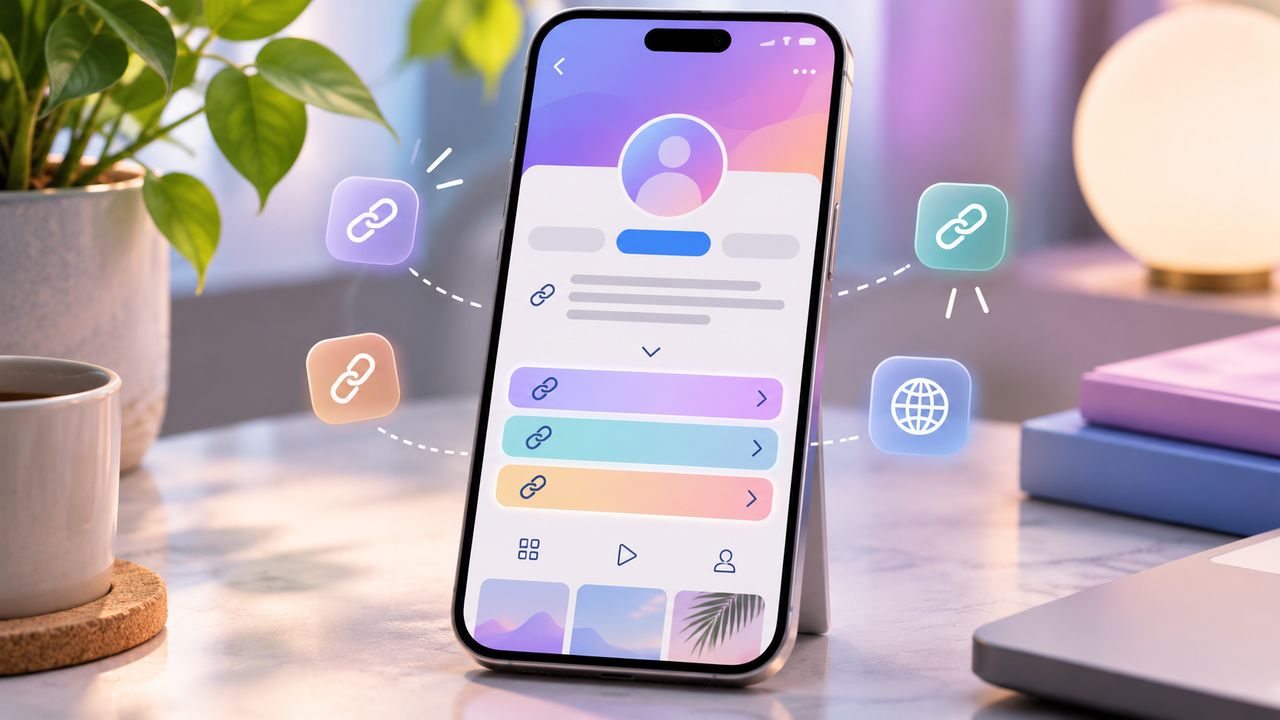
TL;DR: In the Instagram mobile app, go to Profile → Edit profile → Links → Add external link. Enter a website address, add a descriptive title if the field is available, and save. Repeat to add up to five standard profile links. To edit or remove one, select it in Links. To change the order, open Options → Reorder links, drag the items into place, and confirm. These clickable links belong in the Links section, separate from your written bio.
A customer wants to book. Another wants to see your work. A third is looking for the guide mentioned in your latest Reel. Sending all three to a general homepage leaves each person with another search to complete.
Instagram’s built-in links feature gives those visitors different routes from the same profile. You can provide a short, organised selection without creating a separate landing page.
At Dumpor, we recommend starting with the destinations people actually need. Add them, label them clearly, and test the journey from your profile to the final page. Five available spaces do not mean five compulsory links.
What you need before adding multiple bio links
The standard feature supports up to five links and is available to personal, creator, and business accounts. You do not need a particular follower count or a paid subscription to use those standard link slots.
Use the Instagram app on your iPhone or Android phone. The mobile profile editor is the appropriate place to manage this feature; editing your written bio in a desktop browser is a separate task.
Prepare the final web address for each destination. Copy it from the published page, rather than from a website editor, a draft preview, or an account dashboard that requires your own login.
It helps to decide on three things before opening the app:
- Destination: The exact page the visitor should reach.
- Title: A short description of what the link offers.
- Priority: Where it should appear relative to the others.
How to add multiple links on iPhone or Android
The main workflow is the same across both mobile platforms, although button labels and confirmation icons can vary.
-
Open Instagram and switch to the account you want to update.
-
Tap your profile picture to open your profile.
-
Select Edit profile.
-
Tap Links.
-
Choose Add external link or Add link, depending on your version.
-
Paste the full address into the URL field.
-
Add a concise title if Instagram displays a title field.
-
Tap Done, the checkmark, or the confirmation control shown.
-
Return to Links and repeat for each additional destination.
-
Go back to your profile and test the published links.
Add each address separately. Pasting several URLs into one field does not create a list of independent buttons.
Include the correct protocol, normally HTTPS, and check that the pasted address contains no surrounding quotation marks or spaces. If you copied it from a message, make sure a full stop at the end of the sentence has not come along with it.
Where the links appear on your profile
Multiple links do not necessarily appear as five separate lines beneath your bio. In the standard display, Instagram generally shows the first link with an indication that additional links are available. Tapping that area opens the list.
That extra step changes how you should write instructions. A caption saying “link in bio” may leave someone choosing between a shop, a newsletter, and a registration page. “Open our bio links and choose Workshop registration” gives them a recognisable destination.
Check the live profile rather than judging the result only inside Edit profile. Titles, domains, and additional-link labels can appear differently across app versions and screen sizes.
|
Profile element |
What it does |
How to use it |
|---|
|
Bio text |
Introduces you or your business |
Explain your offer and the next action |
|
Links section |
Holds clickable website destinations |
Add each URL as a separate item |
|
Link title |
Helps identify a destination |
Describe the page or task clearly |
|
First link |
Leads the standard link display |
Give it your current highest priority |
|
Additional-link list |
Presents the remaining choices |
Keep the labels distinct and useful |
How to edit an existing URL or link title
Go to Profile → Edit profile → Links, then tap the link you want to change. If the URL and title fields are editable, update the relevant field and save.
Changing the title changes the label visitors use to identify the destination. Changing the URL changes where they go. Check both whenever you repurpose a link for a different campaign.
For example, replacing a workshop registration address with a consultation form while keeping the title “Workshop registration” creates a mismatch. The new page may work perfectly, but the visitor has been promised something else.
If your app only offers Remove link and does not let you edit the fields, use this alternative:
-
Copy the existing URL and title into a note.
-
Prepare and test the replacement address.
-
Remove the old entry.
-
Add the replacement through Add external link.
-
Restore its intended position using Reorder links.
-
Test it from the published profile.
How to reorder links in your Instagram bio
Use the dedicated ordering control rather than removing every link and rebuilding the list.
-
Open your profile and select Edit profile.
-
Tap Links.
-
Open Options, usually represented by a three-dot menu.
-
Select Reorder links.
-
Press and hold a link or its drag handle.
-
Move it up or down the list.
-
Confirm with Done, Accept, or the control your app displays.
-
Return to your profile and check which item appears first.
The first link does not have to be your homepage. Choose the page that best matches what your current content asks visitors to do.
Before moving a campaign link down, review any recent captions that refer to the “first link.” Instructions based on a descriptive title are easier to maintain when the order changes.
How to remove a link without affecting the others
Open Edit profile → Links, tap the entry you no longer need, and choose Remove link. Confirm if prompted, then return to the profile.
Removing that entry takes it out of your Instagram link list. It does not delete the destination website, cancel a booking service, or remove the same address from other places where you have shared it.
If you remove the first item, inspect the remaining order. Another destination will now lead the selection, so make sure it suits the message in your bio.
Choosing link titles that people can understand
A link title should answer a practical question: what will happen if I tap this?
We favour specific wording over vague invitations. “Find out more” can describe almost anything. “View service packages” tells someone what to expect before the page opens.
|
Vague title |
Clearer alternative |
Suitable destination |
|---|
|
Click here |
Book a consultation |
Appointment page |
|
Our website |
View service packages |
Service overview |
|
Latest update |
Register for the workshop |
Current event page |
|
More content |
Read the beginner’s guide |
Named article or resource |
|
Get in touch |
Send a project enquiry |
Relevant contact form |
Keep the most informative words near the beginning. A visitor scanning a narrow screen should not have to read a long slogan before discovering that the link opens a price list.
Avoid giving different destinations almost identical names. “Explore more,” “Discover more,” and “Learn more” may sound consistent, but they offer little help when someone needs a particular resource.
A promise should also be accurate. Use “Book an appointment” for a booking process; if the page only collects requests, “Request an appointment” is clearer.
Native Instagram links or a separate link page?
Instagram’s standard links are convenient when you have a small number of clear destinations. A separate landing page becomes useful when you need more explanation, grouped resources, images, or a larger collection.
You can host that page on your own website or use a dedicated service. Add its address as one of your profile links, then manage the destinations on the page itself.
|
Consideration |
Standard profile links |
Separate landing page |
|---|
|
Setup |
Add addresses in Instagram |
Create and maintain another page |
|
Organisation |
Short list of destinations |
Sections and context, depending on the page |
|
Design |
Instagram controls the presentation |
Your website or chosen service controls it |
|
Updates |
Edit individual profile entries |
Update the page behind one address |
|
Measurement |
Depends on available account tools |
Depends on your website or service |
|
Best fit |
A few straightforward actions |
A larger or more detailed collection |
Start with the simpler arrangement that meets your needs. If several visitors need help choosing between services, a page explaining the differences may be more useful than adding several unexplained links.
This guide covers the standard five-link feature. Enhanced profile products or subscription features may present additional options, with availability depending on the account.
Why your Instagram bio links may not work
First identify the problem. Is Instagram refusing to save the address, is the link missing from the profile, or does it open a broken page? Those symptoms need different checks.
|
Problem |
First check |
Practical next step |
|---|
|
URL appears as ordinary text |
Was it pasted into the Bio field? |
Add it through Links instead |
|
Another link cannot be added |
Are all five standard slots occupied? |
Remove an unnecessary entry |
|
Only one link is visible |
Is there an additional-links indicator? |
Tap it to inspect the complete list |
|
Wrong page opens |
Is the saved URL correct? |
Replace it with the intended address |
|
Page requires your login |
Was an editor or private preview URL copied? |
Use the published visitor-facing page |
|
Page does not load |
Does the address work in a regular browser? |
Check the website as well as Instagram |
|
Reorder option is missing |
Are you in the mobile Links editor? |
Update the app and reopen that screen |
If Instagram rejects a destination, read the message before trying again. A working website is not automatically eligible for every platform placement.
Check the full address for errors and avoid repeatedly submitting variations merely to get past a restriction. If a legitimate destination still fails, use Instagram’s Help → Report a problem route and include the error message.
When a page works in your browser but fails after opening from Instagram, test it on another device if possible. The destination may depend on cookies, a login, or a browser feature that a first-time visitor does not have.
Check the journey from your profile to the page
Open each link from your profile and check that the destination delivers what its title promises. For an enquiry page, inspect the form on a phone: are the fields readable, and is the next step clear?
Through Dumpor’s Instagram viewer, you can browse available public content without signing in. Our Instagram Reels Viewer also helps you review available public videos and how they direct viewers towards further information. Use these tools for content research; verify your own link list inside Instagram.
Review your links when a campaign ends or your services change. Remove outdated destinations and check recent captions that refer to a particular link.
FAQ
How many links can I add to my Instagram bio?
Do I need a business account or a minimum number of followers?+
No minimum follower count or professional account is required for the standard links feature. Personal, creator, and business accounts can use it. If the control is missing, check the mobile app and profile editor first. Switching account types should not be necessary simply to add ordinary website links.
Why does my profile show only one of my links?+
The standard layout generally displays the first link together with an indication that more are available. Visitors tap that area to open the full selection. Return to Edit profile and Links to confirm that the other entries were saved. Then check the profile itself, since the editor’s list and the public presentation are different views.
Can I edit a link without deleting it?+
Tap the existing entry under Edit profile and Links. If Instagram shows editable URL and title fields, change them and save. If your version only provides a removal option, copy the details, remove that entry, and add the corrected version. Recheck its position afterwards, because a newly added item may need to be reordered.
Why is a website address in my bio not clickable?+
The written Bio field and the Links section serve different purposes. For a standard clickable website link, use Edit profile, then Links, then Add external link. Keep the bio text for your introduction and instructions. Adding several addresses to the paragraph does not create the same selectable list as adding separate link entries.
Can I manage these links on a computer?+
Use the Instagram mobile app to add, remove, and reorder standard profile links. The ability to edit some profile details on the desktop website does not mean that every mobile control is available there. You can prepare addresses and titles on a computer, then copy them to your phone and complete the changes in the app.
Are bio links hidden when my Instagram account is private?+
Do not treat profile links as private information. Instagram’s guidance states that websites added to your profile can be seen by people on or off Instagram. Avoid placing confidential document links or private client resources there. Access protection for a destination must come from that website or document service, not from the privacy setting on your Instagram posts.
Do I need a link-in-bio service for multiple links?+
No. The built-in feature is sufficient for up to five standard destinations. A separate service or a page on your own website can be helpful when you need categories, descriptions, or more extensive content. Choose it because it solves a specific navigation problem, rather than assuming that multiple links require another subscription.
Will changing my link order increase enquiries?+
It may make the relevant destination easier to find, but the outcome depends on the audience, the offer, and the page people reach. We recommend putting a clear, current action first and checking whether visitors can complete it easily. Compare enquiry quality as well as volume, and account for other campaign changes before drawing conclusions.
Can Dumpor add or change my Instagram bio links?+
No. Dumpor provides tools for browsing available public Instagram content; it does not edit your Instagram account. Add, reorder, and remove links through Instagram itself. If you need help with a Dumpor viewer, describe the tool and the issue to our team. Problems saving profile links should be reported through Instagram’s support options.
Need help using Dumpor to research public Instagram content? Send our team a request with the tool you are using and what you would like to check. A clear description helps us understand your question and respond with relevant guidance.

 Telegram bot
|
TikTok Viewer