How to Pin and Unpin Posts and Reels on Your Instagram Profile
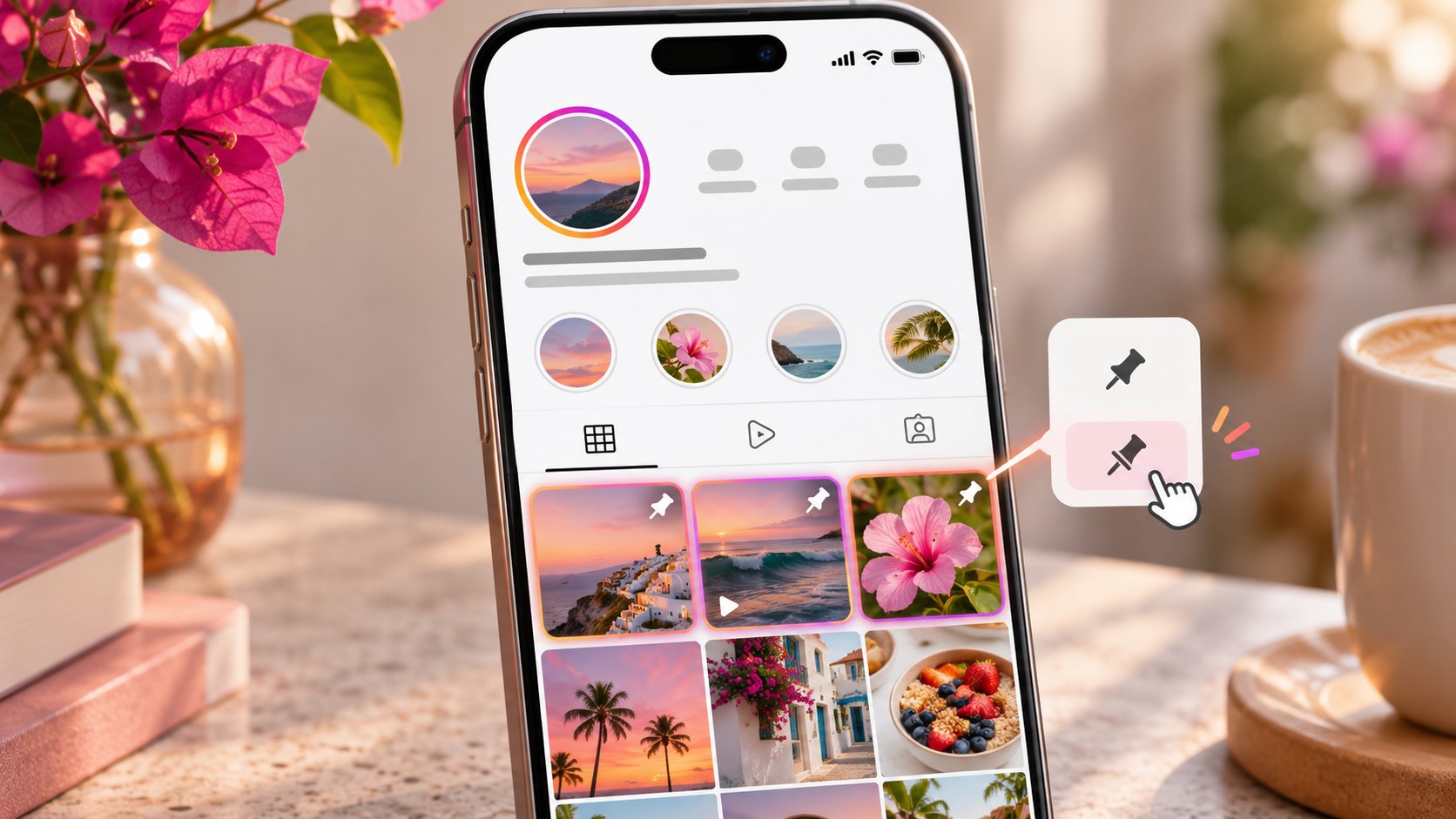
TL;DR: Open your Instagram profile in the mobile app, select a published post or Reel, tap the three-dot menu, and choose Pin to main grid or Pin to your profile. You can keep up to three items pinned in total. To remove a pin, open the same menu and select the corresponding Unpin option. To arrange the pinned row, unpin the items and pin them again in reverse display order: right, middle, then left. Use Reorder grid, where available, to move ordinary grid content; pinned items stay fixed at the top.
Your newest upload is not necessarily your best introduction. It might be a passing update, a completed promotion, or a behind-the-scenes photograph that makes little sense to someone discovering your business.
A pinned post gives an existing publication a more prominent position. At Dumpor, we recommend treating that space as an introduction for new visitors: what you offer, why it matters, and where they can go next. The practical part starts with choosing the correct menu.
What pinning a post on Instagram actually does
Pinning places a publication in the featured area at the beginning of your main profile grid. A small pin symbol identifies it. You can feature a photograph, a carousel, or a Reel, and combine formats within the three available positions.
The limit applies to the total selection. Two photos and one Reel use all three spaces; you do not receive three additional main-grid positions for videos.
Keep the location in mind. Your profile grid is the collection of thumbnails someone sees after opening your account. It is different from the Home feed, where Instagram displays content from multiple accounts, and from the dedicated Reels tab.
|
Action |
Main purpose |
What to check |
|---|
|
Pin a post or Reel |
Keep selected content at the top of your profile |
The item has a pin symbol |
|
Unpin an item |
Release its featured position |
The pin symbol disappears |
|
Reorder grid |
Change the arrangement of unpinned grid content |
The intended layout appears on your profile |
|
Add a Reel to the profile grid |
Make its thumbnail appear in the main grid |
The Reel is visible on that tab |
|
Remove a Reel from the profile grid |
Remove that main-grid placement |
Check the Reels tab separately |
How to pin an Instagram post on iPhone or Android
Use the Instagram mobile app and switch to the account whose profile you want to change. This is especially important when you manage a business account alongside your personal profile.
-
Tap your profile picture to open your profile.
-
Open the published photo or carousel you want to feature.
-
Tap the three-dot menu on the post.
-
Select Pin to main grid. Some versions use Pin to your profile.
-
Return to your profile and check the thumbnail for a pin symbol.
The basic process is the same on iPhone and Android, although the wording and position of controls can differ. If the command is missing from the opened post, try pressing and holding its thumbnail on your profile to inspect the available shortcuts.
Choose the content before making changes. Open the full caption, check any dates, and confirm that the offer is still available. An attractive cover can draw someone into an outdated announcement just as effectively as a current one.
How to pin a Reel to your Instagram profile
Start from the main profile grid whenever possible. Opening the same video from a different tab can present a different set of controls.
-
Go to your profile and find the Reel in the main grid.
-
Open it and tap the three-dot menu.
-
Look for Pin to main grid or Pin to your profile.
-
Select the command, then return to your profile.
-
Confirm that the video appears in the pinned area.
If the Reel appears only in the Reels tab, inspect its menu for an option such as Add to profile grid; it may be grouped under Manage. Use that option if your app offers it, then return to the main grid and try pinning again.
Do not confuse Remove from profile grid with Unpin. Before choosing either command, decide whether you want the Reel to remain visible among your ordinary posts.
A useful cover deserves attention, too. Read the thumbnail at normal phone size: can someone identify the subject without opening the video? We suggest concise cover text and a recognisable image, particularly for tutorials, product demonstrations, and introductory clips.
For research, our Instagram Reels Viewer lets you browse available Reels from public accounts in a browser without signing in. Use it to review content; make profile changes inside Instagram.
How to change the order of pinned Instagram posts
The usual pinning behaviour places the most recently pinned item first, at the left of the row. This makes the sequence of your actions important.
Suppose you want an introduction on the left, a customer example in the middle, and a service explanation on the right. Start with the service explanation and finish with the introduction.
|
Desired position |
Example content |
Pinning sequence |
|---|
|
Left |
Introduction to the business |
Third |
|
Middle |
Customer example |
Second |
|
Right |
Service explanation |
First |
For a complete rearrangement, unpin the three selected items, then pin them again in that order. Check the row after each action. If you only need to move one existing pin to the first position, unpinning and repinning that item is usually sufficient.
Pinning versus Instagram’s Reorder grid feature
Older tutorials sometimes say Instagram posts cannot be rearranged. That advice no longer describes every current account: Instagram now offers Reorder grid for moving content within the main profile layout.
To look for it, open your profile, press and hold a thumbnail, and select Reorder grid. In the editing view, drag an unpinned item to the position you want. Follow any completion control shown by your version, then return to the profile and verify the result.
Pinned posts remain at the top while you rearrange the other content. To change the order of that featured row, use the unpin-and-repin method described above.
We recommend planning these two areas separately. Give the pinned row a clear job, then arrange the remaining grid around your portfolio, recurring topics, or current campaign.
Avoid redesigning everything at once. Move a small group, check how the profile reads, and continue only when the new arrangement makes sense. A deliberate layout should help someone find relevant material, rather than require them to decipher a visual puzzle.
If Reorder grid is absent, update the app and check again. A missing control does not mean you need to delete and upload your content again.
How to unpin a post or Reel without deleting it
Open your profile, select the pinned item, tap its three-dot menu, and choose Unpin from main grid or Unpin from your profile.
Check the result on the main grid. You are removing the featured placement, so the thumbnail may move away from the top of the page. Unpinning is not a command to delete the publication.
On a profile using its default chronological layout, an older post can return much farther down the grid. If you have manually rearranged your profile, inspect the resulting placement rather than assuming a particular row.
That distinction matters when you are looking for a video. If you also removed it from the main grid, check the Reels tab before concluding that it has disappeared.
You do not have to replace every removed pin immediately. One relevant introduction is a better editorial choice than three items kept at the top simply to fill the row.
How to replace a pinned post when all three slots are full
Choose the item you want to retire before adding its replacement. Instagram may show a pin-limit prompt when you attempt a fourth pin, but deliberately freeing a position gives you clearer control over the result.
-
Review the three items currently pinned.
-
Unpin the one that no longer deserves a featured position.
-
Open the replacement and pin it.
-
Check the row’s sequence.
-
Repin the remaining items if you need a different order.
For example, a studio might replace a completed workshop announcement with its next booking period. The introduction and portfolio example can stay; the time-sensitive item changes.
Read beyond the headline before making that swap. Prices, locations, availability, and instructions in the caption should agree with the information a visitor reaches through your bio.
Why the pin or unpin option may be missing
A missing command does not identify a single cause. Start with the account, the content, and the screen you are using, then investigate the app.
|
What you notice |
What to check first |
|---|
|
No pin command on a post |
Confirm you are viewing your own published content |
|
A Reel has different menu options |
Open it from the main grid and inspect any Manage submenu |
|
You cannot add another pin |
Count the items already featured |
|
The menu offers Unpin |
The item is already pinned |
|
The command is absent in a browser |
Try the current Instagram mobile app |
|
Your change does not appear |
Reopen the profile and check your connection |
|
One item behaves differently |
Compare its menu with another published post |
If these checks do not resolve the issue, update Instagram through your device’s app store, close the app fully, and reopen it. Then test with another ordinary post that you published yourself.
If the problem persists, use Instagram’s Help area to find Report a problem. Include your device, app version, affected content type, and the steps that produce the issue. A screenshot of the menu is more useful than a message saying only that pinning is broken.
Before considering a reinstall, preserve any drafts or other material stored locally. Do not assume that unpublished work will survive removing the app.
What should a business pin first?
At Dumpor, we suggest choosing each position to answer a different visitor question. Three versions of the same sales message rarely provide as much useful information as a concise introduction, a relevant example, and a clear next step.
Start with orientation. Explain who you help and what someone can expect from the account. A specialist service may need an introductory carousel; a maker may communicate more clearly through a short demonstration.
Add evidence. Feature work that reflects the customers or projects you want to attract now. Select an example that can be understood without a lengthy explanation of a past campaign.
Offer a next step. Explain how to enquire, where to find current availability, or what information to include when contacting the business. Keep that instruction consistent with the destination linked in your bio.
Here is a practical editorial test: if someone opens only one of the three items, will it still make sense? Each publication should work independently, even when the row has a planned reading order.
Review the finished profile before sending people to it
Once the changes are complete, step back from the individual posts and inspect the profile as a visitor would.
-
Check that the pinned row supports the promise in your bio.
-
Read every cover at normal phone size.
-
Confirm that dates and offers remain current.
-
Open the suggested contact or booking destination.
-
Check the grid again after publishing new content.
This is an editorial review, not a guarantee of additional reach. A stronger introduction may help visitors understand your offer, but a different arrangement alone cannot establish why enquiries rise or fall.
Profile recognition matters alongside the grid. Our Instagram Profile Picture Viewer can help you inspect an available public profile image at a larger size. Use that review to check whether your avatar and featured content communicate a consistent identity.
FAQ
How many posts and Reels can you pin on Instagram?
Can you pin an old Instagram post?+
Yes. Pinning can bring an older publication into the featured row without creating a replacement upload. Before choosing it, review the information as carefully as you would a new post. An older project may remain an excellent example of your work, while an old price list or booking announcement can confuse visitors even when its photographs still look current.
Does unpinning delete a post or remove its likes?+
Unpinning removes the item’s featured placement; it does not delete the publication or reset its existing engagement. If an older item seems to have vanished, look farther down the grid and check the relevant tab. Deleting, archiving, and removing a Reel from the main grid are separate actions, so read the selected command before confirming any change.
Will followers receive a notification when I pin or unpin something?+
Pinning and unpinning are profile-layout changes and do not normally send followers a dedicated notification. Visitors can still notice the new arrangement when they open your account. If you need to communicate an announcement, plan that communication separately instead of assuming that changing the pinned row will bring the message to everyone who follows you.
Does pinning a Reel give it more views?+
A featured position can make a Reel easier to find for people who visit your profile. That is a visibility opportunity, not a promised increase in distribution or views. We recommend selecting a video that answers a visitor’s likely question and judging its usefulness alongside the actions you actually want people to take, such as making a relevant enquiry.
Can I drag pinned posts into a different order?+
Use unpinning and repinning to arrange the featured row. The practical sequence is the reverse of the intended display: pin the right-hand item first, the middle item second, and the left-hand item last. The separate Reorder grid tool is for rearranging the surrounding profile content; pinned items remain fixed while you work in that view.
Why can I pin a photo but not a particular Reel?+
Begin by comparing where you opened the two items. A Reel accessed through its dedicated tab may show different controls from one opened in the main grid. Check whether it is published and visible on your profile, inspect any Manage options, and update the app. If only that video continues to fail, include its details when reporting the issue to Instagram.
Can I manage Instagram pins from a computer or through Dumpor?+
Use Instagram’s mobile app for the workflow in this guide. Do not assume that a desktop browser provides the same editing controls. Dumpor is a viewer for available public content, not an Instagram account-management service. We cannot pin, unpin, or reorder your publications, and browsing through our tools does not give us access to edit your profile.
How often should a company change its pinned posts?+
Review them when the information changes: a campaign ends, availability changes, a service is updated, or a stronger example becomes available. There is no need to rotate a useful introduction merely because it has been pinned for a while. We suggest including the featured row in your regular content review, with additional checks for any dated announcement.
Have a question about using Dumpor to browse public Instagram content? Send our team a request with the tool you are using and a brief description of what you need. For pinning errors inside Instagram, use Instagram’s own support options so the report reaches the service that controls your account.

 Telegram bot
|
TikTok Viewer