Instagram Passkeys vs. Authenticator Apps vs. Recovery Codes: What Each One Does
TL;DR
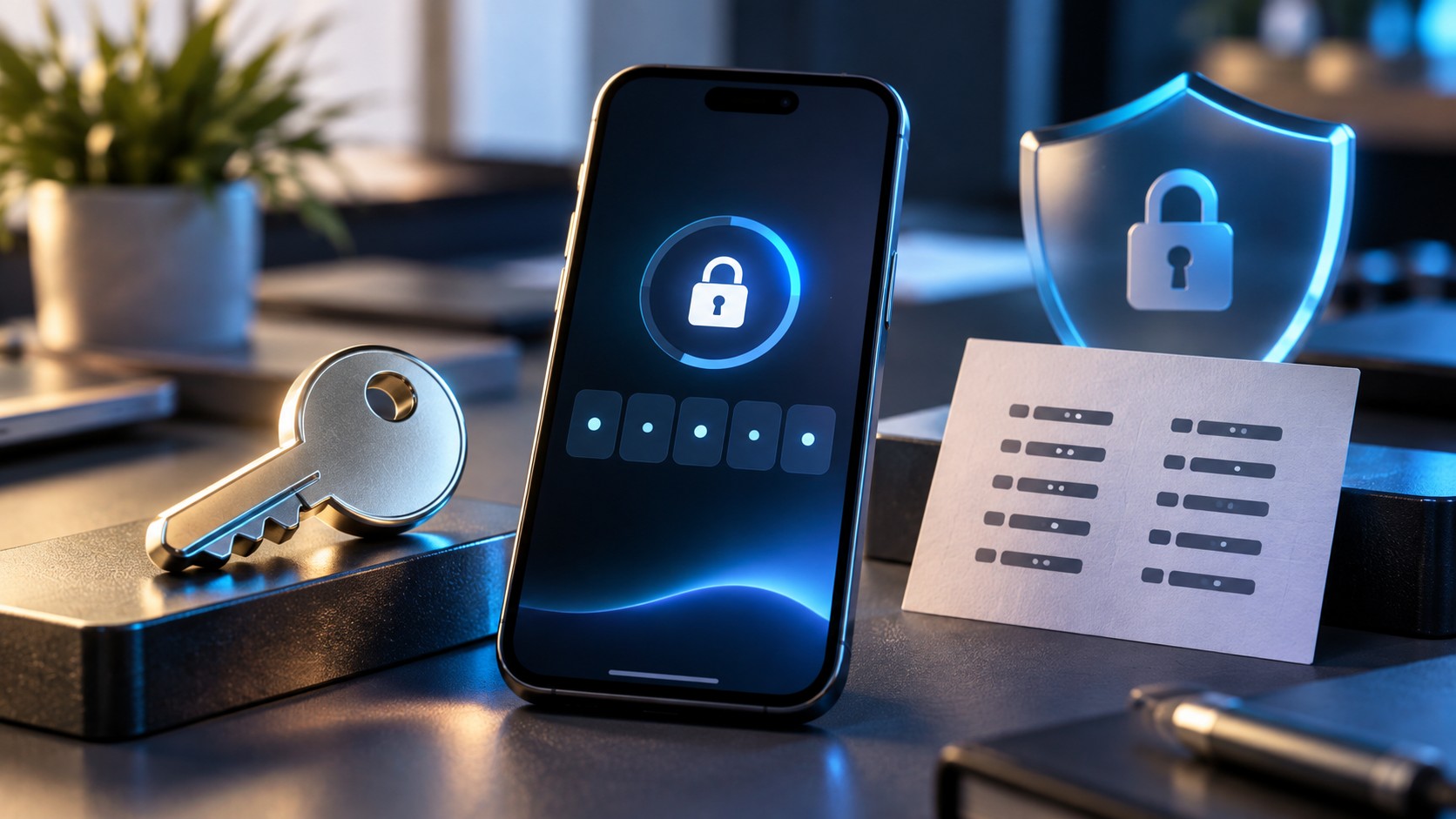
Instagram passkeys, authenticator apps, and recovery codes protect different parts of the sign-in process.
A passkey is a secure credential that can let you sign in without typing your normal password. On a compatible device, you verify yourself with the fingerprint, face scan, PIN, or screen lock you already use.
An authenticator app is normally part of two-factor authentication, or 2FA. After Instagram accepts the first part of your login, it can ask for a temporary code generated by an authenticator app.
Recovery codes, which Instagram commonly calls Backup Codes, are emergency one-time codes. They are useful if your authenticator app, phone, or another normal verification method becomes unavailable.
The difference in one table:
|
Method |
Main purpose |
Typical use |
|---|
|
Passkey |
Secure account sign-in |
Everyday login on a compatible device |
|
Authenticator app |
Second authentication factor |
Verify a new or sensitive login |
|
Backup/recovery code |
Emergency access |
When normal 2FA is unavailable |
A sensible Instagram security setup can use all three.
They are not competing versions of the same feature.
Passkeys, 2FA Codes, and Recovery Codes Solve Different Problems
Security terminology has become slightly unruly.
Everything seems to be called a key, code, verification method, or authentication factor. Then a phone gets replaced and suddenly the differences become rather important.
Think of the three tools this way.
A passkey helps prove who is signing in without relying on a reusable password.
An authenticator app helps Instagram demand another proof before accepting certain logins.
A backup code gives you an emergency route when your usual second factor is unavailable.
Same account.
Different moments.
What Is an Instagram Passkey?
A passkey is a cryptographic credential designed to replace traditional password entry in supported login flows.
Meta expanded passkey support to Instagram in 2026 as part of its broader account-security system.
When you use a passkey, you typically confirm the login with something already protecting your device:
-
Face ID or another facial-recognition method;
-
a fingerprint;
-
the device PIN;
-
a screen-lock password.
Your fingerprint or face is not turned into an Instagram password.
Instead, the device uses local verification to authorize use of the passkey.
That is an important distinction.
Why Passkeys Are Harder to Phish
Passwords are portable secrets.
If somebody creates a convincing fake Instagram page and you type your password into it, the attacker can collect that text and try using it elsewhere.
A passkey works differently.
It is cryptographically associated with the legitimate service for which it was created. A fake website cannot simply ask you to type out the passkey and then replay it later.
That makes passkeys particularly resistant to common credential-phishing attacks.
Not perfect. Nothing is.
If somebody gains control of an unlocked device, compromises your email recovery path, or persuades you through another recovery scam, different risks remain.
Still, removing a reusable password from routine login closes a very common door.
Where to Find Instagram Passkey Settings
Meta has increasingly centralized sign-in and security settings through Accounts Center and Meta Account.
Depending on your app version and rollout, the wording may differ slightly.
The usual route is broadly:
-
Open Instagram.
-
Go to your profile.
-
Open the menu.
-
Enter Accounts Center or the current Meta Account settings.
-
Open Password and security.
-
Find Passkeys.
-
Choose your Instagram account if required.
-
Follow the device prompts.
Your phone may ask for a fingerprint, face scan, device PIN, or another screen-lock method.
If Passkeys is missing, update Instagram and your operating system before assuming something is broken. Availability can depend on the account, platform, device, and current Meta rollout.
Does a Passkey Completely Delete Your Instagram Password?
Not necessarily.
A passkey can remove the need to type a password in supported sign-in situations, but other sign-in and recovery methods may remain available.
That is useful.
You may eventually need to sign in on:
-
another device;
-
an older browser;
-
a device without access to your stored passkey;
-
a recovery screen using another approved method.
So “passwordless” is best understood as a better normal sign-in method, not proof that every other recovery route has vanished.
What Is an Authenticator App?
An authenticator app generates temporary codes used for two-factor authentication.
Instagram typically manages this through:
Accounts Center → Password and security → Two-factor authentication → Authentication app
After setup, the authenticator produces a short code that changes regularly.
Instagram can request that code when a login requires the second factor.
The system generally uses time-based one-time passwords, commonly called TOTP codes.
The clever part is that the code can be generated locally.
You do not need to wait for a text message to arrive.
What an Authenticator App Protects Against
Imagine somebody discovers your Instagram password.
Perhaps it was reused on another website. Perhaps it was entered into a phishing page. Perhaps an old third-party service handled credentials badly.
Without additional authentication, that password may be enough to create a serious problem.
With authenticator-based 2FA enabled, Instagram can also require a current verification code.
The attacker now needs more than the password.
That additional hurdle is the point.
Authenticator apps also avoid dependence on SMS delivery and reduce exposure to attacks involving control of a phone number.
Authenticator Codes Can Still Be Phished
An authenticator app is stronger than password-only login, but do not treat its six-digit code as harmless.
A sophisticated fake login page can ask for:
-
your password;
-
your authenticator code.
If the attacker relays those details quickly enough, the temporary code may still be useful before it expires.
Never send an authenticator code because somebody contacts you in:
-
an Instagram DM;
-
email;
-
WhatsApp;
-
Telegram;
-
a phone call;
-
a supposed support chat.
A verification code belongs on the legitimate login screen that you intentionally opened.
Nowhere else.
How to Set Up an Authenticator App
Set it up while you are already logged in on a trusted device.
The current process generally looks like this:
-
Open Instagram.
-
Go to Accounts Center.
-
Select Password and security.
-
Open Two-factor authentication.
-
Choose your Instagram account.
-
Select Authentication app.
-
Follow the QR-code, app-link, or manual setup instructions.
-
Enter the current code generated by your authenticator.
-
Confirm the setup.
-
Save your Backup Codes.
That final step deserves attention.
Setting up excellent 2FA while ignoring recovery is how people occasionally secure an account so effectively that they secure themselves out of it.
Passkey vs. Authenticator App
The two technologies do not perform the same job.
|
Question |
Passkey |
Authenticator app |
|---|
|
Can replace password entry? |
Yes, in supported flows |
No |
|
Commonly used as 2FA? |
Authentication method |
Yes |
|
Requires typing a rotating code? |
No |
Usually |
|
Depends on SMS? |
No |
No |
|
Strong resistance to phishing? |
Yes |
Better than password alone, but codes can still be phished |
|
Main dependency |
Passkey storage/device ecosystem |
Access to authenticator secret |
Using a passkey does not automatically make an authenticator pointless.
Using an authenticator does not turn your password into a passkey.
They strengthen different stages of account access.
What Are Instagram Recovery Codes?
Instagram normally calls them Backup Codes.
Security articles often call them recovery codes because that describes what people use them for: recovering access when the normal two-factor method is unavailable.
Backup codes are generated in advance.
You keep them somewhere safe and use one if, for example:
-
your phone is lost;
-
your phone is broken;
-
you reset the device;
-
the authenticator entry disappears;
-
you cannot receive another verification method;
-
you change phones without transferring the authenticator correctly.
They are not intended for routine daily login.
They are emergency credentials.
Where to Find Instagram Backup Codes
While you are logged in, look in the two-factor authentication settings.
The path is usually similar to:
Accounts Center → Password and security → Two-factor authentication → Instagram account → Additional methods → Backup Codes
The precise menu wording can move as Meta updates Accounts Center.
If Instagram offers a way to generate a new set, remember that doing so can invalidate the previous set.
Do not keep several generations of unlabeled codes in different places and hope that Future You can identify the correct one.
Future You deserves better.
Are Instagram Backup Codes Single-Use?
Treat them as one-time credentials.
After a backup code is successfully used, do not expect to use that same code again.
If you generate a replacement set, update your stored copy.
This is quite different from a password.
A password is designed to remain valid until changed.
A backup code is designed to get you through an exceptional authentication problem once.
Where Should You Keep Recovery Codes?
Store them somewhere that will still be available if your normal authentication device disappears.
Good options can include:
-
a reputable password manager;
-
an encrypted digital vault;
-
a secure printed copy;
-
another protected device you control.
One weak strategy is keeping the only copy as a screenshot on the same phone that runs your authenticator.
Lose the phone and you lose both.
Slightly awkward.
Completely avoidable.
Do Not Share Backup Codes With “Instagram Support”
A backup code is an authentication credential.
So is an authenticator code.
So is an authenticator setup secret.
Nobody contacting you unexpectedly should need any of them.
Be particularly cautious when a message says:
We need your backup code to verify that you own the account.
That logic is backwards.
The backup code can help somebody access the account. It is not a harmless account number.
Keep it private.
One Table: What Each Credential Actually Does
|
Feature |
Passkey |
Authenticator code |
Backup code |
|---|
|
Used for regular login |
Yes |
As an additional step |
Emergency only |
|
Replaces password typing |
Often |
No |
No |
|
Changes frequently |
No, not like TOTP |
Yes |
No |
|
Intended for one-time use |
No |
Short-lived |
Yes |
|
Requires SMS |
No |
No |
No |
|
Helps if authenticator is lost |
Potentially |
No |
Yes |
|
Safe to share with support |
Never |
Never |
Never |
That last row is worth memorizing.
What Happens if You Lose Your Authenticator Phone?
First, check whether another device is still logged in.
Do not reflexively log out of it.
An existing authenticated Instagram session may be your easiest route to repairing the security setup.
From a trusted logged-in device, you can potentially:
-
open Password and security;
-
review your 2FA methods;
-
configure a new authenticator;
-
generate fresh Backup Codes;
-
inspect active sessions.
If you have no logged-in device, use an unused backup code or another legitimate verification method offered by Instagram.
If none is available, use Instagram’s official recovery process.
Do not pay a stranger promising to “remove Instagram 2FA.”
That is usually another problem arriving disguised as a solution.
What Happens if You Lose the Device With Your Passkey?
It depends on how the passkey is stored.
Passkeys can be held by supported device credential systems or compatible password managers, and some environments securely synchronize them between devices associated with you.
Before replacing a phone, find out where your passkey lives.
Ask:
-
Does it sync?
-
Will it appear on the new device?
-
Do I have another sign-in method?
-
Are my recovery details current?
If the passkey becomes unavailable, use another legitimate sign-in or recovery route offered for your account.
This is why having a fallback is sensible even when passkeys are convenient.
Are Backup Codes a Replacement for Passkeys?
No.
A backup code is not a spare passkey.
A passkey is designed for normal secure authentication.
Backup codes exist for exceptional situations involving two-factor access.
Likewise, generating Backup Codes does not create a passkey, and creating a passkey does not guarantee that you have prepared your 2FA recovery codes.
Review them separately.
Authenticator App vs. SMS
Authenticator-based 2FA is generally preferable when you can manage it safely.
SMS relies on your telephone number and delivery network.
Problems can include:
-
SIM-swap attacks;
-
lost access to a phone number;
-
number reassignment;
-
roaming trouble;
-
delayed messages.
An authenticator app generates the code locally.
SMS can remain useful as an additional fallback where Instagram offers it, but making one phone number your only recovery route creates an obvious weak point.
Should You Use All Three?
For an account you care about, a layered setup is sensible:
-
Create a passkey where Instagram offers one.
-
Enable two-factor authentication.
-
Use an authenticator app as a strong 2FA method.
-
Generate Backup Codes.
-
Store those codes somewhere separate from the authenticator phone.
-
Keep your recovery email and phone number current.
-
Review devices that are signed into the account.
Security does not need to become a hobby.
A few well-chosen layers are enough for most people.
Review Third-Party Access Too
Strong login authentication does not help much if an unnecessary external integration still has legitimate permission to interact with your account.
Periodically review connected services.
Our guide to reviewing and revoking third-party Instagram apps explains how to inspect old integrations separately from passkeys and 2FA.
Those are different security layers.
Check both.
Never Share an Authenticator QR Code or Setup Key
When you configure an authenticator, Instagram may display a QR code or manual setup secret.
Protect it carefully.
A temporary six-digit authenticator code expires quickly.
The underlying setup secret can potentially allow another authenticator to generate future valid codes.
Do not:
-
screenshot it and send it to a stranger;
-
paste it into a support chat;
-
share it with an agency casually;
-
post it in a team channel.
For business accounts, use legitimate role-management and Meta business-access tools rather than sharing personal security secrets among several employees.
What if You Receive a Login Code You Did Not Request?
Do not share it.
Do not approve an unexpected login simply to make the notification disappear.
Instead:
-
Open Instagram directly.
-
Go to Password and security.
-
Check where the account is logged in.
-
Remove unknown sessions.
-
Confirm that your email and phone number are correct.
-
Change your password if you suspect it was exposed.
-
Check connected third-party apps.
An unexpected authentication request does not always prove that an attacker has full access.
It is still worth investigating.
Before Changing Phones: Use This Checklist
Phone upgrades cause an impressive number of preventable 2FA headaches.
Before wiping the old device:
-
Confirm whether your passkey will transfer or sync.
-
Transfer or restore your authenticator securely.
-
Verify that new authenticator codes work.
-
Save current Backup Codes.
-
Confirm your recovery email and phone number.
-
Keep another trusted Instagram session active if possible.
-
Test login on the new phone.
Then erase the old device.
Not before.
Boring order. Excellent outcome.
Security for Creators and Business Accounts
Creators and businesses should treat login recovery as operational infrastructure.
A takeover can affect:
-
public posts;
-
customer DMs;
-
collaborations;
-
ad accounts;
-
brand reputation;
-
connected Meta assets.
Avoid making account recovery dependent on one employee’s personal phone.
Document who controls:
-
the recovery email;
-
business permissions;
-
authenticator access;
-
stored backup codes;
-
connected apps.
When somebody leaves the team, review those permissions immediately.
For public Instagram research that does not need access to your private account, Dumpor works without requiring your Instagram password, passkey, or 2FA code.
Passkey vs. Password Manager
A passkey and a password manager are not identical.
The passkey is the credential.
A compatible password manager may be one place where that credential is securely stored and synchronized.
Other passkeys may live in the credential system built into your phone or operating-system ecosystem.
Know which one you use.
This becomes rather relevant on the day you change devices.
A Five-Minute Security Check
Open Instagram’s Password and security settings and review:
-
Passkeys;
-
Two-factor authentication;
-
Authentication app;
-
Backup Codes;
-
recovery phone number;
-
recovery email;
-
currently logged-in devices.
Then ask one final question:
If this phone fell into a river tonight, could I still get into Instagram tomorrow?
If the answer is unclear, fix the recovery path now.
Not at the river.
FAQ
Frequently Asked Questions
What is the difference between an Instagram passkey and an authenticator app?+
A passkey is a cryptographic sign-in credential that can replace password entry in supported login flows. An authenticator app generates temporary codes used as an additional factor for two-factor authentication.
What are Instagram recovery codes?+
Instagram generally calls them Backup Codes. They are emergency one-time credentials intended for situations where your usual 2FA method is unavailable.
Where can I find Instagram Backup Codes?+
Open Accounts Center or the current Meta Account security settings, choose Password and security, open Two-factor authentication, select your Instagram account, and look under Additional methods for Backup Codes. Menu wording may vary.
Can an Instagram Backup Code be used more than once?+
Treat every Backup Code as single-use. Once one has been used, choose another unused code when necessary. Replace stored copies when you generate a fresh set.
Is a passkey the same as two-factor authentication?+
No. A passkey is an authentication credential used for sign-in. Two-factor authentication requires another proof during the login process. Both can be part of the same Instagram security setup.
Is a passkey safer than a normal password?+
Passkeys are designed to resist common password threats such as phishing and credential reuse because you do not type a reusable secret into websites. Device security and account recovery still remain important.
Does creating a passkey remove my Instagram password?+
Not necessarily. Passkeys can replace password entry in supported sign-in flows while other login and recovery methods remain available.
Does an authenticator app work without internet?+
Standard TOTP authenticator apps can generate their codes offline because the codes are calculated locally using the stored setup secret and current time.
What happens if I delete my authenticator app?+
If that was your only accessible authenticator, you may no longer be able to generate normal 2FA codes. Use a Backup Code, another configured authentication method, a trusted logged-in session, or Instagram’s official recovery process.
Should I keep my recovery codes as a screenshot?+
Do not make a screenshot on your authenticator phone the only copy. A secure password manager, encrypted vault, or protected physical copy gives you a backup that can survive losing the phone.
Can someone from Instagram support ask me for a backup code?+
Do not give passwords, authenticator codes, Backup Codes, passkeys, or authenticator setup secrets to people contacting you through DMs, emails, calls, or third-party messaging services.
Can I use a passkey and authenticator app together?+
Yes, where both features are available. They address different parts of account authentication and can complement one another.
What should I do before moving Instagram to a new phone?+
Check where your passkey is stored, transfer or restore the authenticator, save your Backup Codes, confirm your recovery contact information, and test the new device before wiping the old one.
Why can’t I see Passkeys in my Instagram settings?+
Availability can depend on your device, operating system, Instagram version, Meta account configuration, and current rollout. Update the software and check Password and security in Accounts Center or Meta Account.
Is an authenticator app safer than SMS?+
Authenticator-based 2FA avoids dependence on the mobile phone network and reduces risks such as SIM swapping. SMS can still be useful as an additional recovery option when available.
What should I do if Instagram sends a verification code I did not request?+
Do not share the code. Open Instagram directly, review logged-in devices and recovery information, check 2FA, and change your password if you have reason to believe it was exposed.
Does Dumpor need my Instagram recovery code or passkey?+
No. Passkeys, authenticator codes, Backup Codes, and passwords are account-access credentials. Dumpor’s supported public-content workflow does not require them.
Passkeys, authenticator apps, and recovery codes stop looking complicated once each is given one job.
Passkeys improve normal sign-in. Authenticator apps provide a strong second factor. Backup Codes give you an emergency route when that factor is unavailable.
Set up the strong method.
Prepare the fallback.
Then store the fallback somewhere that will still exist when the device you use every day suddenly does not.
For additional account-safety habits, see our Instagram viewer privacy best-practices guide.
The best recovery code is the one you saved before you needed it.

 Telegram bot
|
TikTok Viewer
Telegram bot
|
TikTok Viewer