How to Review and Revoke Third-Party Apps Connected to Your Instagram Account
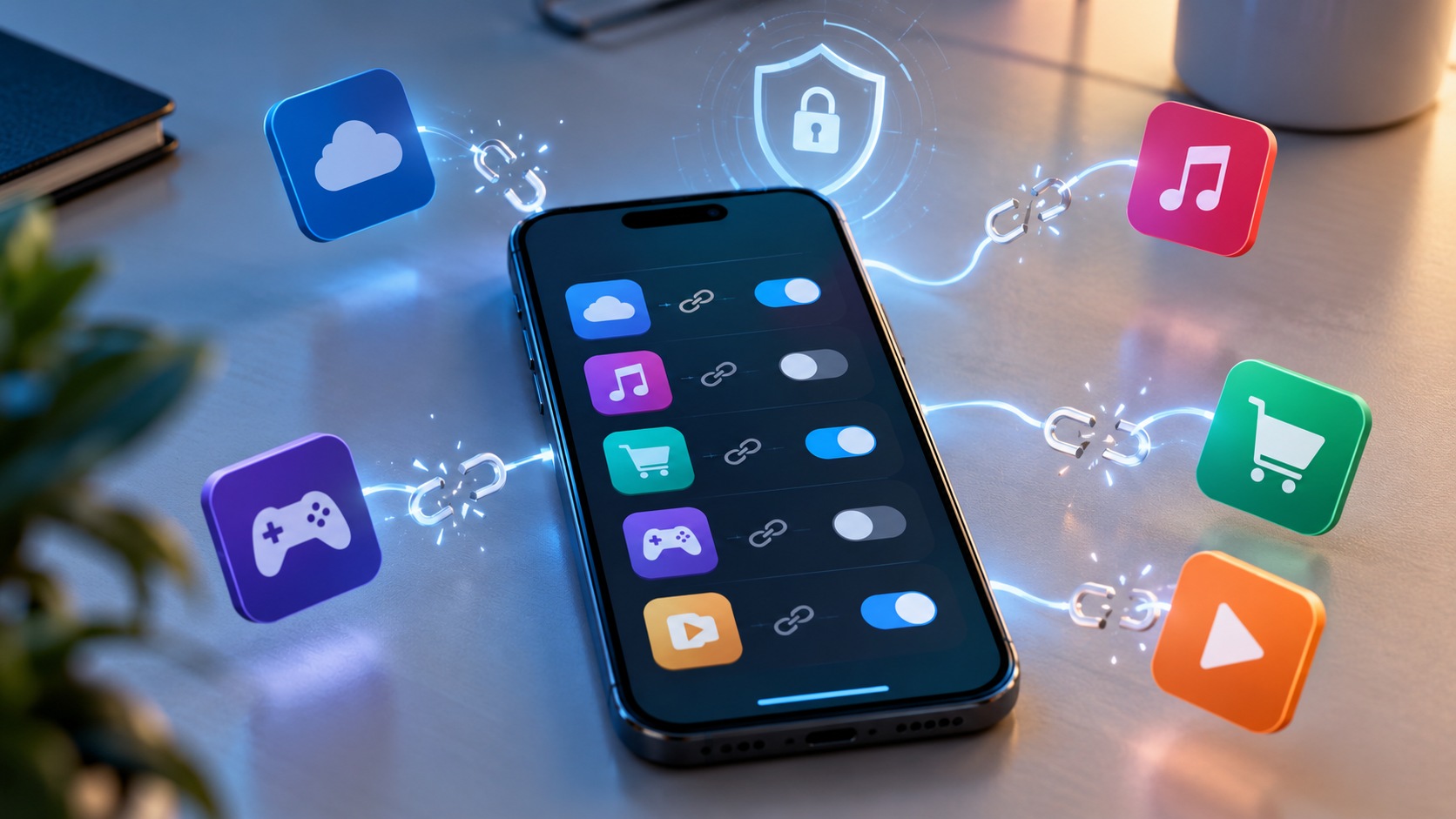
TL;DR
If you have ever connected Instagram to a scheduler, analytics dashboard, giveaway tool, CRM, website plugin, automation platform, or social-login service, review that access periodically.
On current Instagram versions, the usual mobile path is:
-
Open your profile.
-
Tap the three-line menu.
-
Open Settings and activity.
-
Find App website permissions or Website permissions.
-
Tap Apps and websites.
-
Review Active connections.
-
Open anything you no longer use or do not recognize.
-
Tap Remove and confirm.
Instagram can move or rename menu items, so look for Apps and websites if your interface differs.
Removing an app revokes its current Instagram authorization. It does not necessarily delete data already stored by that company, cancel a subscription, erase its own user account, or remove posts it published earlier.
If you ever typed your actual Instagram password into an unfamiliar third-party app or website, do more: change the password, review login sessions, enable two-factor authentication, and check for unauthorized account changes.
The rule is uncomplicated: keep only connections you recognize, still use, and understand.
What Counts as a Connected Instagram App?
A third-party app is a service made outside Instagram or Meta that you authorize to interact with your account or related business assets.
Typical examples include:
-
publishing schedulers;
-
analytics tools;
-
website feed plugins;
-
customer-support platforms;
-
CRM integrations;
-
creator campaign tools;
-
giveaway services;
-
automation platforms.
Third-party does not automatically mean unsafe. A legitimate scheduler may need ongoing access every day.
The real question is whether an old permission still serves a purpose.
A tool connected for one campaign two years ago should not remain forever simply because everyone forgot about it.
Authorization Is Not the Same as Sharing Your Password
This is the first distinction to understand.
With a normal authorization flow, Instagram or Meta asks you to approve specific permissions. The outside service receives authorized access without needing your Instagram password itself.
A suspicious service may instead show its own login form and ask you to type your Instagram password directly into it.
Those situations are not equivalent.
|
Connection type |
What happens |
Main concern |
|---|
|
Official authorization |
Instagram/Meta asks you to approve access |
App receives defined permissions |
|
Password entered into third-party site |
Third party may receive your credentials |
Possible account compromise |
|
Public no-login service |
No Instagram account authorization is created |
Assess the service separately |
For public-content tasks that do not require access to your account, Dumpor works without asking you to connect your Instagram account.
That is a different relationship from granting an app permission to operate with your account.
Where to Find Connected Apps on Instagram
In the mobile app, the current route is generally:
Profile → Menu → Settings and activity → App website permissions / Website permissions → Apps and websites
Inside, Instagram can show three categories:
Start with Active.
Those are the services whose authorization matters now.
Active vs. Expired vs. Removed
The labels describe the state of the Instagram connection, not everything the third-party company may know about you.
|
Status |
What it means in practice |
|---|
|
Active |
The app currently has authorized access within its granted permissions |
|
Expired |
The previous authorization is no longer active |
|
Removed |
Access was revoked or removed |
An Expired or Removed app can still possess information it legitimately collected earlier.
That is the privacy wrinkle many users miss.
Revoking a permission closes future access through that authorization. It does not reach into somebody else’s database and erase every historical copy.
How to Audit Each Active App
Open every Active connection and ask:
-
Do I recognize this service?
-
Do I still use it?
-
Why does it need Instagram access?
-
Are the requested permissions sensible for that function?
-
Would removing it interrupt something important?
For a personal account, the review may take a few minutes.
For a business account that has passed through several employees or agencies, slow down. An unfamiliar integration could be obsolete—or it could power tomorrow morning’s publishing queue.
Investigate first. Remove second.
Which Permissions Deserve Attention?
Available permissions vary by integration and account type. A service may legitimately need access related to:
-
basic profile information;
-
media;
-
publishing;
-
comments;
-
insights;
-
messages;
-
business assets.
Context matters more than the permission name.
A scheduler asking to publish content makes sense.
A simple design-reference tool requesting broad messaging access deserves an explanation.
Ask one useful question:
Why does this app need this permission to perform the job I hired it for?
If the answer is unclear, do not treat broad access as routine.
How to Revoke an Instagram App
Once you decide a connection is unnecessary:
-
Open Apps and websites.
-
Select Active.
-
Open the app.
-
Review its details.
-
Tap Remove.
-
Confirm.
The service should lose the active authorization you revoked. If you later need it again, you may have to reconnect Instagram and approve permissions again.
For business tools, revoke access deliberately rather than during a launch or scheduled campaign.
Tidier settings are nice.
A broken publishing workflow at 8:59 a.m. is less nice.
What Removing an App Does—and Does Not Do
|
After you tap Remove |
Result |
|---|
|
Current Instagram authorization |
Revoked |
|
Future access through that authorization |
Stopped |
|
Third-party user account |
Usually remains |
|
Paid subscription |
Usually remains until canceled separately |
|
Data already stored by provider |
May remain |
|
Posts already published |
Usually remain |
|
Scheduled publishing |
May stop |
|
App installed on your phone |
Remains until you uninstall it |
Revocation is a permission change.
It is not a universal delete button.
Does Revoking Access Delete Your Old Data?
Not automatically.
An app may have stored information while it was legitimately connected. Removing its Instagram authorization can stop further access, but deletion of already collected data depends on that provider’s systems, privacy terms, and applicable law.
If you want a complete separation:
-
Revoke the Instagram connection.
-
Sign in to the third-party service.
-
Delete connected data if that option exists.
-
Delete the third-party account if you no longer need it.
-
Cancel billing separately.
-
Use the provider’s privacy or data-deletion process if necessary.
Think of it as two doors: Instagram controls one; the third-party company controls the other.
Close both when both matter.
Uninstalling an App Is Not Revoking Access
Deleting an app from your phone removes the software from the device.
It does not necessarily cancel a server-side Instagram authorization.
The icon can be gone while the connection remains Active.
The same principle applies to browser extensions, website plugins, and tools you stopped visiting months ago.
When you stop using a connected service, clean up the account permission too.
Changing Your Password Is Also a Different Action
A password change and an authorized-app removal solve different problems.
Change your password if:
-
someone may know it;
-
you entered it into an untrusted site;
-
you suspect phishing;
-
an unfamiliar person logged in.
For normal authorized integrations, manage access through Apps and websites.
If a suspicious service received your actual password, however, removing an app connection alone is not enough. Credentials may have been exposed independently of any OAuth-style permission.
That requires a security cleanup.
What to Do If You Gave an App Your Instagram Password
Treat the password as compromised.
Do this:
-
Change your Instagram password.
-
Do not reuse the old password.
-
Open Accounts Center → Password and security.
-
Review Where you’re logged in.
-
Log out unfamiliar sessions.
-
Turn on two-factor authentication.
-
Review Apps and websites.
-
Remove suspicious integrations.
-
Check your email, phone number, bio, username, and recent activity for changes you did not make.
If the same password was reused elsewhere, replace it there too.
One recycled password can turn one breach into several.
Enable Two-Factor Authentication
Two-factor authentication adds another step to account login.
The current Meta route is generally:
Accounts Center → Password and security → Two-factor authentication
Use a supported method you can reliably access. An authenticator app is a strong choice for many users.
Keep recovery information somewhere secure.
Two-factor authentication does not remove connected apps. It protects login access, while the Apps and websites screen controls third-party authorization.
Different doors.
Check both.
Review Logged-In Devices Separately
Connected apps and login sessions are not the same thing.
A scheduling platform may be listed under Apps and websites.
A phone or browser where Instagram is signed in appears as a login session.
During a security audit, check for:
-
unknown devices;
-
impossible or suspicious locations;
-
old phones you no longer own;
-
browsers you stopped using.
Log out anything you do not trust.
If you see evidence of compromise, change the password as well.
Business and Creator Accounts Need an Extra Check
Professional Instagram accounts can be connected to Facebook Pages, Meta Business assets, messaging tools, and business integrations.
A social media management platform may therefore have access through more than one layer.
If a tool manages publishing, ads, comments, or customer messages, review not only Instagram’s Apps and websites list but also the relevant Meta business permissions.
This matters after an agency or employee leaves.
Deleting a staff login while leaving an old automation or business integration active is only half an offboarding process.
Red Flags Before You Connect a New Tool
Pause when a service:
-
asks for your Instagram password directly;
-
promises access to private data it should not have;
-
claims it can reveal secret profile visitors;
-
requests permissions unrelated to its purpose;
-
asks you to copy session cookies;
-
pressures you to disable security features;
-
promises guaranteed followers through aggressive automation;
-
provides no clear company or privacy information.
Odd permissions are easier to decline before connection than to investigate after something goes wrong.
For broader account-security habits, see our Instagram privacy best-practices guide.
What If You Do Not Recognize an App Name?
Do not panic immediately.
A displayed app name may differ from the consumer brand you remember, especially with business software.
Before removal:
-
Note the exact app or developer name.
-
Check the tools your team actually uses.
-
Ask coworkers or your agency.
-
Confirm whether a live workflow depends on it.
If nobody recognizes the connection and there is no legitimate need for it, removal becomes the sensible next step.
If you also see unknown login sessions or profile changes, treat the situation as a possible account compromise rather than ordinary housekeeping.
Will Removing an App Break Scheduled Posts?
It can.
Schedulers, analytics systems, customer-support platforms, and automation tools need permissions to perform their jobs.
Revoke those permissions and publishing, analytics syncing, message handling, or other features may stop.
That is expected.
For an integration you still need, review its permissions rather than removing it merely because the list looks untidy.
Five-Minute Instagram App Audit
For a quick cleanup:
-
Open Apps and websites.
-
Review every Active connection.
-
Remove tools you no longer use.
-
Investigate unfamiliar names.
-
Check whether removed providers still hold data you want deleted.
-
Review logged-in devices.
-
Confirm two-factor authentication is enabled.
-
Review Meta business integrations if you use a professional account.
That covers most of the real risk without turning account maintenance into a weekend project.
FAQ
Frequently Asked Questions
How do I see which third-party apps are connected to Instagram?+
Open Instagram and look under Settings and activity → App website permissions / Website permissions → Apps and websites. Review the Active list first. Menu wording can vary slightly between versions.
How do I remove a connected Instagram app?+
Open the app under Active, tap Remove, and confirm. This revokes the active Instagram authorization granted to that service.
What do Active, Expired, and Removed mean?+
Active apps currently have authorized access. Expired apps no longer have the same active authorization. Removed apps had access revoked. Neither Expired nor Removed automatically means the provider deleted data collected earlier.
Does removing an app delete my data from that company?+
Not necessarily. Revocation stops future access through that authorization. To erase data already stored by the provider, use its own deletion tools or privacy process.
Does Remove cancel my subscription?+
Usually not. Billing and Instagram authorization are separate. Cancel the subscription directly with the provider.
Is uninstalling a third-party app enough?+
No. Removing software from your phone does not necessarily revoke its Instagram authorization. Remove the connection from Apps and websites too.
Should I change my password after removing an app?+
Not for every legitimate authorized app. Change it if you gave the service your actual password, suspect phishing, or see unknown login activity.
What if a third-party service asked for my Instagram password?+
Change the password, review login sessions, enable two-factor authentication, remove suspicious permissions, and change that password anywhere else you reused it.
Can a removed app still publish to Instagram?+
It should no longer be able to use the revoked authorization for future actions. Content it already published does not automatically disappear.
Why did my scheduler stop working after I removed it?+
Because the scheduler needed Instagram authorization to publish or sync data. Reconnect it only if you still need and trust the service.
Why is a business tool missing from Apps and websites?+
Professional tools can also be connected through Facebook Pages, Meta Business assets, or Business Integrations. Review the wider Meta business setup.
Can Dumpor access my private list of connected apps?+
No. Dumpor’s public-content workflow does not access your private Instagram Apps and websites list. Manage those permissions directly in your own Instagram or Meta settings.
Connected apps are easy to forget because authorization usually happens once and then slips quietly into the background.
Review the Active list. Keep integrations you recognize and still need. Remove obsolete ones. Remember that revocation does not erase stored data or cancel billing, and treat any service that received your actual password as a separate security issue.
For account-level controls beyond connected apps, our guide to Instagram Restrict, Block, Mute, and Unfollow explains those boundaries separately.
The safest account is not necessarily connected to nothing.
It is connected only to things that still have a reason to be there.

 Telegram bot
|
TikTok Viewer
Telegram bot
|
TikTok Viewer