Instagram Login Activity: How to Find Unknown Sessions and Sign Them Out
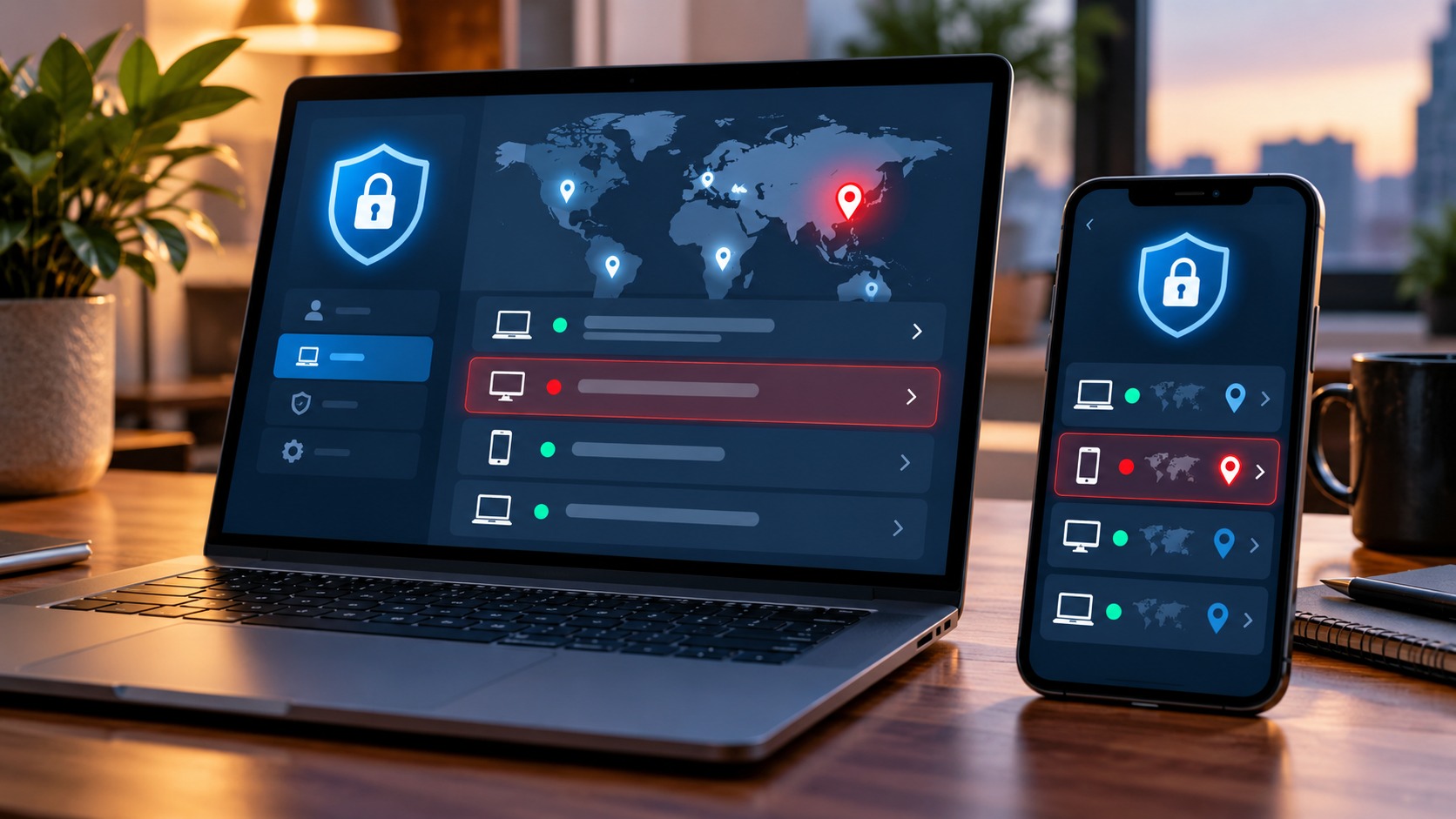
TL;DR
To check Instagram login activity, open your profile menu, then go to Accounts Center → Password and security → Where you’re logged in. Choose the correct Instagram account, inspect the listed sessions, and use Log out for devices you do not recognize or no longer use. Compare the device, browser, location, and time together: an unfamiliar city alone does not prove someone has accessed your account.
If an entry appears genuinely unauthorized, remove it and promptly change your password, review your recovery details, and enable two-factor authentication. Logging out ends a session; it does not prevent someone who still has a valid way to sign in from returning.
An unexpected city is a clue, not a verdict
You open your security settings and see a city you have never visited. It is an unsettling moment. Yet the location shown beside an Instagram session is not a precise GPS record of the person holding the phone.
Network routing and approximate IP location can explain a mismatch. Mobile data may appear to come from another city, while a VPN or workplace connection may place your internet traffic elsewhere. That does not make every unfamiliar entry harmless. It means the city needs context.
Check first. Then act. You do not need to identify an intruder before removing access you cannot account for.
Where to find Instagram login activity on your phone
The session controls usually sit in Meta’s Accounts Center. On iPhone or Android, the standard route is:
-
Open Instagram and go to your profile.
-
Tap the menu in the upper-right corner.
-
Open Accounts Center.
-
Select Password and security.
-
Open Where you’re logged in.
-
Select the Instagram account you want to inspect.
-
Review the devices and session details available on the screen.
Account selection matters. If Accounts Center contains several profiles, a familiar device listed under one account says nothing about the sessions belonging to another. Check the username before making changes, particularly when you manage a personal account alongside a company profile.
Work from a device you trust. If you suspect that the phone or computer in front of you is compromised, use another trusted device to make security changes. Otherwise, a new password entered on the same unsafe device may not solve the underlying problem.
How to check sessions from a computer
Open Instagram directly in your browser and sign in. In the web interface, open More → Settings, enter Accounts Center, and look under Password and security → Where you’re logged in. Choose your Instagram profile before reviewing or removing sessions.
This is useful when you have lost a phone but still have access from a trusted computer. You do not need to hold the other device to revoke its Instagram session. You do, however, need an authorized way into your account and may be asked to verify your identity before completing a security action.
A browser session and an app session on the same phone can appear separately. Likewise, using two browsers on one laptop can leave more than one entry. Count recognizable sessions rather than assuming that every row represents a different physical device or a different person.
How to read the device list without overinterpreting it
Instagram may show a device type, browser or app information, an approximate location, and recent activity details. The exact fields vary. Treat these as clues about account access, not as a complete investigation report.
A session is an authenticated connection that lets an app or browser continue using your account without asking for the password at every step. Its presence does not necessarily mean someone is scrolling through your feed at that exact moment.
|
What you notice |
Possible explanation |
Sensible next step |
|---|
|
Your usual phone, but an unexpected nearby city |
Mobile-network routing or approximate location data |
Compare the device and timing with your own use |
|
A browser you recognize on an old laptop |
A session you never closed |
Log it out if you no longer need it |
|
Several familiar entries |
App, browser, or separate browser-profile sessions |
Review each one rather than relying on the total |
|
A device type you have never used |
Unrecognized access or an unclear device label |
Inspect the details and remove it if unexplained |
|
Unknown access plus messages or changes you did not make |
Stronger evidence of account compromise |
Revoke access and secure the account promptly |
|
A suspicious entry returns after removal |
A new sign-in, another access route, or a display issue |
Compare details and investigate beyond the password |
Do not turn the timestamp into a minute-by-minute account of somebody’s behavior. A recent activity label does not establish exactly which posts were opened or which messages were read. The screen also does not identify the real person behind a device.
How to sign out an unknown Instagram session
In Where you’re logged in, choose the relevant Instagram account and open the unfamiliar entry. Use Log out and confirm. Some interfaces instead provide Select devices to log out, allowing you to mark several entries before confirming the action.
Remove sessions on devices you no longer control as well as entries you consider suspicious. A borrowed tablet, a sold phone, or an old shared workstation does not need continued access just because its original login was legitimate.
Afterward, reopen the session list and review its current state. A recent-login record may not behave like a live device counter, and the display may need to refresh. What matters is whether the selected session has been revoked and whether fresh unauthorized access appears.
Can you log out of every other device?
Where Instagram offers multiple selection or Select all, use it to remove the sessions covered by that control. If your interface only allows individual selection, repeat the logout action for the other entries. Read the confirmation screen instead of assuming which devices are included.
Before deliberately ending your current trusted session, make sure you can access your password and verification method. Keeping a working session while you complete security changes can prevent an avoidable lockout. This is especially important if your recovery number belongs to a phone you have lost.
What to do immediately after an unauthorized login
Removing an unfamiliar session addresses the access you can see. The next task is to close the route that may have allowed it. If there are clear signs of compromise, complete these checks promptly rather than waiting to see whether more damage appears.
Change the password and secure your recovery email
In Accounts Center → Password and security, choose Change password and select the affected account. Use a unique password that you do not use for email, shopping, or another social platform. A password manager can help create and store it.
If the old password was reused elsewhere, change it on those accounts too. Prioritize the email account used for Instagram recovery: someone who controls that inbox may be able to receive reset messages even after you change your Instagram password.
Inspect the recovery email address and phone number associated with your account. Confirm that they belong to you and remain accessible. If unfamiliar details have appeared, follow Instagram’s security or recovery process to correct them; do not remove your own working recovery method before establishing another.
Do not rely on a password change alone as proof that every unwanted session has ended. Return to the session controls and review them explicitly. Password protection and session management work together.
Enable two-factor authentication and keep backup access
Open Two-factor authentication under Password and security, select your Instagram account, and complete an available verification method. An authenticator app is a useful option when offered. Finish the setup and confirm that the method is attached to the correct profile.
Store backup codes securely somewhere you can reach if your phone becomes unavailable. Keeping the only copy on the phone you might lose defeats their purpose. Treat these codes like credentials: do not send them to a person claiming to verify or repair your account.
Two-factor authentication adds protection to future sign-ins. It should not be mistaken for a command that removes every existing session. Revoke unwanted access separately, and never approve an unexpected login request merely to stop repeated notifications.
Review connected accounts and authorized services
Check Accounts Center for accounts or connected login arrangements you do not recognize. Review unfamiliar connections through the settings provided, while preserving legitimate access you need. A suspicious connection deserves attention even when the Instagram password has already been replaced.
Also inspect Apps and websites or the corresponding website-permissions area for services you previously authorized. Remove access you no longer trust or use. A connected service is not necessarily represented in the same way as a phone or browser session, so these checks cover different kinds of access.
Unknown sessions, login attempts, and profile visits are different
A notification about an attempted login does not necessarily mean the attempt succeeded. A request awaiting approval, a blocked attempt, and a listed session describe different events. Check the wording and inspect your account before concluding that someone has full access.
Login activity also has nothing to do with a list of people who viewed your profile. A stranger reading a public post is not signed in as you and will not appear as one of your account’s devices. Public visibility and authenticated account access are separate matters.
This is also the limit of Dumpor’s public Instagram viewer. Browsing available public content cannot reveal your private session list, identify who signed into your account, or terminate a login. Those controls belong inside your authenticated Instagram account.
If a public page fails to open, avoid treating that alone as evidence of compromise. Our explanation of Instagram content that isn’t available covers a different problem. For account security, prioritize login records, security notices, and changes you did not authorize.
What if a suspicious device keeps coming back?
First compare the new entry with the one you removed. A generic phone label may describe your own app session, and opening Instagram in another browser can create another legitimate connection. Check the account, device details, and timing before assuming it is the same unauthorized access.
If it is genuinely unexplained, check for a compromised email inbox, an unfamiliar connected account, an authorized service you did not approve, or an unsafe device. Repeating the password change while ignoring those routes can leave the problem unresolved.
Update your operating system and browser, remove untrusted extensions or apps, and use the device’s security tools where appropriate. Make sensitive changes from a trusted device while investigating. If unauthorized access continues, use Instagram’s account-security support rather than relying on repeated logouts alone.
When you cannot reach the session controls
If you can still use Instagram but the settings page will not load, check that you have selected the correct account, update the app, and try the official web interface. Avoid repeatedly signing out of a working session when you are unsure whether you can sign back in.
If you have lost account access, the task becomes recovery. Use Instagram’s Forgot password?, login-help, or hacked-account recovery options through the official app or website. Follow the verification steps offered for your situation; there is no single recovery method or guaranteed completion time for everyone.
For a warning received by email, compare it with Instagram’s Recent emails section in Accounts Center when you still have access. Open the app independently. A logo and an urgent subject line do not establish that a message is genuine.
Do not pay a stranger who promises to remove an intruder or asks for your verification codes. For questions about Dumpor’s own service, contact our team with a description of the browsing issue. Instagram account recovery must go through Instagram; no password, backup code, or session cookie belongs in a Dumpor support request.
FAQ
Why does Instagram login activity show the wrong location?
Does an unknown device mean my Instagram account was hacked?+
Not automatically. It may be an old browser session, an unclear device label, or a device you used briefly and forgot. Nevertheless, remove access you cannot explain. If the entry appears alongside messages, profile edits, or security changes you did not make, treat the situation as a potential compromise and secure the account promptly.
Can I log someone out without changing my password?+
Yes, the session-management controls let you revoke selected sessions independently. That is useful for a known old device. If somebody accessed your account without permission, however, logout alone is insufficient: they may still have the password or another way to authenticate. Change the password and review recovery details and two-factor authentication as part of the same response.
Does changing my Instagram password log out every device?+
Do not use that assumption as your verification step. Follow any logout options offered during the password change, then inspect Where you’re logged in and explicitly remove unwanted sessions. The outcome you need is both a secure sign-in method and revoked unwanted access. A new password by itself does not demonstrate that you have checked both.
Why do I see several sessions for one phone?+
The Instagram app and a browser can maintain separate authenticated sessions on the same phone. Other browser contexts or renewed sign-ins can also make the list look more complicated than the number of devices you own. Compare each entry with your usage, and close obsolete sessions. Multiple rows alone do not establish that several people have your password.
Can login activity tell me who accessed my account?+
It can provide device and access clues, but it does not reliably identify a person. A city, browser name, or recent activity time is not proof that a particular individual used the account. Focus first on removing unauthorized access and preserving relevant details privately. Avoid accusing someone based solely on a location label.
Will the other person know when I log their session out?+
They may notice when Instagram asks them to sign in again or stops allowing account actions. Do not assume that remote logout is invisible or that a particular notification will always appear. If the access is unauthorized, securing the account is the priority; you do not need the other person’s cooperation to revoke a session you control.
Does logging out remove messages or information already copied?+
No. Ending a session restricts continued access through that session; it does not recall screenshots, downloaded material, or information someone already copied. Review any changes made while the account was exposed. If unauthorized messages were sent to contacts, consider warning those affected through a trustworthy channel once you have regained control.
Can Dumpor check or remove my Instagram login sessions?+
No. Your private login activity requires authorized access to your Instagram account. A public-content viewer cannot inspect the session list or perform account recovery. Use Instagram’s security settings to manage devices, and keep passwords, authentication codes, and recovery information out of public-viewer searches and support messages.

 Telegram bot
|
TikTok Viewer
Telegram bot
|
TikTok Viewer