How to Stop Instagram Contact Syncing and Delete Uploaded Contacts
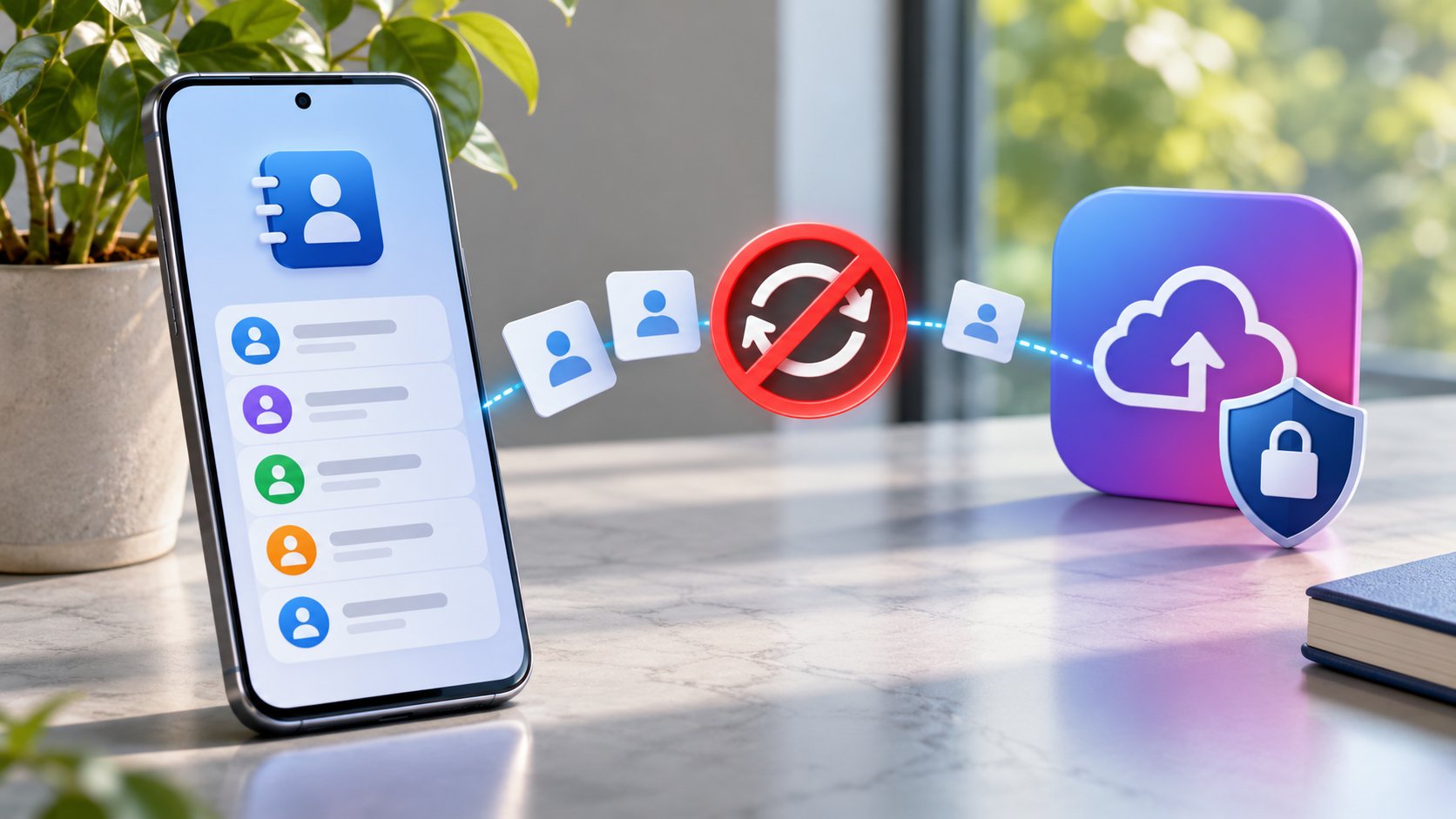
TL;DR: In Instagram, open Profile → Menu → Accounts Center or Meta Account → Your information and permissions → Upload contacts. Select the Instagram profile, turn Connect contacts off, and confirm Disconnect. Repeat on other devices, revoke Instagram’s Contacts permission in your phone settings, and use Manage contacts on Instagram’s desktop website to delete previously uploaded contacts. Turning syncing off does not delete earlier uploads.
An address book rarely contains only friends. It may include a former landlord, a delivery driver, a child’s tutor, and customers whose numbers you saved for practical reasons. Having their details on your phone does not necessarily mean you want them involved in your Instagram experience.
At Dumpor, we recommend treating contact access as a deliberate choice. If you want to stop sharing your address book, there are three separate jobs: disconnect syncing, remove device permission, and request deletion of the uploaded list.
Complete all three. A single toggle does not handle the entire process.
What Instagram contact syncing actually does
Contact syncing connects Instagram with contacts available on your device. Instagram can periodically upload the list and use the information to help recommend people you may know.
This is more than a one-time search performed entirely on your phone. Synced contact information is stored by the service, which is why disconnecting future access and deleting previous uploads are separate controls.
The feature is also different from your followers, direct messages, and public contact buttons. Turning it off does not unfollow people or erase conversations. Deleting an uploaded address book does not delete the original entries in your phone’s Contacts app.
Four meanings of “contacts” that are easy to confuse
|
Setting or information |
What it refers to |
Where to manage it |
|---|
|
Contact syncing |
Uploading your device’s address book for discovery features |
Instagram’s information and permissions settings |
|
Contacts permission |
Whether the app can access your device’s contacts |
iPhone or Android settings |
|
Account contact information |
Your own email address or phone number for account access |
Personal details and security settings |
|
Public business contact details |
The email, phone number, or other contact options visitors see |
Instagram’s professional profile editor |
Start with the first two rows if your concern is address-book access. Removing your recovery number or hiding a business email button does not substitute for switching off contact uploading.
Step 1: Turn off contact syncing in Instagram
Use the Instagram app on your iPhone or Android phone. Check the active username first, particularly if you manage personal and business accounts together.
-
Open your profile.
-
Tap the menu in the upper-right corner.
-
Open Accounts Center or Meta Account, depending on your interface.
-
Select Your information and permissions.
-
Open Upload contacts.
-
Choose the Instagram profile you want to manage.
-
Turn Connect contacts off.
-
Tap Disconnect if a confirmation appears.
Return to the setting and verify that the switch remains off. Do not stop after selecting the account; the upload preference itself must be disabled.
Labels can vary slightly as Meta reorganizes settings. Look for contact uploading within the information-and-permissions area rather than assuming an older tutorial’s exact screen arrangement still applies.
For a broader explanation of this settings area, read our guide to Instagram Accounts Center and what it manages.
Repeat the check for other profiles
Selecting one Instagram account does not establish the preference for every profile listed beside it. Inspect each account whose contact access you want to change.
Step 2: Revoke Instagram’s access to your phone contacts
The in-app preference controls the syncing feature. Your operating system controls whether Instagram can access the address book on that particular device.
Removing permission adds a separate boundary at the phone level. It does not send a request to erase information already held on Instagram’s servers.
On iPhone
-
Open the iPhone’s Settings app.
-
Go to Privacy & Security.
-
Tap Contacts.
-
Select Instagram, if listed.
-
Choose None, or turn contact access off in the interface shown.
On supported iOS versions, the choices may include limited or full access. Limited Access still permits access to the selected contacts; it is not the same as denying contact access entirely.
You may also find app-specific permissions through Settings → Apps → Instagram. If Instagram is not listed under Contacts, it may not have requested permission on that device. Check the in-app syncing preference and previous uploads separately.
On Android
-
Open the phone’s Settings app.
-
Choose Apps, then Instagram.
-
Tap Permissions.
-
Select Contacts.
-
Choose Don’t allow.
Some manufacturers use different menu names. You can also look in the system’s permission manager, select Contacts, and inspect Instagram there.
If the permission is already denied, leave it denied. That tells you about current access on this device, not whether a previous phone or earlier installation uploaded contacts.
Step 3: Delete contacts previously uploaded to Instagram
Use Instagram’s website on a computer for the documented contact-deletion workflow. The mobile app’s upload switch is not the same as the browser’s contact-management control.
-
Sign in to the intended Instagram account on a computer.
-
Open your profile and select Edit profile, or open Settings.
-
Follow See more in Accounts Center or the equivalent Meta Account option.
-
Open Your information and permissions.
-
Select Manage contacts.
-
Choose the relevant Instagram profile if prompted.
-
Select Delete all, then confirm Delete.
The entry point can differ between layouts. The destination you need is Manage contacts, rather than merely Upload contacts.
Before confirming, check that you are deleting Instagram’s uploaded contacts for the intended account. You are not looking for account deletion, deletion of phone contacts, or removal of followers.
Why disconnecting should come before deletion
Instagram can upload contacts again if syncing remains enabled on another device. Deleting the stored list while leaving an upload route open can therefore produce an apparently recurring problem.
Our recommended order is to disable syncing, remove device permission, and then delete the stored contacts. This also makes later troubleshooting easier: you know that future access was addressed before you requested removal of the existing list.
The standard management tool deletes the uploaded contacts in bulk. It is not an editor for removing one particular person while keeping the rest of the synced list.
Allow time for deletion to finish
Instagram’s guidance allows up to 90 days for uploaded-contact deletion to complete. Contact-based recommendations may continue during that period.
Record the date you submitted the request and any confirmation shown. Do not interpret every familiar face in a suggestion as proof that the request failed.
A deletion request should not be confused with a guarantee that every reference to a person disappears from Instagram. Existing follows, messages, and recommendations based on other information are separate.
Check every device that can upload contacts
A privacy change on your current phone does not establish what an older phone or tablet is doing.
Consider the devices you have used recently:
-
Your main phone.
-
A tablet with Instagram installed.
-
A previous phone that still has an active session.
-
A work device used for a professional profile.
-
A separate Android work profile or app instance, if you use one.
Inspect the syncing preference and Contacts permission wherever relevant. If you no longer use a device, review its login session and remove access when appropriate.
Our guide to managing multiple Instagram accounts on one phone explains how to identify the active profile and review saved access.
What about Facebook and Messenger?
Instagram’s setting should not be treated as a universal switch for every Meta app. Facebook and Messenger can have their own contact-uploading settings and device permissions.
If your goal is to stop address-book uploads across those services too, inspect each app separately. A shared account-settings area does not mean every app’s Contacts permission has been revoked.
Apply the same distinction each time: future access, the app’s uploading preference, and previously stored information.
Why familiar accounts may still be suggested
Contact syncing is one source of discovery information, not the entire recommendation system.
Someone may still appear because you already follow related accounts, have interacted before, or share other connections. During deletion, previously uploaded information may also continue to influence suggestions.
There is another direction to consider. Other people may have your phone number or email address saved in their own address books. Turning off uploading from your phone does not edit their contacts or control what they upload.
For that reason, “Stop uploading my contacts” and “Make sure nobody I know can discover me” are different goals. The steps in this guide address the first; they cannot guarantee the second.
A private account is a separate choice
A private personal account limits access to posts to approved followers, but it is not an address-book deletion tool. It also does not make every piece of profile information invisible or guarantee exclusion from recommendations.
If one particular person is the concern, review the controls designed for that relationship, such as blocking. If interruptions are the issue, review suggestion notifications.
Use each setting for its intended purpose. Turning off an alert changes what interrupts you, while disabling uploading changes the contact-syncing feature.
What you should not delete to solve this problem
You do not need to empty your phone’s address book, remove every Instagram follower, or delete your account to stop uploading contacts.
Avoid removing recovery details simply because the word “contacts” appears in both places. Your login email or authentication number may be important for regaining access later.
Likewise, unlinking Facebook is not a substitute for reviewing contact permissions. Logging out, clearing a cache, or uninstalling Instagram does not itself submit a request to delete the contacts previously uploaded.
For a business, distinguish public enquiries from private address-book data. A business email button can remain available to customers even when Instagram has no permission to read the phone’s contacts.
If contacts return or the controls are missing
Start with the smallest check that matches the problem.
|
What you notice |
Likely area to inspect |
What to do |
|---|
|
Connect contacts is off, but a stored list remains |
Previously uploaded information |
Use Manage contacts and request deletion |
|
The list reappears after deletion |
Another upload route |
Check other devices, profiles, and permissions |
|
Manage contacts is missing in the app |
The interface being used |
Open Instagram’s settings on a computer |
|
A familiar person is still suggested |
Processing time or other recommendation signals |
Check the request date and avoid assuming a fresh upload |
|
Instagram asks for Contacts permission again |
A new permission prompt |
Decline if you want access to remain off |
|
You cannot find Instagram under Contacts |
Permission may not have been requested there |
Check the app preference and historical uploads anyway |
|
A different profile is selected |
Account context |
Switch to the intended account before changing anything |
If the browser control fails, confirm the selected account and try an updated browser. Record the exact error if you need to report it through Instagram’s help options.
Avoid troubleshooting by turning syncing back on. That changes the very condition you are trying to maintain.
Keep the choice in place after changing phones
A new device is a sensible time to repeat the check. During setup, Instagram may invite you to find people through your contacts. Read that prompt rather than treating it as a necessary part of signing in.
After installing the app, verify the upload preference and the phone’s Contacts permission. Repeat this after moving between personal and work devices or setting up another Instagram account.
For a shared business profile, tell colleagues that contact uploading should remain disabled. Otherwise, someone may approve a discovery prompt while using the company account on a personal phone.
A final check without exposing your address book
You can verify the configuration without exporting contacts or sending screenshots of people’s details to anyone.
Confirm that:
-
Connect contacts is off for the intended Instagram profile.
-
Instagram’s Contacts permission is denied on relevant devices.
-
Other active devices have been reviewed.
-
Delete all was submitted in the correct Manage contacts area.
-
You have recorded the request date.
-
You understand that recommendations may have other sources.
FAQ
Does turning off contact syncing delete contacts already uploaded?
Will deleting synced contacts erase numbers from my phone?+
No. You are requesting removal of the address-book information uploaded to Instagram, not deleting the original contacts stored on your device or in your phone’s contact account. You do not need to remove useful phone numbers from your address book to complete this process.
Can I delete just one synced contact?+
Instagram’s standard uploaded-contact management control is bulk deletion. It does not offer the same individual editing experience as your phone’s Contacts app. If your concern is a particular Instagram account, review blocking or other interaction controls separately from deleting the uploaded list.
Why can deletion take up to 90 days?+
Instagram states that completing the deletion process can take up to 90 days, and recommendations based on uploaded contacts may continue while it runs. That timeframe describes processing; it does not mean the upload switch should remain on. Keep syncing disabled and retain the request confirmation.
Will my followers or direct messages disappear?+
Turning off contact syncing and deleting uploaded address-book information do not remove your follower list or erase existing conversations. Those are different parts of the account. If you also want to unfollow someone, remove a follower, or manage a message, use the corresponding Instagram control.
Why do people from my contacts still find my account?+
Your own upload setting does not control other people’s address books. Someone who has your number or email may upload it from their device, and Instagram can use other information for recommendations as well. Disabling your uploads reduces one source of information; it does not guarantee anonymity or prevent every suggestion.
Is Limited Access on iPhone enough to stop syncing?+
Limited Access narrows which contacts an app can access, but it still allows access to the selected entries. If your goal is no Instagram address-book access, choose None or the equivalent denial option, and disable the in-app syncing feature. Delete previous uploads separately.
Do I need to turn this off for every Instagram account?+
Review each profile you use rather than assuming one account’s preference covers the others. Also check the device-level permission, which controls access for that app installation. Multiple accounts and multiple devices introduce different places to inspect, even when they share a central settings area.
Can Instagram use my camera or messages if I deny Contacts permission?+
Contacts permission concerns access to the device’s address book. Camera access is a separate device permission, and Instagram messaging is an account feature. Denying Contacts does not itself disable ordinary DMs or change the permissions you have granted for taking and uploading photographs.
Can Dumpor remove uploaded Instagram contacts for me?+
No. Contact permissions and deletion requests must be managed through your device and Meta’s own settings. Dumpor provides tools for viewing public Instagram content and does not access your address book. For questions about our services or suggestions for future guides, contact the Dumpor team without sharing passwords or anyone’s private contact details.

 Telegram bot
|
TikTok Viewer