How to Use Multiple Instagram Accounts on One Phone
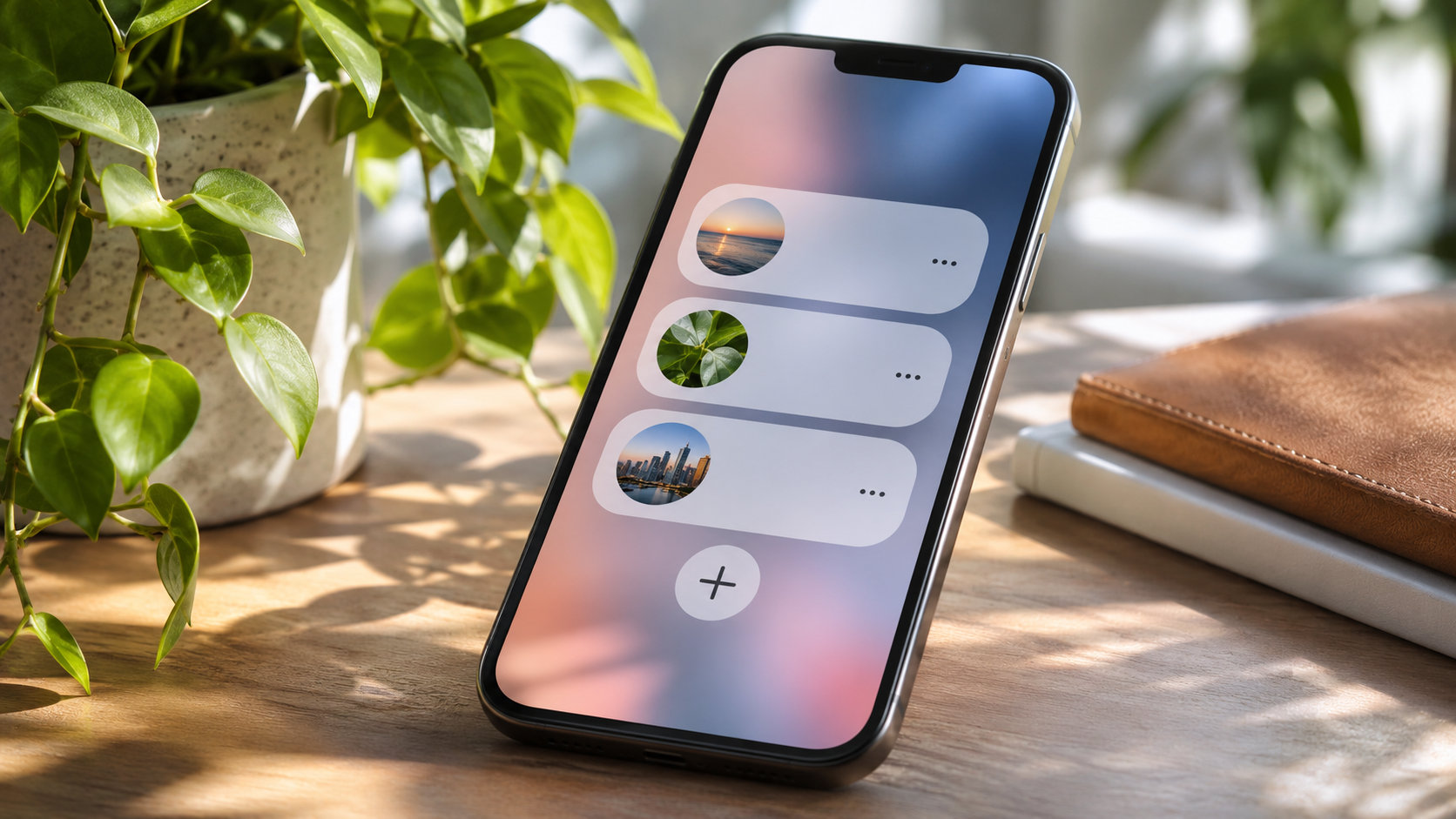
TL;DR: To add another Instagram account, open your profile, tap the menu, choose Add account, and sign in to an existing account or create a new one. To switch, tap your username at the top of your profile and select the account you need. Check that username before publishing or replying. To remove an account from your phone, log out of that account and remove its saved login if necessary. Deleting the account is a separate action.
A quick reply from the wrong profile can turn a routine customer enquiry into an awkward exchange. Before posting or messaging, check the username.
At Dumpor, we recommend setting up each profile with a clear purpose and a reliable recovery method before making account switching part of your daily routine. The instructions below cover the Instagram mobile app on iPhone and Android; individual labels can vary by version and account.
What changes when you add a second Instagram account?
Adding another account signs that account into the app. It does not merge its followers, messages, posts, or profile information with those of the account already on your phone.
You can keep a personal profile alongside a business, creator, or community account. Each retains its own audience and settings. Switching determines which account you use to browse, comment, publish, and send messages.
Meta is gradually moving Accounts Center settings into an updated Meta Account experience. You may therefore see either name. When changing login or security settings, read which accounts the change covers rather than assuming it applies only to the profile currently open.
Before you add another profile
Have the correct username, login details, and verification method ready. If the account belongs to a business, establish who controls its recovery email and who can approve a login request.
Our recommended preparation is straightforward:
-
Record the exact username in your password manager.
-
Confirm that the recovery email and phone number are accessible.
-
Have the account’s authenticator or other verification method available.
-
Choose noticeably different profile pictures where branding allows.
-
Check that the phone has a screen lock and current software.
For client work, keep ownership with the client. A company should be able to recover its account after an employee changes jobs or a contractor leaves. A personal email address that nobody else can access makes that handover unnecessarily difficult.
How to add an existing Instagram account
Use this route when the second account already exists:
-
Open Instagram and go to your profile.
-
Tap the menu in the upper-right corner.
-
Scroll to the login section and choose Add account.
-
Select Log into existing account, or the equivalent login option.
-
Enter the intended account’s username and password.
-
Complete any verification or login approval request.
-
Open the profile and confirm that the username is correct.
Some versions also offer Add Instagram account after you tap your username at the top of your profile. Either route can lead to the account selection or login screen.
How to create a second Instagram account
If the profile does not exist yet, open the account switcher or Add account menu and choose Create new account. Follow the prompts to choose an available username and complete registration.
During setup, Instagram may offer a connected login or ask whether you want to create a separate password. Read that choice carefully. Shared access can be convenient for profiles you personally own, while a separately managed business account may be easier to hand over later.
Before adding content, complete these checks:
Confirm your contact information, review privacy settings, and add a recognizable profile image. Establish how you will sign in if a connected login becomes unavailable.
A second profile does not automatically need to be a professional account. Choose Business or Creator when the available professional features suit its purpose. Remember that professional accounts are public.
For a business profile, our guide to adding Instagram contact and action buttons explains how to give visitors a useful next step, such as sending an enquiry or opening a supported booking service.
How to switch between Instagram accounts
Open your profile, tap the username at the top, and select the account you want to use. Wait for the selected profile to load, then check its name.
On some versions, pressing and holding the profile picture in the bottom navigation opens the account switcher directly. The username menu is a useful alternative if that shortcut behaves differently on your phone.
Make one small habit non-negotiable: check the active account before taking an action that another person will see. This includes likes, follows, comments, message replies, and Story reactions, as well as posts.
Check the destination before publishing
Before sharing a post, Reel, or Story, check the account and any additional sharing destinations shown on the final screen. A connected Facebook destination is a separate setting; switching Instagram profiles is not a substitute for checking it.
For a busy working day, we suggest this short sequence:
-
Select the intended Instagram profile.
-
Confirm the username.
-
Choose the approved media and caption.
-
Review recipients, tags, and sharing destinations.
-
Publish, then inspect the result on that profile.
How many accounts can you keep on one phone?
Published guidance is currently inconsistent: many instructions still describe a five-account limit, while newer guides report support for up to ten accounts signed in at once. Do not assume that every phone or app version will present the same capacity.
Use the current app’s account switcher and any limit message as your practical guide. If Instagram refuses another login because the list is full, log out of an account you no longer need on that device before adding another.
Keep daily work organized across profiles
We recommend choosing specific times to review business inboxes and checking the active account whenever a notification opens Instagram. An alert may bring you into a different profile from the one you were using a moment earlier.
Set notifications account by account
Switch to a profile, open its settings, and find Notifications. Review the available controls for messages, comments, mentions, and other activity. Repeat for each account rather than assuming that one change covers all profiles.
Then review Instagram’s notification permission in your phone settings. App-level restrictions can prevent alerts even when notifications are enabled inside Instagram. Focus modes, battery restrictions, and notification summaries can also affect delivery or timing.
Separate content before opening Instagram
Use clearly named folders for each brand’s approved images and videos. Keep captions beside the matching content, with the intended username written at the top of the brief.
Do not use unpublished Instagram drafts as your only copy of important work. Draft availability can depend on the device and content type, and deleting or reinstalling the app may remove locally stored material.
For public-content research, Dumpor’s Instagram viewer offers a separate browsing option without an Instagram login. It works with public profiles; it does not manage your accounts, publish content, or provide access to private messages.
Secure every account that the phone can open
A phone containing several active sessions deserves the same care as the accounts themselves. Someone who can use the unlocked device may be able to switch profiles without entering each password again.
Start with a strong device passcode, suitable biometric protection, and restrained lock-screen message previews. Those measures help protect an already signed-in app.
Review passwords and connected access
Use unique passwords for independently managed accounts, stored in a trusted password manager. Avoid predictable variations such as adding a different year to the same password.
If you use a shared Meta login, review its scope and recovery options. Know which profiles depend on it before changing credentials or removing a connection.
For business collaboration, prefer supported access permissions where available over distributing the owner’s password. Availability and permissions vary, so check what access the account actually offers. Give each person only the responsibilities they need, and review access when a working relationship ends.
Enable two-factor authentication
Open the profile menu and look in Accounts Center or Meta Account for Password and security and Two-factor authentication. Select the relevant account when prompted and follow the available setup options.
An authenticator app is a useful choice where supported. Label each entry clearly so that you do not enter a code belonging to a different profile.
Store recovery codes securely, somewhere you can reach if your phone is lost. Keeping the only copy on that same phone defeats their purpose. Also check that the recovery email account has its own strong protection.
Inspect active sessions
In the security settings, look for Where you’re logged in, Login activity, or the equivalent session list. Review the devices and end sessions you do not recognize or no longer need.
If something is unfamiliar, secure the affected account and its recovery inbox. Avoid links in urgent messages claiming that you must submit a password or verification code to prevent suspension; open Instagram’s settings directly instead.
How to remove one Instagram account from your phone
Removing a profile from the phone should leave the account itself available to its owner. Start by checking that you have a working way to sign back in.
-
Switch to the account you want to remove.
-
Open the profile menu and scroll to the login controls.
-
Choose the logout option for that account.
-
If a selection screen appears, select only the intended account.
-
Decline saving its login information if you want access removed from the device.
-
Confirm the logout and inspect the account switcher or login screen.
Read the final confirmation. Log out of all accounts has a broader effect than logging out of one.
If the profile remains as a tile on the login screen, that can be saved login information rather than an active session. Look for the login screen’s options menu and Remove profiles from this device, or a removal control beside the account. Choose the relevant profile and confirm.
Understand what “remove” means
|
Your goal |
Appropriate action |
What it does not mean |
|---|
|
Stop using one account on this phone |
Log out of that account |
Delete its posts or followers |
|
Remove a remembered login tile |
Remove saved login information |
Close the account permanently |
|
Stop shared login between profiles |
Review connected login settings |
Necessarily end every existing session |
|
Remove access from an old device |
End that device’s session |
Remove all other authorized devices |
|
Permanently close the profile |
Use the separate account deletion process |
Merely tidy the account switcher |
Removing an account from Accounts Center or a Meta Account is a different decision from removing its saved login on a phone. Before disconnecting shared access, establish an independent sign-in method and read the consequences shown.
You do not need to enter Deactivation or deletion to remove an account from the app.
Fix common problems without disrupting every account
Begin with the smallest relevant check. Reinstalling Instagram should not be the first response to a missing profile, particularly when you have drafts or several working sessions.
|
Problem |
What to check first |
|---|
|
The account is missing from the switcher |
Whether its session ended; use Add account to sign in again |
|
Instagram keeps opening the wrong profile |
Whether you selected a remembered login or followed a notification |
|
Another account cannot be added |
Any capacity warning, login error, or verification request |
|
A verification code fails |
The selected account, authenticator entry, code expiry, and device time |
|
A logged-out account still appears |
Saved login information on the login screen |
|
Notifications are missing |
That profile’s settings and the phone’s Instagram permissions |
|
A client account cannot be accessed |
Current authorization, credentials, and the owner’s recovery method |
Update the app and restart it if controls are missing or screens do not refresh. If the issue continues, use Instagram’s in-app help or problem-reporting option.
Move your accounts to a new phone carefully
Keep the old phone available until the important accounts work on the replacement. Transfer or restore your authenticator according to its own instructions, then verify that it produces usable codes.
Add accounts to the new phone one at a time. Check the username, messages, security settings, and notification preferences for each. Save original media separately; do not assume every draft will move with the app.
Once access is confirmed, review old-device sessions and end those you no longer need. Before selling or passing on the old phone, follow the device maker’s process for removing your personal data.
FAQ
Can I use personal and business Instagram accounts on the same phone?
Do I need a second phone number for another account?+
A separate phone number is not automatically required for every additional account. Registration and verification options depend on the setup offered, and Instagram may request additional checks. Use contact information you can reliably access. For an organization, make sure recovery remains under the organization’s control.
Will followers know that I have another Instagram account?+
The account switcher is not a public list of your profiles. However, using separate accounts does not guarantee that people cannot connect them. Public details, shared contacts, account suggestions, and your activity may reveal a relationship. Review contact syncing and connected experiences if keeping audiences separate matters to you.
Why does an account come back after I log out?+
Instagram may retain a saved login, and connected login arrangements can also affect which profiles are offered. Check whether the account actually opens or merely appears as a login option. Remove its saved information and review connected access if your goal is to prevent easy access from that phone.
Can I remove an account without deleting it?+
Yes. Log out of the selected account and remove its saved login if needed. The profile remains available on Instagram, with its existing content and audience. Account deletion is a separate process and is unnecessary when you simply want to stop using the account on a particular device.
What should I do if my phone is lost?+
Use another trusted device to secure the phone through its operating system’s recovery tools, then review Instagram sessions and end access from the missing device. If you cannot sign in, use an available backup verification method or account recovery. Check every relevant account, including the recovery email.
Can Dumpor help me switch or recover Instagram accounts?+
Dumpor provides tools for viewing public Instagram content; account login, switching, and recovery remain with Instagram. If you have a question about our viewer or want to submit a product request, contact the Dumpor team. Describe the issue without sending passwords, authentication codes, or private account credentials.

 Telegram bot
|
TikTok Viewer