How to Choose an Instagram Reel Cover That Fits Your Profile Grid
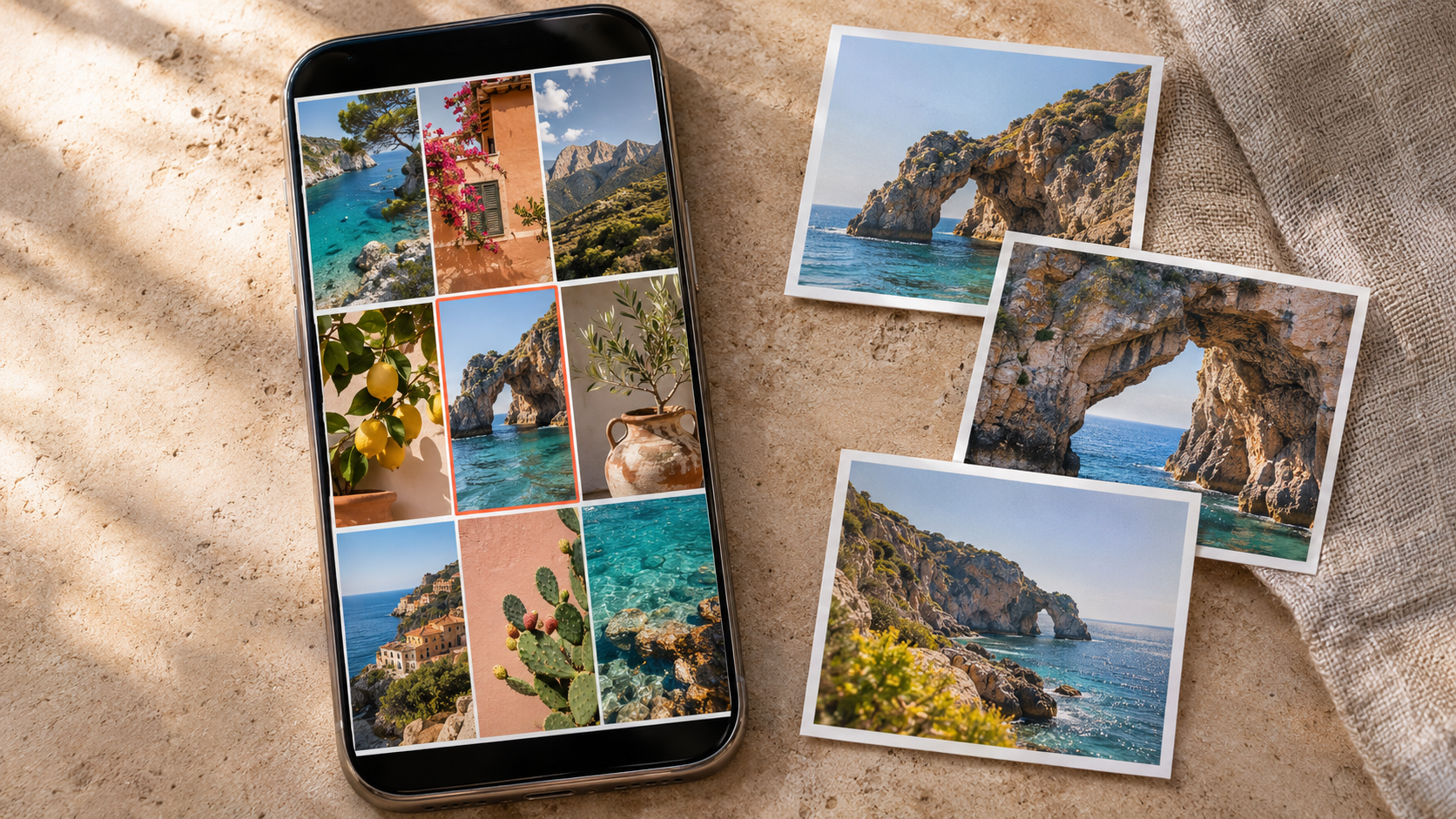
TL/DR On the last screen before you share a Reel, tap Edit cover. Pick a frame from the video or add an image from your phone, then open Profile grid to check the crop. For a published Reel, open it from your profile’s Reels tab and look for … → Edit → Cover. If you like the picture and only need to move it within the tile, use Adjust preview on the main grid. A 1080 × 1920 image gives you room to work with the grid’s shorter 3:4 shape.
A bakery films a loaf coming out of the oven. The Reel opens beautifully, with a rush of steam. On the bakery’s profile, though, the same moment looks like a gray patch of oven door. Two seconds later there’s a frame of the loaf split open, the crumb in plain sight. That’s the one a customer looking for the sourdough recipe will recognize.
The cover is the still image you choose for the Reel. The profile grid shows you a crop of it, about the width of your thumb on a phone. Choose something a visitor will recognize there, especially if they saw the video a week ago and have come looking for it again.
|
What you see |
Where to start |
What to change |
|---|
|
A new Reel opens on a blurry frame | Cover on the sharing screen |
Move along the frame strip to a sharper moment. |
|
The video has no still that works at thumbnail size | Add from camera roll in the cover picker |
Upload a separate photo or title card. |
|
The right photo loses half a face on the main grid | Adjust preview on the grid tile |
Reposition the image within the tile. |
|
An older Reel still shows last season’s artwork | Edit → Cover on the published Reel, if available |
Select the new artwork and recheck the crop. |
|
The Reel appears only in the Reels tab |
The Reel’s profile display options |
Add it to the main grid if you want it alongside your posts. |
How to choose a cover before posting a Reel
Use the Instagram mobile app and open the account that will publish the video. The cover picker sits on the sharing screen, alongside the details you add before publishing. If you still have the timeline, music, and text tools on screen, you’re one step early.
-
Tap +, choose Reel, and record or upload your clips. Finish the video edits and tap Next until you reach the screen with the caption field.
-
Tap Edit cover on the small video preview. In some versions the button simply says Cover.
-
To use a moment from the footage, drag the selector across the strip of frames. Pause on a few candidates and look at the larger preview. A face halfway through a word can look quite different a frame or two later.
-
To use a separate picture, tap Add from camera roll or the gallery option. Choose a photo or a finished design saved on your phone. This works even when that picture never appears in the video.
-
Open Profile grid or Crop profile image in the cover editor. Drag the picture into position. If zoom is available, pinch to adjust how much fits inside the outline.
-
Tap Done. Back on the sharing screen, check the thumbnail. If Profile display appears and you want the Reel among your other posts, select the option that includes the main grid. Then tap Share.
The wording Crop profile image can trip you up. Here it refers to the Reel’s tile. Your circular account photo lives elsewhere. If you find yourself looking at your bio and username under Edit profile, go back to the Reel.
A frame from the video or a custom cover?
Pick a video frame when the action supplies its own illustration. A close-up of a needle passing through a buttonhole tells you more about a sewing lesson than a portrait of the person teaching it. Slide a little past the moment the hand enters the shot. Often the best still comes just as the movement ends and both the tool and the fabric are sharp. If the selector keeps skipping that instant, pause the original clip in a video editor and export the frame as a still image. You can then choose it from your phone.
Use a custom cover when the camera never gives you that pause. A dance performance filmed in low light might have a striking production photo. A screen recording of a spreadsheet might be easier to identify with a close crop of the finished chart. Save the picture you want on your phone first. If it includes lettering, check the spelling in the exported file. Instagram treats those letters as part of the image.
For a set of tutorials, try finding the right lesson using only the tiles. That’s what a visitor sees first. Three portraits labeled “Part 1,” “Part 2,” and “Part 3” give a returning visitor very little to go on. “Cast on,” “Knit a row,” and “Bind off” help that same person find exactly where they got stuck. Keep the episode number as a secondary detail if the order matters.
What size should an Instagram Reel cover be?
For a custom Reel cover, we recommend a canvas measuring 1080 × 1920 pixels, a vertical 9:16 rectangle. The main profile grid commonly shows a 3:4 portrait thumbnail. Those numbers describe different views of the same artwork. A designer can hand over one tall image as long as the part that identifies the video fits comfortably inside the shorter preview.
Here’s the crop in actual pixels. At the full width of a 1080 × 1920 cover, a 3:4 window measures 1080 × 1440. Center that window and it leaves 240 pixels at the top and 240 at the bottom outside the tile. On a design canvas, place horizontal guides 240 pixels down from the top and 240 up from the bottom. Keep the details you need together between them. You can let sky, floor, or the rest of a plain background extend beyond the guides.
That calculation assumes a centered crop at full width. As soon as you drag the picture or zoom in, another portion fills the tile. The guides make a good starting point for design work. The preview in your own app gets the final say.
How to crop the cover for the profile grid
Start with the image at its widest available view in the grid preview. Find the smallest detail that tells the reader what the Reel is about. In a bicycle repair clip that might be the valve under the mechanic’s thumb. In a portrait it might be the eyes. Drag until that detail has breathing room. Zoom in only as far as you need to make it recognizable.
Suppose a bookstore has a beautiful author portrait and the title of the book sits at the very bottom of the artwork. Slide the image up to reveal the title and you lose half the author’s forehead. Slide it back down and the last line of type disappears. You can spend a surprising amount of time on this. The cleaner fix is to move the title closer to the face in the original design, export it again, and choose the new image as the cover.
A quick way to check a design before uploading it is to crop a copy to 3:4, then shrink the copy to about 135 × 180 pixels on your screen. At that size, can you still read the book title? Can you tell which of two similar products is pictured? Use the tall original for the upload. The little copy has done its job.
- For faces, leave enough space above the eyes to allow a small shift. Check the chin as well, particularly if the person is looking down at something in their hands.
- For words, break a long title at a natural phrase and place the lines close together. Read it once at arm’s length. A thin white font over a sunlit window can disappear even when every letter fits.
- For demonstrations, keep the tool near the thing it acts on. A screwdriver by itself could belong to any of a dozen repairs. The screwdriver against the loose cabinet hinge identifies this one.
- For wide subjects, try fitting more of the image before enlarging it. If the available fit option leaves space around a landscape photo, a plain border may be a fair price for showing both ends of a bridge.
Then look at the neighboring tiles. A potter might have three recent Reels with nearly identical cream-colored mugs. On one cover, turn the handle toward the camera. On another, choose the frame where the brush meets the rim. The grid can still look like the same studio while giving customers a way to find the glazing lesson again.
How to change a Reel cover after posting
For a published Reel, start in the Reels tab of your own profile. Instagram offers cover editing on supported Reels in the mobile app. If you use more than one account, check the username before you open the editor.
-
Open the published Reel you want to update. Tap the three dots (…) on the Reel.
-
Choose Edit. If you see Manage first, open it and look for Edit there.
-
Tap the existing thumbnail or Cover. Pick another frame, or use the camera roll option to select your replacement image when available.
-
Reopen the profile-grid preview if it is offered. A crop that suited the old picture can put the new subject in an awkward spot.
-
Tap Done in the cover picker. Back on the editing screen, confirm the edit with Done, Save, or the check mark your app shows. Return to your profile and inspect the tile there.
An in-place cover change keeps the Reel at its original link, with its likes and comments. The first frame of the video still plays as before. If your new artwork corrects a price that was wrong on the old cover, play the Reel once. A price that was also typed over the video will still appear during playback.
If you cannot find Cover inside Edit, check that you are using the current mobile app and signed in as the original publisher. Then try opening it directly from that account’s Reels tab. Some published Reels offer fewer editing controls. If the main grid is the only place the image looks awkward, try adjusting the tile directly.
How to move a thumbnail on the grid without replacing the cover
Open the main profile grid, where Reels sit alongside photos and carousels. Press and hold the Reel’s tile and look for Adjust preview or Adjust cover. On some versions, open the tile and tap its three-dot menu to get to the same control. This is the place to start when you’ve got the right picture and just want a different slice of it on your profile.
Drag the image within the tile and check the edges. If the menu offers Fit and Fill, try both. Fit can leave space around the artwork so more of it stays visible. Fill takes the image to the edges of the tile and crops whatever extends beyond them. If the editor also shows a strip of video frames, you can try a different moment for the thumbnail here. Save the preview and look at the main grid again with the other posts back on screen.
Consider a team photo. Fit might leave a narrow border, but you can count all six runners, including the one at the far left who ran the anchor leg. Fill might work better for a close-up of the winning medal. A strip of tabletop is easy enough to give up.
If the Reel is missing from the main grid altogether, check its placement. Find the video in the publishing account’s Reels tab, open it, and check its menu for an option such as Add to profile grid. Pinning a featured Reel is a separate decision about where it sits once it’s on the grid. Our guide shows how to pin, unpin, and reorder Reels on your profile.
When the thumbnail looks wrong after you save it
You still see the previous picture. Open the Reel’s cover editor again. If the old image is still selected, reselect the replacement and finish saving on both screens. If the new image is already selected, leave the editor and reopen the profile. A thumbnail can take a little time to refresh. Check Instagram itself before judging the result from a link preview you sent earlier.
The camera roll is missing your design. Open your phone’s Photos or Gallery app and locate the actual export. A design that’s still inside a graphics app or lying in a downloads folder may need to be saved to the photo library first. If Instagram has permission to see only selected pictures, include the new file in that selection and reopen the picker.
The lettering looks fuzzy. Check the file you uploaded. A screenshot of a three-column profile has very few pixels per tile, even on a good phone. Enlarging a cropped screenshot also enlarges its blur. Re-export the artwork from the design file if you have it. If all you have is the public post, our guide explains how to save the best available version of a Reel thumbnail.
The picture is sharp but still hard to identify. Open the cover at the size a visitor sees on the grid. If your first instinct is to zoom in to read it, cut the least useful words. “Saturday morning beginners’ wheel-throwing workshop” can become “First pottery class” on the cover. The full event name and start time can live in the caption, where there’s room to read them.
If your cover looks right on Instagram but a public Reel shows a different thumbnail on Dumpor, send us the public Reel link and tell us where you see the mismatch. Mention which picture you expected and which one appeared. Report a Reel preview issue to Dumpor.
Frequently asked questions about Instagram Reel covers
FAQ
Can I change the thumbnail on an Instagram Reel without deleting it?
Can I make the cover stay on screen when my Reel starts playing?+
You can choose the preview picture, but Instagram doesn’t give that picture a playback duration. Think of the difference between finding a video on a profile and watching it start in a feed. Someone scrolling straight into playback may see the first recorded moment immediately. If viewers need to read an instruction before the action begins, give it time in the actual video edit. Changing the cover on a published Reel won’t add that instruction to the footage.
Should I use 420 × 654, 1080 × 1440, or 1080 × 1920 for a Reel cover?+
You may see 420 × 654 quoted as Instagram’s recommended cover-photo size. For a new design, we use 1080 × 1920 as the working file so there’s more detail to start with and enough height to reposition the picture. 1080 × 1440 represents the 3:4 grid crop at that same width. If you’re briefing a designer, ask for the tall export and a separate 3:4 proof. You can approve the lettering at tile size and still have the full cover to upload.
Can I reuse a square cover from my older Instagram grid?+
Yes. Load the square image into the picker and see how it looks in the portrait tile. A tight square design may lose lettering at the sides when enlarged to fill that taller space. An easy fix is to place the square artwork in the middle of a vertical canvas and extend its background above and below. That keeps a circular logo round and gives you room to reposition the image in the picker.
Why does my cover look different on the main grid and in the Reels tab?+
The main grid puts the Reel into a row with the rest of your posts. The Reels tab presents the cover in its own layout, and opening the video introduces playback controls as well. Judge the result in the place you changed. If a grid adjustment saved the title on your profile but the cover itself still carries outdated artwork, open the Reel’s Edit menu and replace the source image there if the option is available.
Why can I see my trial Reel when other people can’t find its cover on my profile?+
A trial Reel can be shown to non-followers while it is being tested. During that trial, other people won’t see it on your profile’s main grid or Reels tab. You can still find it yourself, which makes this look a lot like a thumbnail problem. When you are ready to finish the trial, choose Share with everyone and check the Reel’s placement on your profile.
Can I fix a typo on the cover from my computer?+
If you made the graphic on a computer, correct the original design there and export it at the same dimensions. Save the revised file to your phone’s photo library and select it through the Reel’s mobile cover editor. Give the export a distinct filename or look for its new timestamp, particularly if the revised graphic differs by just one letter. Check the small preview on the editing screen before saving.
Will changing a cover get an older Reel more views?+
A clearer image can help a visitor recognize a subject and decide to open the Reel from your profile. A cover change doesn’t guarantee wider distribution. If a customer says they can never find your ring-sizing tutorial, ask them to look for it again after you replace the generic jewelry photo with a close-up of the measuring tool. Whether they can pick it out of the grid tells you something a total view count can’t.

 Telegram bot
|
TikTok Viewer