Why Instagram Links Open in the App Instead of Your Browser — and How to Stop It
TL;DR
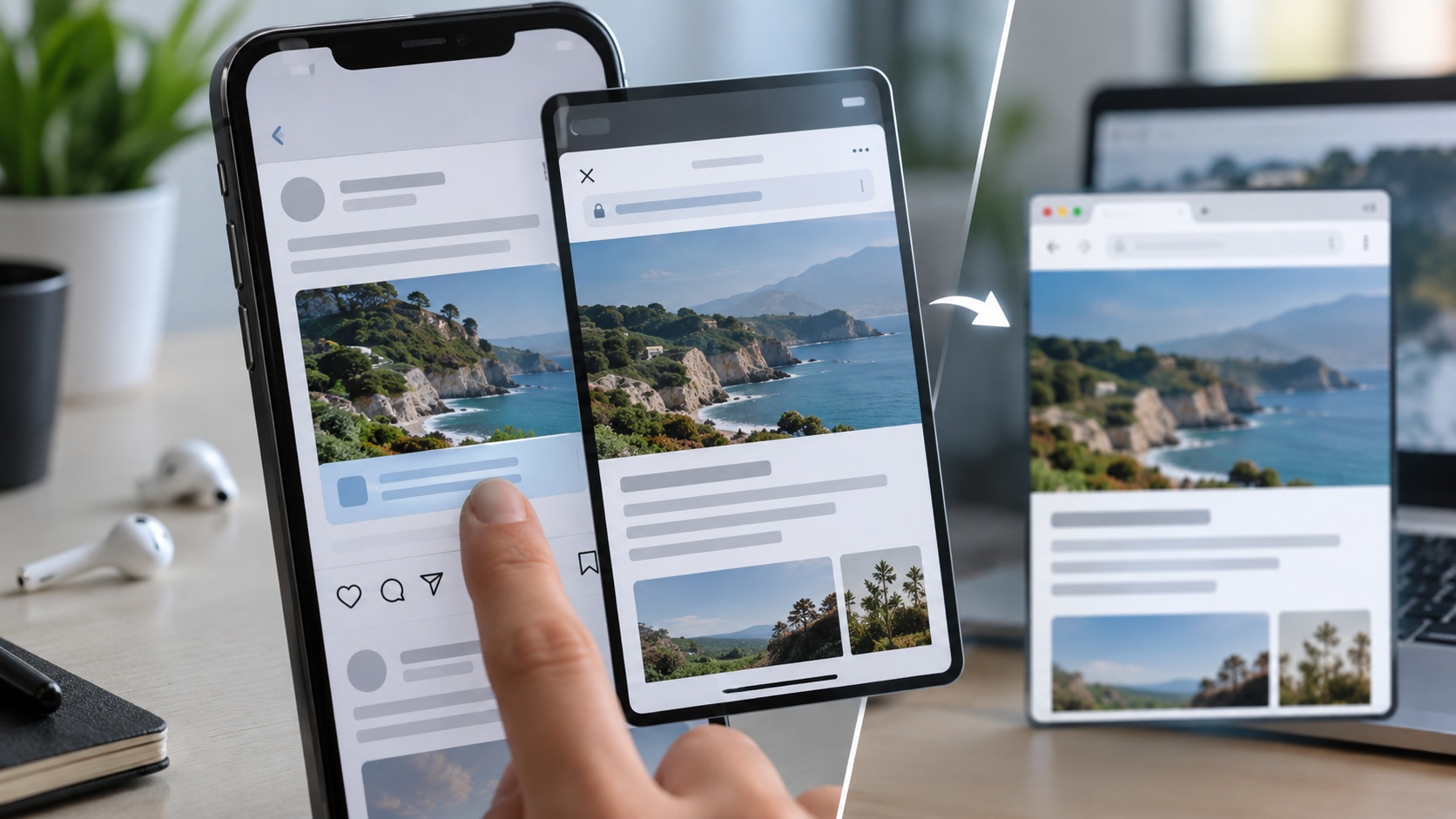
Instagram links can open in the app for a very ordinary reason: your phone recognizes instagram.com as a domain associated with the installed Instagram app.
On iPhone, Apple uses Universal Links. If Instagram is installed and iOS considers the URL eligible, tapping an Instagram link in Messages, Mail, WhatsApp, Notes, or another app can send you directly to Instagram instead of Safari or your chosen default browser. Changing the default browser alone does not necessarily stop this, because Universal Links can bypass the browser entirely.
The most reliable iPhone workaround is to copy the Instagram URL and paste it directly into the browser’s address bar. Direct navigation in the address bar stays in the browser rather than handing the tapped link to an associated app. You can also long-press a compatible link in some contexts and choose the web/browser option when iOS offers it.
On Android, Instagram links are handled through App Links / Open by default settings. Go to Instagram’s app settings, open Set as default or Open by default, and change supported-link behavior to the browser or disable/uncheck Instagram web addresses where your Android version allows it.
If you click an ordinary website link inside the Instagram app, that is a different problem. Instagram may open the page in its own in-app browser. There is generally no reliable global “always use external browser” switch across every current Instagram version, so use the page menu and choose Open in browser, Open in Safari, Open in Chrome, or the equivalent when available.
Need to work with a public Instagram link entirely in a browser? Dumpor is built around public Instagram content and does not require an Instagram login.
The short version: this is not your phone randomly ignoring you. It is link-routing logic doing exactly what it was designed to do.
Perhaps a little too enthusiastically.
Why Does an Instagram Link Open the App Automatically?
An Instagram URL looks like a normal web address:
https://www.instagram.com/example/
Yet modern phones can associate ordinary HTTPS links with native apps.
That association lets a single link behave differently depending on the device:
-
Instagram installed and link association active → open the app;
-
Instagram not installed → open the website;
-
app-link handling disabled → open the browser;
-
link pasted directly into a browser address bar → usually stay on the website.
The feature is useful when you actually want the app. Tap a Reel link in a message, land on the Reel, done.
It becomes irritating when you deliberately want the web version for research, multiple tabs, desktop-style browsing, link copying, troubleshooting, or a no-login workflow.
iPhone: Universal Links Are the Main Reason
Apple calls this system Universal Links.
A website and an iOS app can establish a verified relationship. When that relationship exists, iOS can route a normal HTTPS URL into the installed app instead of first loading the site in Safari.
Importantly, Universal Links are not the same thing as your default-browser setting.
You can set Chrome, Firefox, Edge, or another supported browser as the default on iPhone and still have an Instagram link open Instagram. The operating system may decide that the link belongs to the associated app before a browser ever gets involved.
That explains a common conversation:
“I changed my default browser to Chrome.”
“Instagram still opens.”
Both statements can be true.
How to Force an Instagram Link to Open in Safari on iPhone
The least glamorous method is also the most dependable.
Method 1: Copy and Paste the URL
-
Press and hold the Instagram link.
-
Choose Copy Link.
-
Open Safari.
-
Tap the address bar.
-
Paste the URL.
-
Go to the page.
Entering a URL directly into the browser’s address bar is direct web navigation rather than a Universal Link handoff.
In other words, you are telling Safari exactly where to go rather than asking iOS which app should handle the tap.
Simple. Reliable.
Method 2: Long-Press the Link and Choose a Browser Option
In some iOS contexts, long-pressing a Universal Link gives you multiple destinations, such as opening the website or opening the installed app.
If you see an option such as:
- Open in Safari;
- Open Link in the browser;
- Open in New Tab;
-
a web/browser destination instead of Instagram;
choose it.
Your choice can also influence how similar links from that domain behave later.
The exact menu depends on where the link appears, so do not expect Messages, Notes, Mail, and third-party apps to present identical options.
Method 3: Open Instagram.com First, Then Navigate Within the Same Domain
Universal Links have another subtle behavior on iPhone.
When you are already browsing a website in Safari and tap another link on the same domain, iOS generally assumes that you want to continue browsing on the web.
So one practical route is:
-
manually open
instagram.com in Safari; -
navigate or paste the profile/post path from there;
-
continue browsing inside Safari.
It is not magical protection against every redirect or login prompt, but it explains why an Instagram link may behave differently when tapped from Messages versus tapped while you are already on instagram.com.
Will Changing the Default Browser Fix Instagram Links on iPhone?
Sometimes it changes which browser handles ordinary web links.
It does not universally disable Universal Links.
On current iOS versions, you can change the browser at:
Settings → Apps → Default Apps → Browser App
Choose Safari, Chrome, Firefox, Edge, or another supported option.
That setting tells iOS which browser should handle normal web navigation. An eligible Universal Link can still be redirected to its associated app.
So change your default browser if you prefer another browser generally. Do not treat it as the master “never open Instagram” switch.
There is no such beautifully simple switch.
Can You Disable Instagram Universal Links Completely on iPhone?
iOS does not expose the same obvious per-app Open supported links panel that Android does.
User choices can influence a domain’s Universal Link behavior, and long-press menus may let you choose the website rather than the app. But if your goal is absolute predictability, manually pasting the URL into your browser remains the cleanest workaround.
Removing the Instagram app also prevents the installed app from handling its Universal Links, obviously, but that is a sledgehammer rather than a setting.
If you still use Instagram regularly, copy-and-paste is usually less dramatic.
Android: Instagram Uses App Links
Android solves the same problem with App Links and app-default settings.
A verified website domain can be associated with an installed Android app. When supported-link handling is enabled, tapping an Instagram URL may open Instagram automatically.
Unlike iPhone, Android generally exposes more user-facing control over this behavior.
The exact labels vary by Android version and phone manufacturer.
Look for a route similar to:
Settings → Apps → Instagram → Open by default
or:
Settings → Apps → Instagram → Set as default
Then inspect:
- Open supported links;
- Supported web addresses;
- Links to open in this app;
- Verified links.
On newer Android releases, you may see a choice between opening supported links in the app or in the browser rather than a simple on/off switch.
How to Stop Instagram Links Opening the App on Android
Try this:
-
Open Settings.
-
Tap Apps.
-
Select Instagram.
-
Open Set as default or Open by default.
-
Find Open supported links or the equivalent.
-
Choose the browser option, disable app handling, or uncheck Instagram web addresses where available.
-
Test an Instagram link from Messages, WhatsApp, or email.
If your phone lists domains separately, disable the addresses associated with Instagram.
The wording can differ on Pixel, Samsung Galaxy, Xiaomi, OnePlus, Motorola, and other Android devices. The underlying idea is the same: stop the Instagram app from claiming supported instagram.com URLs.
Changing the Default Browser on Android
You can also make sure the browser you actually want is set as default:
Settings → Apps → Default apps → Browser app
Then choose Chrome, Firefox, Edge, Brave, Samsung Internet, or another installed browser.
This matters once the link is being treated as a web link.
Again, order matters.
If Android is still assigning instagram.com to the Instagram app, changing Chrome to Firefox will not necessarily solve the Instagram handoff. First change Instagram’s supported-link behavior; then confirm your preferred browser.
What If Android Keeps Opening Instagram Anyway?
Link defaults occasionally become sticky after app updates, Android upgrades, or device migrations.
Try, in order:
-
recheck Instagram’s Open by default settings;
-
verify individual supported domains are not enabled;
-
confirm your preferred browser is the default browser;
-
update Instagram and the browser;
-
restart the phone;
-
clear Instagram’s default-link associations if your device provides that option.
Do not begin by clearing all browser history, deleting passwords, or factory-resetting the phone.
Deep links are annoying.
They are not usually worth burning down the village.
Instagram Links Inside WhatsApp, Messages, Gmail, and Other Apps
The app where you tap the link matters less than people think.
WhatsApp, Messages, email clients, Slack, Telegram, and similar apps often pass the URL to the operating system. iOS or Android then decides whether that URL belongs in Instagram or in the browser.
This is why the exact same link can behave differently on two phones.
Phone A has Instagram installed with app-link handling enabled.
Phone B does not.
Same URL. Different route.
Some apps also use their own embedded webviews or in-app browsers, adding yet another layer to the decision.
A Different Problem: Links Opened From Inside Instagram
Now flip the direction.
Suppose you are already in Instagram and tap:
-
a website in a bio;
-
a Story link sticker;
-
an advertisement;
-
a link in a DM;
-
another external web destination.
Instagram can open that website inside its in-app browser rather than switching to Safari or Chrome.
That behavior has nothing to do with instagram.com Universal Links.
It is Instagram acting as the host app for an external webpage.
How to Open an Instagram In-App Browser Page Externally
When the webpage opens inside Instagram:
-
look for the three-dot menu or browser menu;
-
tap it;
-
choose Open in browser, Open in Safari, Open in Chrome, or similar wording.
The available text varies by device and app version.
As of 2026, Instagram does not consistently provide a universal setting on every platform that says “always open every external link in my system browser.” For many users, the external-browser action remains something they choose per page.
If you care about privacy, extensions, password managers, multiple tabs, or browser history, making that extra tap is often worthwhile.
Why the In-App Browser Can Feel Different
An in-app browser is not always the same environment as opening the page directly in your normal browser.
Differences may include:
-
separate cookies or login state;
-
fewer browser extensions;
-
different password-manager behavior;
-
a smaller address/navigation interface;
-
different privacy controls;
-
awkward tab handling;
-
page compatibility quirks.
A checkout page that behaves strangely inside Instagram may work normally when opened in Safari or Chrome.
When in doubt, move it outside.
How to Open a Public Instagram Link Without the Instagram App
If the goal is to browse a public profile or public content without being pushed into the Instagram app, there are two basic approaches.
First, copy the URL and paste it into your browser directly.
Second, use a browser-based public Instagram viewer when the content is supported.
If you are researching public Stories from a computer or mobile browser, our guide to viewing Instagram Stories on PC in a browser explains the browser-first workflow.
Private profiles remain private. Browser routing does not change access permissions.
If You Need the Photo or Video, Not the App
Sometimes the reason you are fighting the app handoff is practical: you have an Instagram post URL and want the available media file in your browser.
In that case, paste the public post URL into the Dumpor Instagram downloader rather than repeatedly reopening the Instagram app.
The tool is designed for publicly available media. It is not a route around private-account restrictions.
That is an important boundary because “open in browser” changes the interface, not the privacy status of the content.
Instagram Login Prompts in the Browser
Stopping the app from opening does not guarantee that Instagram’s website will give you unlimited anonymous browsing.
Instagram can still show:
-
login prompts;
-
account-creation prompts;
-
limited web views;
-
unavailable-content messages.
Those are website policies, not evidence that the Universal Link workaround failed.
If Safari stayed open and loaded instagram.com, you successfully stopped the app handoff. What Instagram’s website chooses to display afterward is a separate layer.
Browser vs. App: Which Is Better?
Neither universally.
|
Task |
Browser often better |
App often better |
|---|
|
Open several profiles in tabs |
Yes | |
|
Copy and organize URLs |
Yes | |
|
Public web research |
Yes | |
|
Use browser privacy/extensions |
Yes | |
|
Post or edit content | |
Yes |
|
Use full Instagram messaging features | |
Yes |
|
Receive native notifications | |
Yes |
|
Avoid app-link handoff |
Yes, with manual navigation | |
The point is not that the browser is superior.
The point is that you should get to choose.
A Fast Troubleshooting Table
|
Problem |
Likely cause |
Best first fix |
|---|
|
Instagram URL opens app on iPhone |
Universal Link |
Copy URL and paste into browser |
|
Default browser change did nothing |
Universal Link bypassed browser |
Use direct address-bar navigation |
|
Instagram URL opens app on Android |
App Links enabled |
Change Instagram Open by default settings |
|
Link opens inside Instagram browser |
Instagram in-app webview |
Menu → Open in external browser |
|
Browser still asks for Instagram login |
Instagram web policy |
Use supported public browser workflow |
|
Link works differently in two apps |
Different link-handling context |
Copy/paste URL directly |
|
Private profile still unavailable |
Privacy restriction |
Browser cannot override privacy |
The 60-Second Fix
On iPhone
-
Copy the Instagram link.
-
Open Safari, Chrome, or your preferred browser.
-
Paste it directly into the address bar.
-
If long-pressing the original link offers a web option, choose it.
-
Set your preferred default browser separately if desired.
On Android
-
Open Settings → Apps → Instagram.
-
Open Set as default / Open by default.
-
Change Open supported links to browser behavior or disable the supported Instagram domains.
-
Confirm your preferred browser under Default apps → Browser app.
-
Test the link again.
For a Website Opened Inside Instagram
-
Open the page menu.
-
Choose Open in browser, Safari, Chrome, or the available external-browser option.
Three problems.
Three fixes.
Much easier once they stop pretending to be one problem.
FAQ
Frequently Asked Questions
Why do Instagram links automatically open the Instagram app?+
On iPhone, Instagram can use Apple Universal Links; on Android, it can use verified App Links. These systems associate normal instagram.com HTTPS URLs with the installed Instagram app, allowing the operating system to open the app directly instead of first loading the website.
How do I stop Instagram links opening in the app on iPhone?+
The most reliable method is to copy the Instagram URL, open your preferred browser, and paste the URL directly into the address bar. Direct address-bar navigation is handled by the browser rather than as a tapped Universal Link. Long-pressing a link can also expose a browser option in some contexts.
Why does Instagram still open after I changed my default browser on iPhone?+
Because the default-browser setting and Universal Links are different mechanisms. An eligible Universal Link can send the URL directly to the Instagram app before your default browser handles it. Changing Safari to Chrome, for example, does not automatically disable Instagram’s Universal Link association.
Can I permanently disable Instagram Universal Links on iPhone?+
iOS does not provide the same obvious per-app supported-link switch found on Android. Link-context choices can influence behavior, but direct navigation by pasting the URL into the browser remains the most predictable way to keep an Instagram page on the web without uninstalling Instagram.
How do I stop Instagram links opening in the app on Android?+
Open Android Settings, select Apps → Instagram, then find Set as default or Open by default. Change Open supported links to browser behavior, disable it where possible, or uncheck the supported Instagram web addresses. Exact labels vary by Android version and manufacturer.
Why do Instagram links from WhatsApp open the app?+
WhatsApp can pass the URL to the phone’s operating system. iOS or Android then recognizes instagram.com as a domain associated with the Instagram app and routes the link there. WhatsApp itself is not necessarily making the final decision.
How do I make Instagram links open in Chrome?+
On Android, disable Instagram’s supported-link handling and set Chrome as the default browser. On iPhone, set Chrome as your default browser if desired, but remember that Universal Links can still open Instagram; copying the URL and pasting it directly into Chrome is more reliable.
Why do website links inside Instagram open in Instagram instead of Safari?+
Instagram uses an in-app browser for many external links opened from bios, Stories, ads, and messages. This is separate from the mechanism that sends instagram.com links into the Instagram app. Use the in-app browser menu and choose Open in Browser, Safari, Chrome, or similar wording when available.
Can I turn off Instagram’s in-app browser permanently?+
Instagram does not consistently provide a universal “always use external browser” setting across current iPhone and Android versions. The dependable workaround is to use the page menu and open the current link in your external browser.
Will uninstalling Instagram stop links opening in the app?+
Yes, because the installed app is no longer present to handle Instagram Universal Links or App Links. The URLs will then be handled as web links. Uninstalling is obviously unnecessary if you still want the app; browser copy-and-paste or Android link settings are less drastic solutions.
Can I open Instagram links without logging in?+
Some public Instagram web content can be visible without a login, but Instagram may impose web login prompts or other viewing limits. A browser-based public viewer such as Dumpor can be useful for supported public content without requiring your Instagram credentials.
Can changing link settings let me view private Instagram accounts?+
No. Link routing and privacy are separate. Opening a URL in Safari instead of Instagram does not override a private profile, Close Friends restriction, removed post, or other access control.
The reason Instagram keeps appearing is not mysterious.
Your phone has learned that instagram.com and the Instagram app belong together, so it tries to be helpful by skipping the browser. On iPhone that behavior is driven largely by Universal Links; on Android it is controlled through App Links and supported-link defaults.
When you want the website instead, take control of the route.
Paste the URL directly into your browser on iPhone. Change Instagram’s supported-link behavior on Android. And when Instagram itself opens an external website inside its miniature browser, use the menu to send that page out to Safari, Chrome, or whichever browser you actually chose.
The app is convenient.
It just does not need to win every link.

 Telegram bot
|
TikTok Viewer
Telegram bot
|
TikTok Viewer