Instagram Scheduled Posts Not Publishing: A Troubleshooting Checklist
TL;DR
If an Instagram scheduled post has missed its publishing time, open the tool that scheduled it and inspect the individual queue entry. Confirm the destination account, date, time zone, and publishing mode. A draft, an approval request, or a mobile reminder is not an automatic publishing job. For a failed job, save the error message, check account access and connection status, then retry only after confirming that the post is not already live.
At Dumpor, we recommend diagnosing the queue before recreating the content. The useful question is where the scheduled job stopped: before submission, while waiting, during authorization, or when Instagram rejected the publishing request. That answer determines the next step.
Start by finding the actual scheduled item
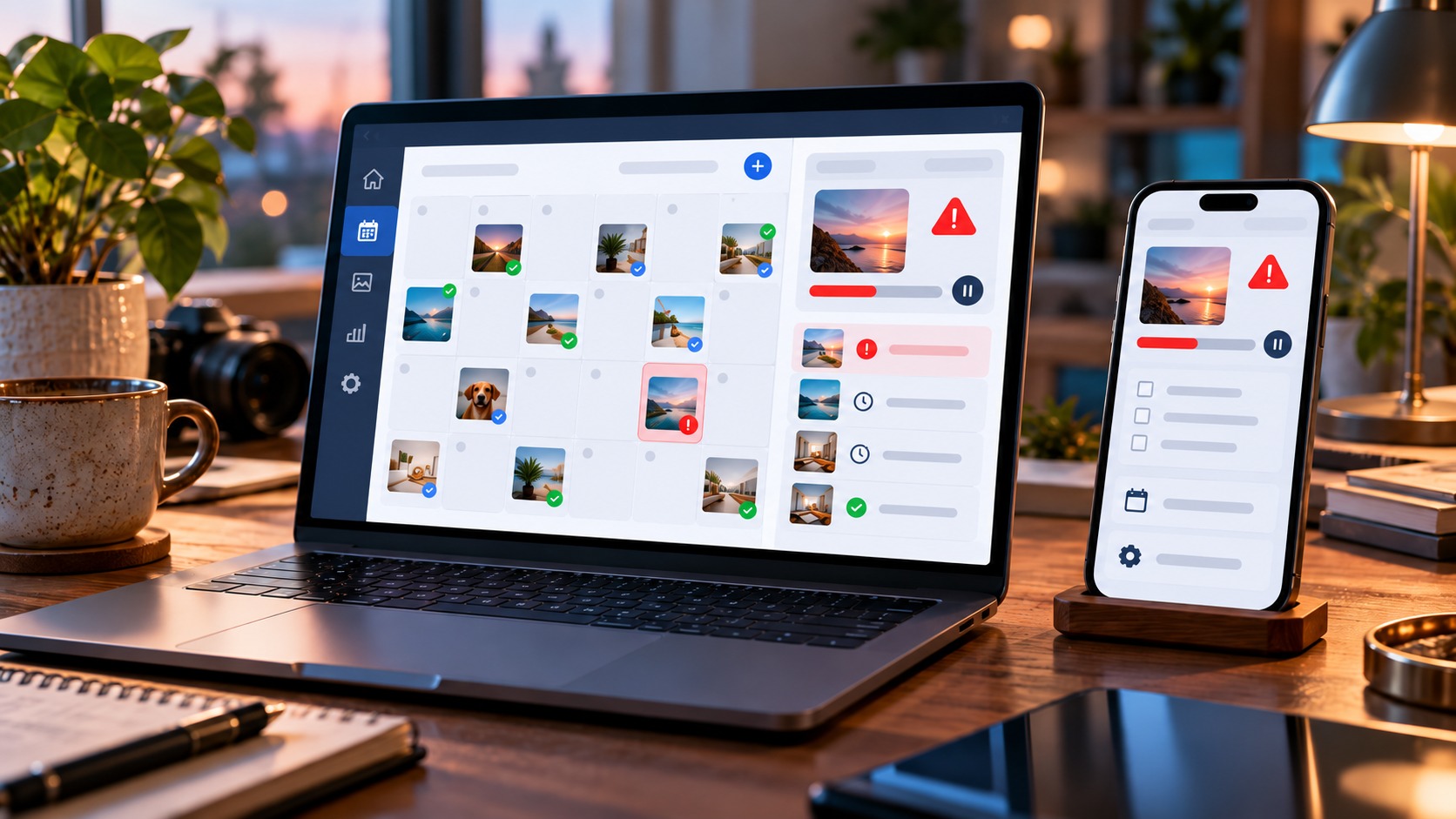
The calendar looked correct yesterday. Today the publishing time has passed, the post is missing, and pressing “Publish now” seems like the obvious response. Pause for a moment. If the original job is delayed rather than canceled, a second submission can create a duplicate.
Open the account’s profile in Instagram and check the relevant content area, including the Reels tab where applicable. Then inspect the item in the scheduling tool. Save its current status and any error before editing it. Those details are easier to lose than the photograph or caption.
Use the system where you originally scheduled the content as your starting point. Do not assume that Instagram’s own scheduled-content list mirrors every item held by another service.
|
Where you scheduled it |
Where to investigate |
First detail to check |
|---|
|
Instagram app |
Profile menu → Scheduled content |
Whether the item exists and what actions are available |
|
Meta Business Suite |
Planner or Content, filtered to Instagram |
Destination account, status, and scheduled date |
|
Third-party scheduler |
The channel’s queue, calendar, or failed-post list |
Publishing mode, error, and connection status |
|
Mobile reminder workflow |
Reminder history and the connected phone |
Whether someone completed publication in Instagram |
1. Confirm that the post was scheduled, not merely saved
A draft preserves work. An approved draft may still need a publishing date. A date selected in a composer may still need a final confirmation. These stages can look almost identical when you return to a busy content calendar.
Check for an actual queue entry with a destination and future or missed execution time. If you only find the item under Drafts, finish the scheduling process and confirm that it moves into the appropriate scheduled view. Do not infer success from having closed the editor without an error.
In a team workspace, inspect approval status. A post waiting for review has not necessarily been released for publication, even if a proposed date appears beside it. Ask the responsible approver to complete the intended workflow, then verify the resulting schedule.
Also check whether the channel or queue is paused. Some services pause publishing without making that state obvious in every calendar view. Releasing a pause can move items to later slots rather than publish them immediately, so inspect the revised dates before leaving the queue unattended.
2. Match the publishing time to the correct time zone
Read the date, year, time, and time-zone label on the saved item. Then compare them with the channel’s publishing settings. A post set for 9 a.m. in another region has not failed simply because your local clock has passed nine.
Schedulers do not all display time the same way. Some distinguish the channel’s publishing zone from a browser or workspace display zone. Check the tool’s own explanation rather than assuming that the time beside the post follows your phone’s current location.
Daylight-saving changes deserve a separate check, especially for campaigns planned weeks ahead. Record the intended region and date, not just “morning” or a fixed offset copied from an earlier campaign. Two cities that shared an offset when you planned the post may not share it on publication day.
3. Check automatic publishing versus a reminder
Third-party tools may offer automatic publishing and notification publishing. The first sends a supported post to Instagram on your behalf. The second sends a reminder so that a person can finish the post in the Instagram app.
A reminder workflow can therefore complete its own task while leaving nothing live on Instagram. Look for labels such as Notify me, Notification, or Manual publishing. A “sent” status may describe the notification, depending on the service.
If the item requires a reminder, check the assigned mobile device, notification permissions, and person responsible for completing it. Follow the service’s instructions for a missed notification instead of assuming that reopening the desktop calendar will finish publication.
For automatic publishing, confirm that the account and selected features are supported. A professional account may be eligible for automation while a particular item still requires manual completion. Review the publishing mode after adding optional features, since a tool may change that mode during editing.
4. Inspect the account connection and publishing permissions
If you used a third-party scheduler, open its channel or account settings and look for an expired connection, a request to reconnect, or missing authorization. A saved calendar entry does not guarantee that the tool still has permission to publish when the due time arrives.
Connections can require renewal after security changes or changes to the authorization granted to the service. Use the tool’s official refresh or reconnect process with an account authorized to manage the correct Instagram profile. Confirm the destination carefully during reconnection.
Do not remove an entire channel as your first troubleshooting step. Refreshing an existing connection and deleting a connected account are different operations, and their effects on queued work depend on the service. Preserve the schedule and follow the tool’s documented repair route.
In Meta Business Suite, check access to the intended Instagram asset. Being able to see a business portfolio or a neighboring Facebook Page does not by itself establish that you can publish to every account displayed there. Ask the appropriate administrator to review the relevant content permissions if access has changed.
Connection requirements also depend on how the integration was set up. Some workflows use a linked Facebook Page; others support a different connection method. Do not unlink accounts or build a new Page solely because a generic tutorial says every scheduling setup requires it.
After restoring access, return to the failed item. A repaired connection may allow future jobs to run without automatically retrying the one that already failed. Check the scheduler’s retry behavior explicitly.
5. Check whether the account can still use the selected workflow
Instagram’s native scheduling is intended for professional accounts. Third-party automatic publishing also depends on the account type and the integration’s supported capabilities. If someone changed the profile type after the content was queued, review eligibility before trying the same job again.
Open Instagram itself and look for any security verification, account restriction, or action required. Review Account Status where available. Complete legitimate verification through Instagram, and use the relevant review process if a restriction appears incorrect.
6. Compare the item with the scheduler’s supported features
A post that can be created manually in Instagram is not automatically supported by every scheduling route. Native tools, Meta Business Suite, and third-party integrations can expose different publishing features and limits.
Inspect additions such as music, collaboration settings, product tagging, locations, and other optional elements. Check support for the precise combination you scheduled. A feature available for one format or account may not be available for another.
If the error points to one optional element, remove or correct that element in a working copy and test again. If the element is essential to the campaign, use a supported manual workflow instead. Do not strip required disclosures or important campaign information merely to make automation succeed.
For a carousel, review every slide against the selected tool’s requirements. One unsupported asset can affect the entire scheduled item. Keep this check focused on the rejection recorded by the scheduler; there is no need to re-export every video because one queue entry missed its time.
7. Separate a queue problem from a service incident
The pattern of failures can narrow the cause. One complicated carousel failing while simple posts succeed suggests an item-specific issue. Several items failing on one account after reconnection point toward account access. Similar failures across multiple accounts may justify checking for a wider incident.
Consult the scheduler’s official status information and the service notices available from Meta. A clear incident notice is useful evidence. The absence of one, however, does not prove that every publishing component is operating normally.
Keep the exact error text or code. “Something went wrong” and “permission expired” call for different responses, even though both prevent publication. If a retry interval is provided, follow it rather than submitting the same job repeatedly.
Updating the app or refreshing the browser can fix a stale display or allow an edit to save. It does not necessarily restart a job already accepted by a remote publishing service. Reinstalling the app is rarely the most informative first response to a missed queue item.
8. Retry without publishing the same content twice
Before retrying, confirm that the post is absent from Instagram and establish what will happen to the original job. Depending on the tool, it may be failed, canceled, awaiting a manual retry, or still eligible for an automatic attempt.
Use the existing item’s Retry, Reschedule, or equivalent action when that is the documented route. If you must create a replacement, cancel or otherwise resolve the original first. If its status is uncertain and the tool cannot confirm cancellation, investigate before creating competing submissions.
Choose a realistic future time that allows you to inspect the saved job and its outcome. Do not queue several copies a minute apart as a test. One controlled retry gives you clearer information and avoids a burst of duplicate content if the service recovers.
For an urgent campaign, decide whether a manual publication is still appropriate. An expired offer or an announcement whose timing has changed needs editorial review, not an automatic replay. Once a manual replacement is live, record its link and resolve any remaining scheduled copy.
|
Result after your check |
What to do next |
|---|
|
The post is already live |
Record its link and investigate the scheduler’s status display |
|
The item is a draft or awaiting approval |
Complete the workflow and verify the saved schedule |
|
It is a reminder job |
Finish publication through the assigned mobile workflow |
|
The connection has expired |
Refresh authorization, then inspect the failed item separately |
|
The error identifies unsupported content |
Correct the specific incompatibility or use a supported route |
|
The job remains uncertain |
Establish retry or cancellation status before creating a replacement |
What to send support when the checklist does not resolve it
Prepare a short report containing the scheduling tool, Instagram username, job or post ID, intended publishing time with time zone, current status, and exact error. Include when the failure occurred and whether other items on the same account succeeded.
Send the report to the service that owns the affected queue. A third-party scheduler can inspect its job history; an in-app scheduling failure should be reported through Instagram’s help options. Do not share passwords, authentication codes, or access tokens in screenshots.
Confirm the result in Instagram, then check public visibility
A successful job should lead to a live item that you can open in Instagram. Verify the intended account, format, caption, and publication time. Keep the post link with the scheduling record so your team can distinguish a confirmed publication from a status label.
Dumpor’s public Instagram viewer concerns content that is publicly available. It cannot inspect your private scheduling queue, renew publishing permissions, or restart a failed job. Its display should not be your only test of whether Instagram accepted a publication.
For related questions about public profiles and viewing behavior, browse the Dumpor Instagram guides. If content is live on Instagram but you encounter a problem with its display on Dumpor, contact the Dumpor team with the public post link and a description. Scheduling failures belong with Instagram or the scheduling provider that handled the job.
FAQ
Why did my Instagram scheduled post miss its publishing time?
Where can I find posts scheduled inside Instagram?+
Open the correct profile’s menu and look for Scheduled content. Inspect the relevant post or Reel and its available management options. If you scheduled through Meta Business Suite or another service, begin in that service’s Planner or queue instead. Do not assume that every scheduling system displays the same pending items.
Does my phone have to stay on for a scheduled post to publish?+
A supported automatic publishing job that has been successfully accepted by a server-based scheduler does not normally depend on keeping your phone awake. Notification publishing is different: someone must receive the reminder and finish the post. First establish which method the item uses and whether it was actually accepted into the queue.
Why does my scheduler say “sent” when nothing is on Instagram?+
Check what “sent” means for that job. In a reminder workflow, it may mean the notification was sent to a mobile device, not that the Instagram post went live. For an automatic job, inspect any publication link, error history, or status update and verify the destination directly in Instagram. Ask the provider to investigate a persistent mismatch.
Will reconnecting Instagram automatically publish failed posts?+
Not necessarily. Reauthorization restores the tool’s ability to act, but failed jobs may still need a manual retry or a new scheduled time. Inspect the existing item after reconnecting and consult the provider’s retry behavior. Also check upcoming posts so that fixing one failure does not leave the rest of the queue unattended.
Can I publish manually while the scheduled version is stuck?+
You can use a manual route if it is available, but first establish whether the original job can still run. Cancel or resolve that job where possible, then publish one approved replacement. If cancellation is uncertain, investigate the job state before proceeding. Otherwise, the original may publish later and create a duplicate.
Why does manual publishing work while scheduling fails?+
The two routes can have different permissions, feature support, and authorization requirements. A successful manual post indicates that the account can publish through that route at that moment; it does not prove the scheduler’s connection is healthy. Review the integration and the scheduled item’s specific options before concluding that the media itself is unusable.
Should I delete and rebuild every failed post?+
Start with one representative item and preserve its error details. Repair the identified cause, then retry through the existing job where supported. Rebuilding the whole queue can discard useful diagnostics and introduce duplicates. If a provider recommends recreating an item, resolve the original and verify the replacement’s account, mode, and publishing time.

 Telegram bot
|
TikTok Viewer
Telegram bot
|
TikTok Viewer