Instagram Reel Templates: What You Can Reuse and What You Need to Replace
TL;DR
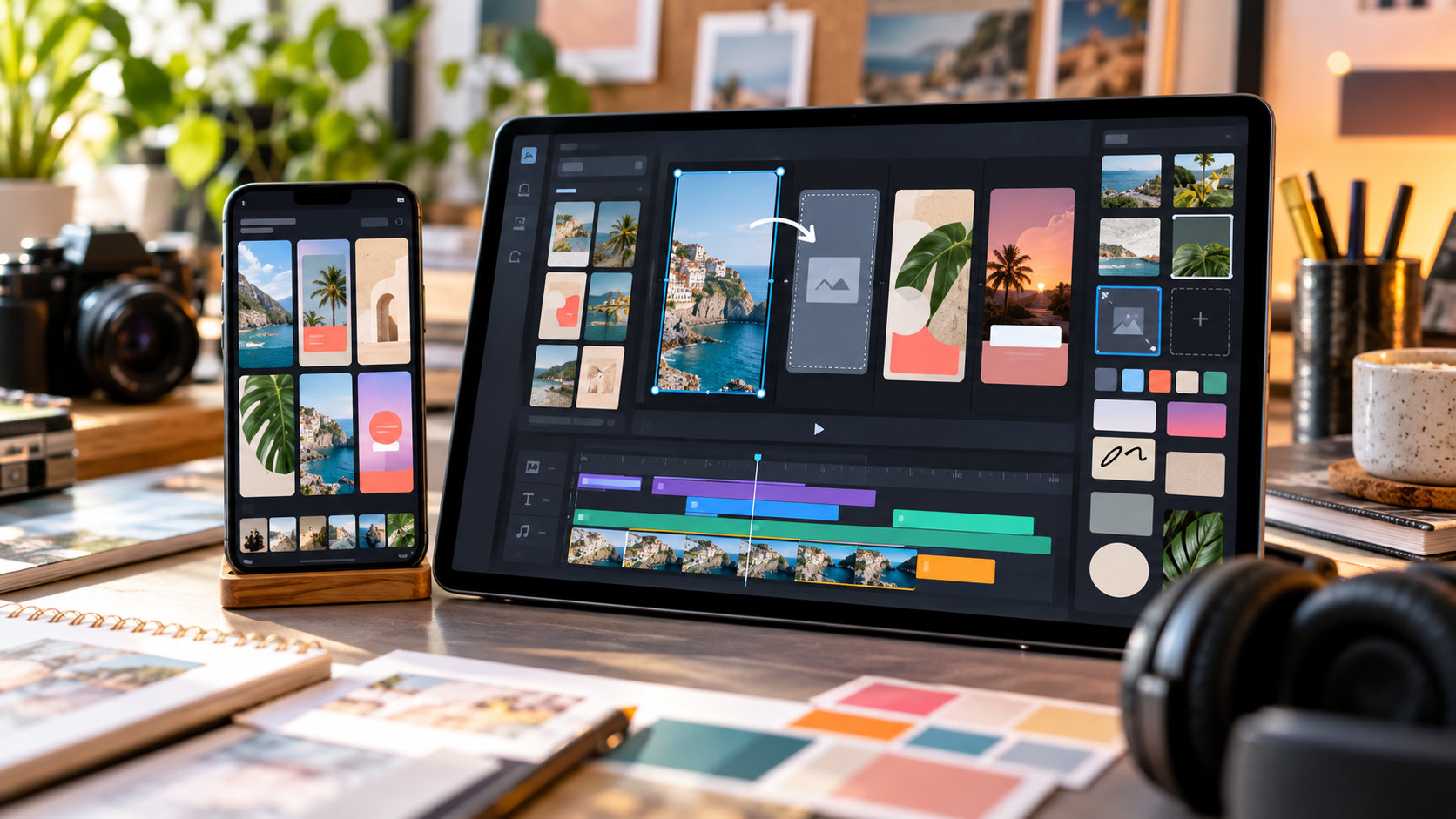
A standard Instagram Reel template gives you a starting arrangement of music and timed clip slots. You fill those slots with your own photos or videos, then review the result in the editor. Some templates may also supply editable elements, but do not assume that every effect, transition, or text layer will transfer. Replace creator-specific wording, choose your own cover, and review the caption and sharing settings before publishing.
The key distinction is between reusing a format and reusing somebody’s media. A template’s availability does not give you unrestricted permission to republish the original footage or use its music in advertising. Templates that open in Edits can offer a different project workflow; inspect what that template actually makes available.
The rhythm transfers; your story still needs to fit
A Reel can look effortless because the difficult editing decisions have already been made. The first shot establishes the scene, the next three cuts land on the beat, and the final image stays long enough to make its point. A template lets you begin with that structure.
It cannot decide what your audience needs to see. If the original shows a finished room before revealing the renovation, filling its opening slot with a random close-up changes the meaning even when the timing remains perfect.
At Dumpor, we suggest choosing a template by its storytelling pattern first. Ask what each slot accomplishes: an introduction, a detail, a comparison, or a result. Then match your own material to those roles. The music can come next.
What carries over from an Instagram Reel template?
Instagram introduced native templates with preloaded audio and clip placeholders. The practical benefit is that you can populate an existing rhythm without rebuilding every cut yourself. A slot’s duration guides how much of your selected photo or video appears.
Treat the following table as a review guide. The preview in your current editor is the clearest indication of what a particular template has loaded, especially when older examples contain effects or features that are no longer available.
|
Element |
What you may reuse |
What you should check or replace |
|---|
|
Clip arrangement |
The sequence of timed slots |
Your own suitable photos or videos |
|
Clip duration |
The starting timing of the edit |
Whether the selected moment fits each slot |
|
Audio |
A track supplied through the template, if available |
Availability, suitability, and permitted use |
|
Text |
Editable text elements, where supplied |
Names, claims, prices, dates, and calls to action |
|
Effects and transitions |
Supported elements that appear in the editor |
Missing effects, awkward movement, or inconsistent styling |
|
Original creator’s footage |
Standard native templates use replacement media slots |
Add your media rather than treating the source Reel as an asset pack |
|
Cover and caption |
Inspiration for how to present the subject |
A cover and caption describing your own Reel |
|
Publishing choices |
Nothing you should assume is correct automatically |
Audience, tags, disclosures, and sharing options |
How to use a Reel template with your own media
Begin in the Instagram mobile app. When an eligible Reel offers Use template, or a Template by entry leading to that option, open it. You may also find a Templates area when creating a Reel. Labels and placement can vary, so follow the available template control rather than relying on an old screenshot.
-
Preview the template and note its clip slots.
-
Tap Add media or the equivalent option.
-
Select your photos and videos in the intended order.
-
Continue to the preview and inspect every slot.
-
Use Replace media, trimming, or other available controls to correct the selection.
-
Review the audio, text, cover, caption, and publishing options before sharing.
Watch the whole result once before making cosmetic changes. A misplaced reveal or a cut that removes the important action is a structural problem. Fonts and filters will not fix it.
Replace the footage, then select the right moment within it
Adding your own video is only the first decision. A ten-second source clip may be placed in a slot lasting less than a second. The editor might initially show the camera settling, an empty workbench, or the moment before the product enters the frame.
Where trimming is available, choose the segment that communicates the action immediately. For a pouring shot, that may be the stream already reaching the cup. For a product demonstration, it may be the mechanism moving rather than a hand approaching it.
Leave a little extra footage around the moment when filming. This gives you room to adjust the starting point without having to reshoot. Keep the original files as well; a draft inside an app should not be your only working copy.
Photos need the same care. A crowded group photograph may become unreadable in a rapid sequence, while a simple detail can work well. If the viewer needs time to read packaging or understand a comparison, choose a longer slot or a different template.
Adapt the crop and pacing to your material
Many Reel layouts are designed for vertical viewing. A landscape image inserted into that space may lose a person’s face, a product label, or the object that explains the shot. Review the crop rather than judging the asset from its gallery thumbnail.
Keep essential details away from areas covered by interface controls or captions. There is no need to memorize one supposedly universal safe-area measurement: preview the Reel and its cover in the placements available to you, then adjust anything that is difficult to see.
Rewrite template text instead of inheriting its claims
Some creation workflows can preload text or other editable elements. Others leave you with timing and media slots only. Inspect what is present, and write any missing copy yourself.
If text does appear, review it word by word. Another creator’s “my first week,” “our bestselling product,” or “available today” can become inaccurate when attached to your footage. Replace specific dates, locations, prices, promises, names, and promotional language with information that is true for your account.
Also review the text’s timing. A sentence that was readable over a still image may become difficult to follow over your moving footage. Shorten it or give it more time where the editor allows. A viewer should not need to pause every frame to understand the point.
Text visible inside a source image is different from an editable text layer. If words are baked into your selected photo or video, a template text control will not remove them. Use a clean source file or edit your own asset before adding it.
Write a fresh post caption and choose a cover that represents the finished Reel. The template does not know your intended offer, attribution, accessibility needs, or next step for the viewer.
Decide whether to keep or replace the audio
Listen to the supplied track with your footage in place. Music can change the impression of a demonstration, testimonial, or announcement. A cheerful trend may be a poor match for a serious update, even when its beat makes the edit convenient.
If you replace the track using the available controls, preview the timing again. Cuts aligned to one recording may drift against another. Do not expect an audio swap to preserve the same visual emphasis automatically.
Check speech separately. If your clips contain dialogue or you add narration, balance it against the music where the editor provides mixing controls. Watch once with sound and once without it to assess whether the message remains understandable. Correct any generated captions before publication.
For a business or promotional Reel, treat music clearance as a separate decision. Meta describes its licensed music library as intended for personal, non-commercial use and restricts access for some business accounts, post types, and regions. Seeing a song in a template is not proof that it is cleared for your campaign.
Meta’s Sound Collection offers options for commercial use within the applicable terms. Alternatively, use audio for which you have the necessary rights. If you plan to boost the Reel, run an ad, or reuse it outside Meta’s platforms, check those intended uses before completing the edit. Changing account type does not create additional music rights.
Instagram templates, Edits projects, and Remix are different workflows
The word “template” covers more than one creation experience. A standard Instagram template commonly gives you music and timed placeholders. An Edits template can open a project with a broader set of editable elements. Meta has described Edits templates as a way to inspect how a project was made and adapt it.
If selecting a template opens Edits, assess the project there. Check which elements are editable, which media you are expected to replace, and whether any included assets are explicitly offered for reuse. Do not apply a blanket assumption that every visible source clip is available for every purpose.
Remix is different again. It is designed around responding to or incorporating eligible existing content through the supported feature. Using a timing template does not mean you have created a Remix, and it does not require downloading the source Reel.
For this workflow, keep your focus on the new piece you are making: your selected media, your message, and the elements the chosen creation tool actually supports. That distinction prevents a simple template project from becoming an accidental repost.
Why the original Reel and your template version look different
A template is not a complete copy of another person’s production setup. The source may contain lighting, camera movement, color work, or visual details that belong to the footage itself. Replacing the clip naturally replaces those qualities too.
What to do when “Use template” is missing
Not every Reel offers a reusable template. A finished video uploaded as one file does not necessarily expose an editable sequence of individual clips. Access to a Reel and access to a template are separate things.
Open the Reel in Instagram, check its available options, and try the template browser if your app provides one. Updating the app can help with an outdated interface, but it cannot guarantee that a particular Reel will become eligible or that unavailable audio will return.
If a saved template no longer works, choose another available example or create a new arrangement with your own material. Saving a reference is useful; it is not a guarantee that its content, track, or template controls will remain accessible indefinitely.
A third-party public viewer cannot activate Instagram’s template editor. Dumpor’s Instagram viewer can support browsing available public content, but template creation and the associated controls belong in Instagram or the editing app that opens the project.
A practical example: turn a travel format into a product Reel
Suppose a template has five slots: one longer opening, three quick details, and a final hold. Its original subject is a weekend trip. A furniture maker could use that rhythm without borrowing a single travel image.
The opening shows the completed chair. The quick details show a joint, the sanding process, and the finish being applied. The final hold shows the chair in use. Replace the travel wording with a concise description of the build, then add a cover and caption that identify the product accurately.
If the final slot is too short for an order instruction, shorten the instruction or move the detail into the caption. If the music is unsuitable for the intended promotion, choose cleared audio and reassess the cuts. The result uses a familiar pace while presenting an original subject and original footage.
For more background on public Instagram content and viewing behavior, browse the Dumpor Instagram guides. Keep your research references separate from the media files approved for your finished Reel.
Review the finished Reel before publishing
Watch the version you are about to share from beginning to end. Confirm the media order, selected segments, crop, readable text, audio balance, and accuracy of every claim. Check that no placeholder or source-specific wording remains.
Then review the publishing screen. Choose the intended account, cover, audience, tags, and any required commercial disclosures. A template’s source context does not determine the correct settings for your new publication.
If you need help with how public content appears on Dumpor, contact the Dumpor team with the public link and a brief description. Template editing, music availability, and publishing controls must be addressed within the relevant Meta app. Keep unpublished campaign files and account credentials out of a public-viewer support request.
FAQ
Does an Instagram Reel template reuse the original creator’s videos?
Can I use photos instead of videos in a Reel template?+
Yes, native templates can accept photos as well as video clips in their media slots. Choose images that remain understandable at the assigned duration and review their vertical crop. A detailed photograph may need more viewing time than a simple close-up. If the slot is too brief, use a different image, adjust the edit where possible, or choose another template.
Can I change the music and keep the template timing?+
You can use the audio-editing options available in your current workflow, but review the whole sequence after changing the track. The original timing may have been designed around a particular beat or musical phrase. Keeping the same clip lengths does not guarantee that the replacement music will align. Adjust the edit or choose a better-matched track if necessary.
Do text, transitions, and effects always transfer?+
No universal transfer should be assumed. The elements supplied can depend on the template, its creation workflow, and the features currently available to your account. Inspect the actual project and preview. Rewrite any inherited text and check each transition; some of the original appearance may have been created within the footage rather than by a reusable editor effect.
Can a business use a trending Reel template?+
A business can use an available creation workflow, but it must check the media, claims, and audio for its intended use. Music available for a personal Reel is not automatically cleared for commercial promotion or advertising. Plan the campaign’s distribution before choosing the soundtrack, and use appropriate licensed audio or a suitable commercial-use option under its applicable terms.
Does using a template guarantee more views?+
No. A template can reduce editing work and provide a useful structure, but it does not transfer the original creator’s audience or performance. The subject, opening image, clarity, and relevance of your own Reel still matter. Evaluate whether the format helps communicate your idea rather than selecting it solely because the source received many views.
Should I credit the template creator?+
Keep any attribution supplied by the feature intact. Where appropriate, you can also acknowledge the creative inspiration in your caption. Credit does not replace permission for separately reused footage, photographs, or music, however. If you use assets outside the template’s provided workflow, check their terms and any attribution requirements separately.
Can I save a template and finish the Reel later?+
Use the available save or draft controls, but keep your original media and copy separately. A saved template is a reference, while a draft contains work in progress; neither should be your only copy of important campaign assets. Before returning to publish, check that the template and audio are still available and review the finished version again.

 Telegram bot
|
TikTok Viewer
Telegram bot
|
TikTok Viewer