Instagram “Not Interested” vs. Mute vs. Unfollow: What Each Actually Changes
TL;DR
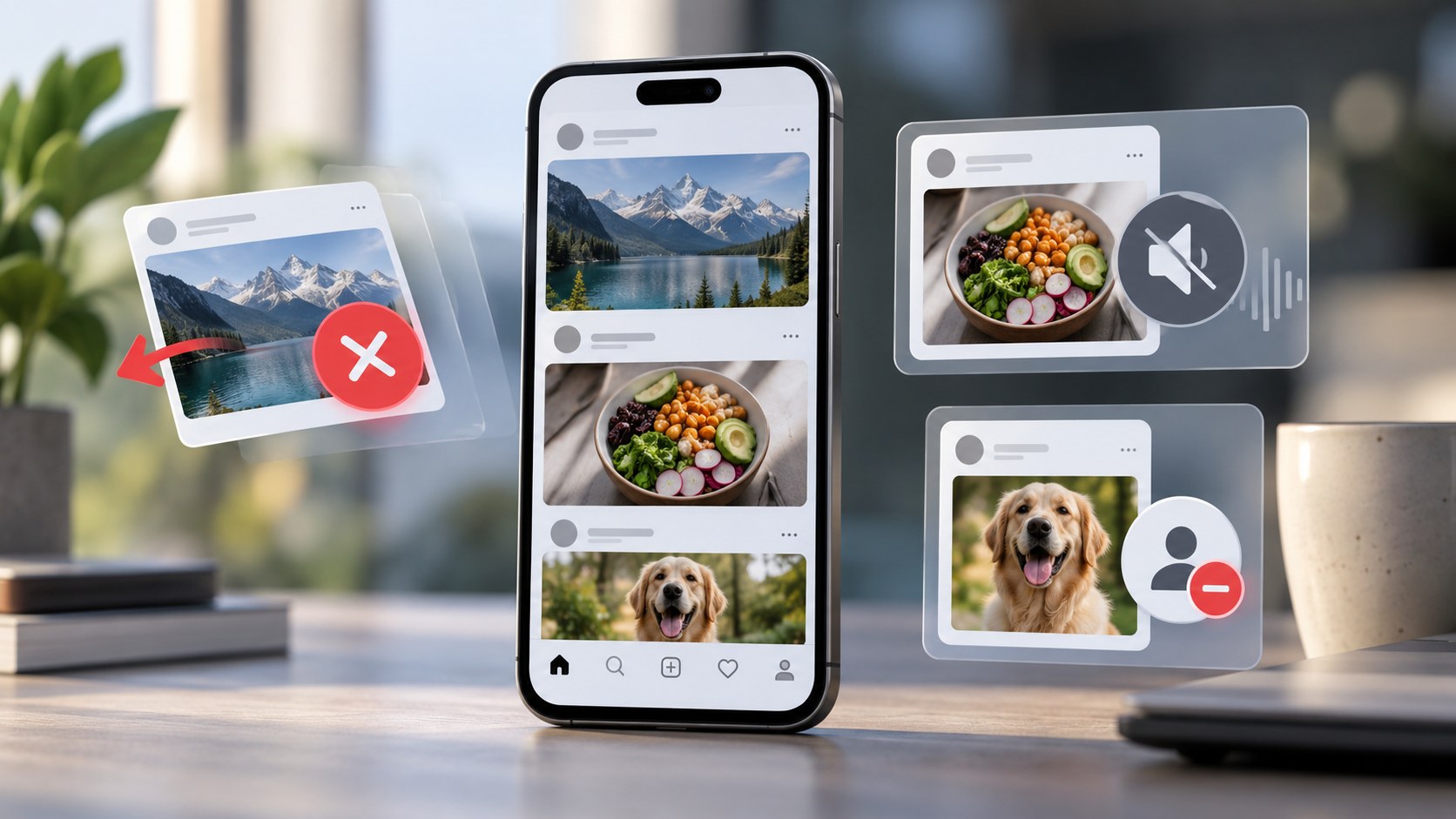
Instagram’s Not Interested, Mute, and Unfollow controls solve three different problems. They are not stronger and weaker versions of the same button.
Not Interested tells Instagram that you would prefer fewer recommendations similar to a particular post or Reel. It is primarily feedback for Instagram’s recommendation system. It does not automatically unfollow or mute the account behind the content.
Mute lets you remain a follower while hiding selected types of content from a particular account. You can usually mute posts, Stories, or both. Other controls, such as muting Notes or message notifications, are separate. Instagram does not notify someone when you mute them.
Unfollow removes an account from your Following list. Its posts will no longer appear because you follow it, although public content from that account may still surface through recommendations, Explore, Reels, or other discovery features. Instagram does not send a standard unfollow notification, but the change can be noticed.
Here is the essential difference:
|
Your goal |
Use |
|---|
|
See fewer recommendations about a topic |
Not Interested |
|
Stop seeing one account’s posts without unfollowing |
Mute Posts |
|
Hide someone’s Stories but keep their feed posts |
Mute Stories |
|
Remove an account from your Following list |
Unfollow |
|
Stop notifications from a particular DM conversation |
Mute the chat |
|
See only recent posts from accounts you follow |
Following feed |
|
Reduce recommendations across several Instagram surfaces |
Content preferences or recommendation controls |
None of these three actions makes your own account private, removes somebody from your followers, or blocks another person from contacting you.
The right choice depends on what you want to change: the recommendations, the content arriving from a person, or the follow relationship itself.
That is the whole distinction.
The details are where Instagram makes things a little less tidy.
Why These Three Controls Are Easy to Confuse
You open Instagram to catch up with friends. Instead, your Home feed contains several unfamiliar fitness Reels, a stream of restaurant reviews, and posts from an account you followed two years ago for one excellent photograph.
You want less of all three.
But they are not the same problem.
The fitness Reels are recommendations. The restaurant reviews may be recommendations too. The old photography account is someone you deliberately followed.
Instagram provides different controls because these sources enter your feed in different ways.
Tapping Not Interested on an unwanted recommendation is not the same as muting a person. Muting that person is not the same as ending your follow relationship.
Before changing anything, identify where the unwanted content is coming from.
Not Interested: Feedback About What Instagram Recommends
The Not Interested control tells Instagram that a recommended post or Reel is not relevant to you.
When you select it, Instagram can hide the selected content and use your feedback to reduce similar recommendations in the future. The effect may extend across recommendation surfaces, including Explore, Reels, and suggested posts in Home.
It is not a promise that the topic will disappear forever.
If you mark one celebrity interview as Not Interested, Instagram may still recommend other interviews, entertainment accounts, or content related to the same celebrity later.
Recommendations are built from multiple signals, not one permanent preference switch.
Think of Not Interested as saying:
“Please show me less content like this.”
It is not saying:
“Remove this creator from my account.”
How to Mark an Instagram Post as Not Interested
For a suggested post in Home:
-
Open Instagram.
-
Find the recommendation you do not want.
-
Tap its three-dot menu, or the available hide control.
-
Select Not Interested.
-
Follow any additional prompts if Instagram offers them.
On Explore, you may be able to open a recommended post or press and hold a thumbnail to reach the relevant menu.
For a Reel, open its menu and select Not Interested where available.
The exact control placement can vary between app versions, account types, and recommendation surfaces.
If Instagram asks why the content is unwanted, answer accurately. More specific feedback can be more useful than repeatedly dismissing unrelated posts without considering the pattern.
What Not Interested Actually Changes
The immediate effect is generally that the selected recommendation is removed from your current view.
The longer-term effect is a preference signal.
Instagram may recommend fewer posts resembling the rejected content. That resemblance can involve topics, formats, captions, hashtags, creators, or other signals within its recommendation system.
The important word is fewer.
Not Interested is not a hard block against an entire category, and it does not guarantee that Instagram will never display the selected account again.
Nor does it necessarily remove older content you have already liked, saved, shared, or commented on.
It changes the recommendation process rather than rewriting your activity history.
When Not Interested Is the Wrong Tool
Suppose you follow a friend who publishes twenty Stories every afternoon.
Marking a recommended post as Not Interested does not address that problem.
You already know the source of the unwanted volume: one specific account whose content arrives through your follow relationship.
Mute is designed for that situation.
Similarly, if you no longer want to follow a brand, using Not Interested on individual recommendations is an unnecessarily indirect approach.
Unfollow the brand.
Different problem. Different button.
Mute: Keep Following Someone While Seeing Less of Their Content
Mute is the most useful option when your relationship with an account should remain unchanged but you do not want its content appearing regularly in your Instagram experience.
You remain a follower.
The account remains in your Following list.
Instagram does not send it a notification announcing that you muted it.
You can still visit its profile, view content available to you, send messages, and interact normally when you choose.
What changes is the routine delivery of the content types you mute.
For many people, that is exactly the balance they want: maintain the connection without giving every publication a place in the feed.
How to Mute Someone’s Instagram Posts
A common route on iPhone and Android is:
-
Open the person’s Instagram profile.
-
Tap Following.
-
Select Mute.
-
Turn on the Posts option.
Depending on your version of Instagram, you may also find a mute option through a post’s menu.
Once posts are muted, that account’s feed content should stop appearing in your normal feed presentation.
You have not unfollowed the account.
You have changed how its content is delivered to you.
How to Mute Instagram Stories Without Muting Posts
Posts and Stories are separate controls.
If someone publishes excellent photography but posts an exhausting number of daily Stories, you can keep their feed posts while muting their Stories.
Open the profile’s Following menu, choose Mute, and enable Stories while leaving Posts unmuted.
You may also be able to press and hold the account’s Story circle and select a mute option.
Muted Stories may be moved out of the normal Story sequence or presented less prominently, depending on the interface.
The essential point is that muting Stories does not require muting posts.
That flexibility is the reason Mute is more useful than a simple all-or-nothing visibility switch.
Muting Posts Does Not Automatically Mute Everything
This is where many quick tutorials become misleading.
Instagram can offer separate mute controls for different kinds of content and activity.
|
Mute type |
What it changes |
|---|
|
Posts |
Reduces or hides that account’s feed posts |
|
Stories |
Removes Stories from your normal Story-viewing flow |
|
Notes |
Hides the account’s Notes where supported |
|
Message notifications |
Silences alerts from a conversation |
|
Call notifications |
Silences supported call alerts |
|
Other activity controls |
Depend on the available Instagram feature |
A person can have muted Stories while their posts remain visible.
A conversation can have muted notifications while the person’s feed content continues appearing normally.
There is no reason to assume that selecting one mute control silently enables all the others.
Check each relevant setting.
Can You Still Visit a Muted Account?
Yes.
Mute is not a prohibition on viewing the account.
If you mute someone’s posts, you can still open their profile and look at the content you are permitted to see. Muting Stories also does not remove your underlying access to available Stories.
This makes Mute especially useful for accounts you want to check occasionally rather than encounter automatically.
You control the timing.
The relationship stays.
Does Instagram Tell Someone You Muted Them?
No standard Instagram notification tells a person that you muted their posts or Stories.
There is no ordinary creator-facing list showing who muted them.
They may notice that you stopped watching their Stories or interacting with their posts, but that is an inference, not a mute notification.
They cannot reliably establish the reason from reduced engagement alone.
Perhaps you muted them.
Perhaps you have not opened Instagram.
Perhaps you are using Following differently.
Instagram does not supply the answer.
Unfollow: Remove the Account From Your Following List
Unfollow changes the underlying relationship.
When you unfollow someone, their account is removed from the list of accounts you follow.
Its posts no longer qualify for your feed simply because you follow it.
Your Following count also changes.
If the other account is public, you can generally continue visiting its profile and viewing publicly available posts without following it.
If the account is private, unfollowing can remove your approved-follower access. Following that account again may require a new request and approval.
That private-account consequence is worth checking before you tap.
How to Unfollow Someone on Instagram
The usual route is straightforward:
-
Open the account’s profile.
-
Tap Following.
-
Choose Unfollow.
-
Confirm if Instagram asks.
You can also manage followed accounts through your own Following list.
Unlike Mute, Unfollow is not a choice between content types. It removes the follow relationship rather than hiding selected posts or Stories.
If you later change your mind, you can follow the account again.
For a private account, approval may be necessary.
Does Unfollowing Stop Every Appearance of That Account?
No.
This is an important difference between a follow relationship and Instagram’s wider recommendation system.
Unfollowing removes an account from your Following list, but public content from that account may still appear through:
-
suggested posts;
-
Explore;
-
Reels;
-
search;
-
another account’s public share or collaboration.
An unfollowed public creator does not become invisible.
If their content appears as a recommendation, Not Interested may help reduce similar recommendations. Unfollow and Not Interested can therefore be useful together, but they do different jobs.
Neither should be described as a guaranteed account-wide disappearance mechanism.
Does Instagram Notify Someone When You Unfollow Them?
Instagram does not normally send a push notification saying that a specific user has unfollowed them.
However, Unfollow is more observable than Mute.
The account owner may notice a change in follower count or discover that your username is no longer in their followers list.
That does not mean Instagram sent a dedicated alert.
It means the follow relationship has changed in a way that may be checked.
If you want fewer posts without changing that relationship, Mute serves a different purpose.
Not Interested vs. Mute vs. Unfollow: Full Comparison
|
Question |
Not Interested |
Mute |
Unfollow |
|---|
|
Main target |
Recommendations |
A specific account’s selected content |
Follow relationship |
|
Hides the selected content? |
Usually yes |
Hides muted content from normal viewing |
Removes followed-account delivery |
|
Keeps you following? |
Yes |
Yes |
No |
|
Sends a direct notification? |
No |
No |
No standard unfollow alert |
|
Changes your Following count? |
No |
No |
Yes |
|
Lets you visit a public profile? |
Yes |
Yes |
Yes |
|
Stops all public recommendations from that account? |
Not guaranteed |
Not guaranteed |
Not guaranteed |
|
Can be reversed? |
Preference can be adjusted over time |
Yes, unmute |
Yes, follow again |
|
Can affect private-account access? |
No |
No |
Yes |
|
Best suited to |
Unwanted recommended content |
Too much content from someone you follow |
A follow you no longer want |
There is no single button that performs all three jobs.
That is intentional.
Which Option Should You Choose? Five Real-World Examples
A Topic Keeps Taking Over Explore
You watched one home-renovation Reel. Now Instagram seems convinced that your life’s ambition is to inspect kitchen cabinets.
Use Not Interested on unwanted recommendations. If the pattern persists, review your broader content preferences.
Muting one creator will not address the entire topic.
A Friend Posts Too Many Stories
You still want to follow the friend and see occasional feed posts.
Mute Stories.
There is no need to unfollow or mute posts unless those also become unwanted.
A Brand Is No Longer Relevant
You followed a retailer during a purchase. The purchase is complete, and its updates no longer serve a purpose.
Unfollow.
If Instagram continues recommending similar shopping content, use Not Interested separately.
A Colleague’s Posts Crowd Your Feed
You would prefer to maintain the follow relationship but do not need every publication.
Mute Posts.
You can still visit the profile when its updates become relevant to your work.
Your Recommendations Feel Wrong Across the App
Several unrelated topics dominate Explore, Reels, and Home.
Use Not Interested consistently and review Instagram’s recommendation settings. Muting or unfollowing one account is unlikely to solve a broad recommendation problem.
The common thread is simple: identify whether the problem comes from a topic, a content source, or a relationship.
How to Undo Not Interested
Not Interested is not a permanent blacklist of every post matching your previous selection.
If your interests change, you can send different signals by engaging with relevant content, using Interested where available, or reviewing Instagram’s recommendation controls.
Instagram also offers recommendation-management features, including a suggested-content reset in supported app versions.
The reset is broader than undoing one Not Interested action. It allows recommendations to begin personalizing again from your subsequent activity.
It does not delete your account, remove your followers, or automatically unfollow everyone.
Do not use a broad reset when the only problem is one overactive account.
How to Unmute an Instagram Account
Go back to the account’s profile.
Open:
Following → Mute
Turn off the controls you previously enabled.
If you muted both Posts and Stories, review both options.
If you muted a DM conversation separately, change that conversation’s notification settings separately.
Unmuting restores normal eligibility for the selected content. It does not guarantee that every publication will immediately appear at the top of Home, because Home remains ranked.
How to Reverse an Unfollow
Open the profile and tap Follow.
For a public account, you can normally follow again immediately.
For a private account, a follow request may be required.
Unfollowing does not function like an easily reversible display preference when private access is involved. There may be another person’s approval between you and the previous arrangement.
That is one practical reason to choose Mute when you only want less content from a private account you still wish to follow.
Why You May Still See Content After Muting Someone
There are several possibilities.
You may have muted Stories but not Posts, or muted messages rather than feed content. The material may be appearing through a separate public recommendation or another account’s share. You may also be looking directly at the muted profile, where accessible content remains available.
Check the actual mute settings before assuming the feature failed.
Mute should not be understood as a platform-wide ban on every possible appearance of that creator’s work.
It is a personal content-delivery preference.
If you need to inspect an available public account outside your normal Instagram feed, Dumpor provides browser-based access to supported public content without requiring an Instagram login. It does not manage your Instagram mute settings, Following list, or recommendations.
What if You Want Fewer Recommendations but Still Want to Follow Everyone?
You may not need Mute or Unfollow at all.
Use the Following feed when you want recent posts from accounts you deliberately follow, rather than the regular Home mixture.
Favorites offers a smaller view built around accounts you prioritize.
Both are distinct from Not Interested: they change which feed you choose to browse rather than telling Instagram that a particular recommendation is undesirable.
For a more detailed comparison, see our guide to Instagram Favorites vs. Following Feed.
The useful sequence is often:
-
Open Following to catch up.
-
Use Favorites for priority accounts.
-
Visit Home when you want discovery.
-
Mark unwanted recommendations as Not Interested.
That gives each feature a specific job.
Can You Reset Instagram Recommendations Without Unfollowing Anyone?
Instagram provides recommendation-management controls that can help when suggested content has drifted far from your interests.
Where available, look under:
Profile → Menu → Content preferences → Reset suggested content
Review the explanation before confirming.
Resetting recommendations is not the same as clearing your Following list. Meta has also described the option to review accounts you follow during this process, but reviewing them does not mean the reset automatically unfollows them.
Recommendations will personalize again as you continue using Instagram.
A reset is therefore a fresh starting point, not a permanent promise that unwanted topics can never return.
Not Interested vs. Hidden Words
These are related but different.
Not Interested responds to particular recommendations.
Hidden Words and related content-preference controls can help you reduce recommendations associated with selected words, phrases, emojis, or hashtags where Instagram supports that feature.
If the same unwanted subject keeps returning under multiple accounts, a topic-level preference may be more useful than muting individual creators.
Do not expect text filters to recognize every possible synonym or every piece of purely visual content, however.
They are preference tools, not perfect semantic firewalls.
Does Not Interested Work on Ads?
Do not treat Not Interested as a universal advertising preference.
Suggested organic content and paid advertisements are different categories.
Instagram may provide separate ad controls, such as hiding an ad or reviewing advertising preferences.
If the post is marked Sponsored, inspect the options available for that advertisement rather than assuming the ordinary Not Interested workflow manages every future ad from the advertiser.
Likewise, muting or unfollowing a brand does not guarantee that you will never encounter one of its advertisements.
Mute Is Not the Same as Restrict or Block
This article focuses on feed personalization, but the distinction matters.
Mute changes what content you see or which notifications you receive.
Restrict affects certain interactions, such as comments and message handling.
Block creates stronger access and interaction boundaries.
Unfollow merely ends a follow relationship.
None of the three controls discussed here should be presented as a substitute for stronger account-safety measures when unwanted contact, harassment, or access restrictions are the real concern.
The feed can be personalized without changing those boundaries.
For a broader explanation of public viewing and privacy, see our Instagram viewer privacy guide.
A Practical Seven-Day Feed Cleanup
You do not need to rebuild your Instagram account to make the feed more useful.
Start with a short audit.
Day 1: Identify the main source of irrelevant content. Is it recommendations or accounts you follow?
Day 2: Use Not Interested on genuinely unwanted recommended posts and Reels.
Day 3: Review accounts whose posting volume overwhelms your feed. Mute selected content types where appropriate.
Day 4: Review accounts you no longer want to follow. Unfollow deliberately rather than using Mute as a substitute for every outdated relationship.
Day 5: Try Following or Favorites for a more focused browsing session.
Day 6: Review broader content preferences if unwanted recommendation categories persist.
Day 7: Assess what changed. Avoid drawing conclusions from one unusual browsing session.
This is not a guaranteed algorithm-retraining timetable. It is simply a manageable way to separate different problems and apply the relevant controls.
A cleaner feed usually comes from several sensible decisions, not one mythical reset button.
The 30-Second Decision Checklist
Before tapping anything, ask:
-
Is this an unwanted recommendation? Use Not Interested.
-
Do I still want to follow the account? Consider Mute.
-
Do I only want fewer Stories? Mute Stories, not necessarily Posts.
-
Do I no longer want the follow relationship? Unfollow.
-
Is the account private? Remember that unfollowing may remove access.
-
Is the problem unwanted DM alerts? Mute the conversation separately.
-
Are recommendations generally overwhelming? Review content preferences or use Following.
-
Do I need a stronger interaction boundary? These feed controls may not be sufficient.
Choose the smallest change that actually solves the problem.
No need to unfollow half your network because Instagram recommended one disappointing Reel.
FAQ
Frequently Asked Questions
What is the difference between Not Interested, Mute, and Unfollow on Instagram?+
Not Interested gives Instagram feedback about unwanted recommendations. Mute hides selected content from a specific account while keeping the follow relationship. Unfollow removes that account from your Following list. The three controls affect different parts of the Instagram experience.
Does Not Interested mute the Instagram account?+
No. Not Interested does not automatically mute or unfollow the account behind the selected content. It is primarily a signal that you would prefer fewer similar recommendations. If you follow that account and want less of its regular content, use Mute separately.
Does Not Interested permanently block similar content?+
No. Instagram may reduce similar recommendations, but one Not Interested action does not guarantee that a topic, creator, or format will never appear again. Recommendation systems use multiple signals and continue adapting.
What happens when you mute someone on Instagram?+
You remain a follower, but the selected content types stop appearing normally in your feed or Story experience. You can generally still visit the profile, view available content directly, and interact with the account. Instagram does not send the person a mute notification.
Can I mute someone’s Stories but still see their posts?+
Yes. Instagram provides separate Posts and Stories mute controls. You can hide Stories while continuing to receive feed posts, or mute posts while leaving Stories available in your normal Story flow.
Does muting someone also mute their DMs?+
Not automatically. Muting feed posts or Stories and muting message notifications are separate controls. To silence a conversation, use the relevant settings in Instagram Direct.
Will someone know if I mute them?+
Instagram does not send a standard notification when you mute an account. The person may notice fewer interactions from you, but that does not establish that you muted them.
Does Instagram notify someone when I unfollow them?+
Instagram does not normally send a dedicated unfollow notification. However, unfollowing changes the account’s follower count and removes your username from its followers list, so the change may be noticed.
Is muting better than unfollowing for a private account?+
They accomplish different things. Muting preserves your follow relationship and approved access while changing what you see. Unfollowing a private account can remove your access, and a new follow request may need approval. Choose according to whether you still want that relationship.
Can someone I unfollowed still see my posts?+
Unfollowing changes which account you follow. It does not automatically remove that person from your followers or change your own privacy settings. Their ability to see your content depends on your account’s visibility and their existing access.
Why do I still see someone’s Reels after unfollowing them?+
Unfollowing removes the account from your Following list, but public content may still appear through Reels recommendations, Explore, or other discovery features. Use Not Interested on unwanted recommendations if you want to reduce similar appearances.
Why do I still see someone’s content after muting them?+
Check which mute options you enabled. You may have muted Stories but not Posts, or muted a conversation’s notifications instead of feed content. Public recommendations and content shared by other accounts can also be separate from normal followed-account delivery.
Can I undo Not Interested on Instagram?+
Instagram’s recommendation preferences are not generally a permanent blacklist. You can express new interests, use Interested where available, and review broader recommendation settings. A suggested-content reset may also be available, but it is broader than reversing one selection.
How do I unmute an Instagram account?+
Open the account’s profile, tap Following, select Mute, and turn off the Posts, Stories, or other mute controls you previously enabled. Message-notification mutes may need to be reversed separately within the conversation.
Does Not Interested remove my likes or saved posts?+
No. Using Not Interested on a recommendation is not the same as deleting your previous likes, comments, bookmarks, or other account activity. Those actions have their own management controls.
Should I use Not Interested or Unfollow to clean up my feed?+
Use Not Interested when the problem is unwanted recommended content. Use Unfollow when you no longer want an account in your Following list. If you want to preserve the follow relationship but stop seeing its routine posts, Mute is the relevant third option.
Is there a way to see fewer suggested posts without unfollowing people?+
Yes. Use Following for recent posts from accounts you follow, use Favorites for priority accounts, mark unwanted recommendations as Not Interested, and review Content preferences. Unfollowing people is not necessary simply to reduce unrelated recommendations.
Instagram’s feed controls become much easier to use when you stop treating them as variations of the same command.
Not Interested changes recommendation feedback. Mute changes the content delivered from a selected account. Unfollow changes your Following list.
Each can improve your feed, but only when it addresses the problem you actually have.
You do not need to end a follow relationship to escape someone’s daily Stories. You do not need to mute twenty creators to reduce recommendations about one topic. And you do not need to keep following accounts that no longer interest you simply because Mute exists.
Choose deliberately.
The feed should reflect your current interests—not every casual decision you made while scrolling three years ago.

 Telegram bot
|
TikTok Viewer
Telegram bot
|
TikTok Viewer