How to Control Instagram Broadcast Channel Alerts Without Unfollowing the Creator
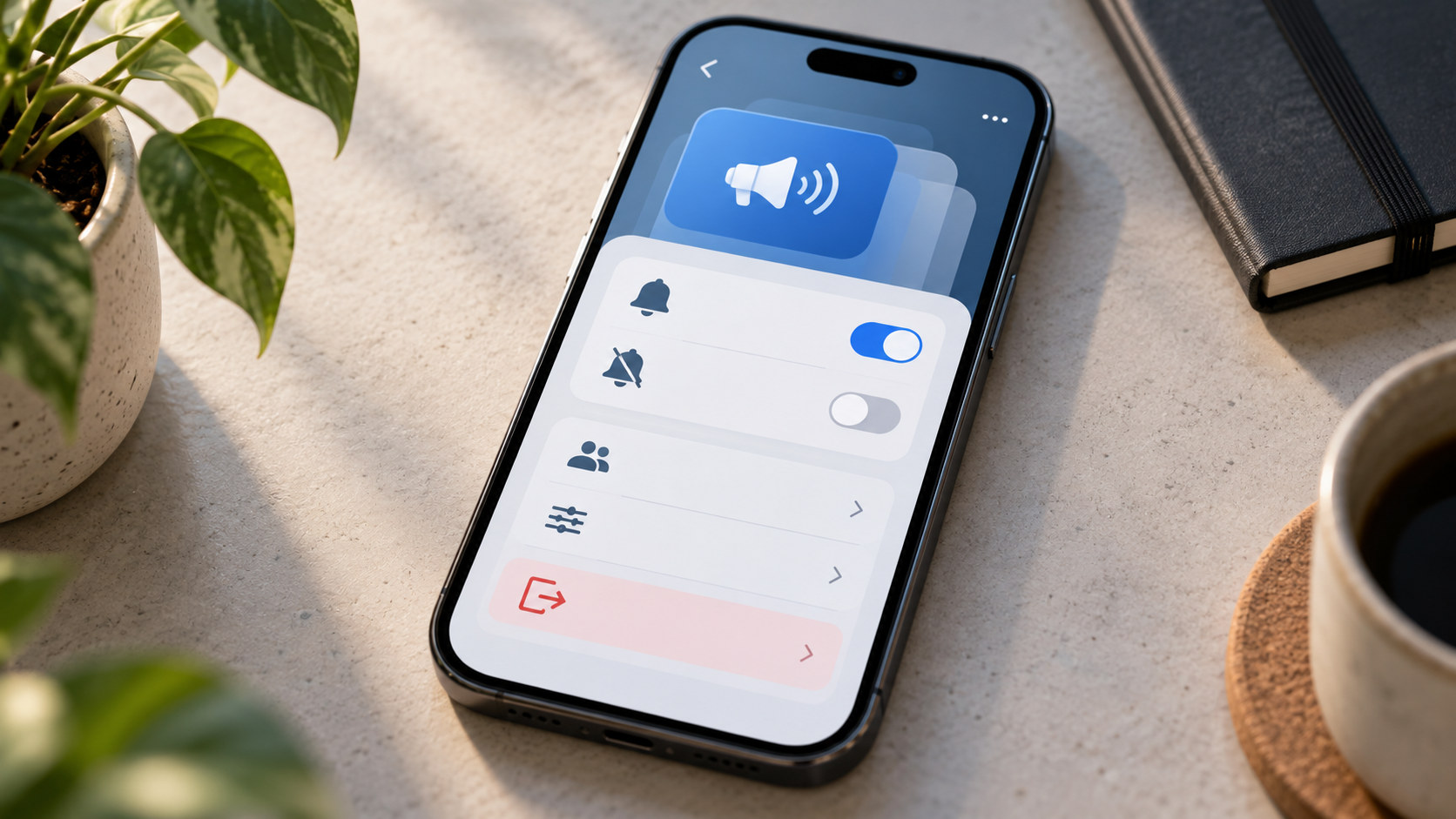
TL;DR
Instagram Broadcast Channels can be useful until one active creator turns your notification shade into a running commentary.
You do not have to unfollow the creator.
Depending on what you want, Instagram gives you several different controls:
|
What you want |
Best action |
|---|
|
Stay in one channel but stop its alerts |
Mute that channel |
|
Receive fewer updates from a creator’s channels |
Set Broadcast Channel notifications to Some |
|
Receive every available channel alert from that creator |
Choose All |
|
Stop creator-level Broadcast Channel alerts |
Choose None |
|
Stop invitations to new channels |
Turn off Broadcast Channel invites in Notifications |
|
Stop notifications from joined Broadcast Channels more broadly |
Turn off Messages from Broadcast Channels where available |
|
Remove your membership from one channel |
Leave the channel |
|
Keep following the creator but stop channel participation |
Leave the channel; do not unfollow |
|
Silence Instagram temporarily |
Use Pause All or Sleep Mode |
For one noisy channel, open the channel from your inbox, tap its name, and use Mute or Notifications.
To leave entirely, open the same channel information screen and choose Leave. Menu placement can vary slightly by Instagram version.
Leaving a Broadcast Channel does not mean unfollowing, blocking, or muting the creator’s ordinary posts.
Different control. Different effect.
First: Broadcast Channels Are Not Ordinary DMs
Broadcast Channels sit in Instagram’s messaging environment, which is why their alerts can feel like chat notifications.
But they are not ordinary one-to-one conversations.
A Broadcast Channel is a creator-led space designed to distribute updates to a community. Creators can share text, photographs, video, voice notes, polls, prompts, and other supported channel content. Instagram has also expanded channels with features such as replies and prompts, making them more interactive than the original launch version.
The important bit for notification management is simpler: once you join, the channel can sit in your inbox and generate alerts as new activity arrives.
That does not mean you have only two choices—endure every alert or unfollow the creator.
Instagram gives you several layers of control.
Mute, Leave, and Turn Off Invitations Are Three Different Things
These settings are regularly confused.
Mute means: keep the channel, silence its alerts.
Leave means: stop being a member of that channel.
Turn off Broadcast Channel invites means: stop being notified when creators invite you into new channels.
None of those automatically means unfollowing the creator.
Think of it this way:
A follow controls your relationship with the account.
A channel membership controls your relationship with the channel.
A notification setting controls interruptions.
Three switches. Not one.
How to Mute One Instagram Broadcast Channel
If you still want access to a channel but no longer want your phone announcing every update, muting is usually the cleanest option.
The current workflow is broadly:
-
Open Instagram.
-
Go to your inbox.
-
Open the Broadcast Channel.
-
Tap the channel name at the top.
-
Choose Mute, Notifications, or the bell control shown in your version.
-
Turn off or mute message notifications.
Some app versions may offer a temporary duration as well as an indefinite mute.
After muting, the channel remains available. You can open it manually whenever you feel like catching up.
That is the point.
Mute changes urgency, not membership. Current third-party walkthroughs still document this channel-level mute flow, while Meta confirms that followers can mute channels without leaving them.
What Does “Some” Mean for Broadcast Channel Notifications?
Instagram has long used three creator-level Broadcast Channel notification choices:
Meta states that Broadcast Channel notifications default to Some and can be changed to All or None.
The useful interpretation is:
All asks Instagram to notify you broadly about channel updates from that creator.
Some is selective rather than alerting you for every update.
None turns those creator-level Broadcast Channel notifications off.
Do not over-interpret “Some” as a fixed mathematical rule. Instagram does not promise that it means, say, every third message or only one alert per day.
It is a filtering level.
If you want predictability, choose All or None.
How to Change Broadcast Channel Alerts From a Creator’s Profile
You do not always need to enter the channel itself.
Instagram provides creator-specific notification controls from the profile.
Try:
-
Open the creator’s Instagram profile.
-
Tap the bell icon.
-
Find Broadcast channels.
-
Choose the available notification level.
Meta specifically documents the creator-profile bell as a place where followers can control Broadcast Channel notifications.
This setting is particularly handy when you enjoy an account’s normal posts and Stories but do not want its channels competing with your actual messages.
You can keep following.
No social drama required.
Channel Mute vs. Creator Notification Setting
These controls overlap, but they solve slightly different problems.
Use channel-level Mute when one particular joined channel is noisy.
Use the creator-profile Broadcast Channel notification setting when you want broader control over channel alerts associated with that creator.
Example:
You follow a musician who has a useful album-update channel and another highly active behind-the-scenes channel.
If the app gives you individual channel controls, mute only the noisy one.
If you want to reduce Broadcast Channel alerts from the creator more generally, use the bell setting on the creator’s profile.
Start narrow.
There is no need to switch off half of Instagram because one channel sends twelve updates before breakfast.
How to Turn Off New Broadcast Channel Invitations
You can be annoyed by Broadcast Channels without having joined any.
Why?
Invitations.
When creators start or promote channels, Instagram can send invitation notifications. Those are separate from the message alerts generated by channels you already joined.
Depending on your current interface, the path is usually similar to:
Profile → Menu → Settings and activity → Notifications → Messages or Messages and calls
Look for a setting such as:
Broadcast channel invites
and switch it off.
Current notification menus can also include a separate control for Messages from Broadcast Channels.
That distinction is valuable.
You may want:
-
no invitations to new channels;
-
notifications from the two channels you intentionally joined.
Perfectly reasonable.
Turn off invites. Keep the joined channels configured individually.
Turning Off Invites Does Not Leave Existing Channels
This catches people.
You disable Broadcast Channel invitations and still get an alert fifteen minutes later.
Why?
Because the new alert came from a channel you already joined.
Invitation controls govern invitations.
Existing membership is separate.
For current channels, mute them individually, adjust creator-level notification settings, or use the broader Messages from Broadcast Channels control if Instagram displays it in your notification settings.
If you want the channel itself gone, leave it.
How to Leave an Instagram Broadcast Channel
When muting is too polite, leave.
The usual route is:
-
Open Instagram Messages.
-
Open the Broadcast Channel.
-
Tap the channel name.
-
Open the channel information/options area.
-
Tap Leave.
-
Confirm if Instagram asks.
Some versions place Leave directly on the information page; others may put it under an additional menu.
Meta explicitly allows followers to leave Broadcast Channels at any time.
After leaving, you are no longer participating as a member of that channel.
That is substantially different from mute.
Does Leaving a Broadcast Channel Unfollow the Creator?
No.
Leaving concerns the channel.
Following concerns the account.
You can leave a creator’s channel and continue seeing their ordinary Instagram posts, Reels, and Stories according to your existing follow and feed settings.
Likewise, you do not need to block somebody because their Broadcast Channel became irritating.
Use the smallest tool that solves the problem.
Our guide to Instagram Not Interested vs. Mute vs. Unfollow explains those account- and feed-level controls separately.
Channel management belongs in another drawer.
Should You Mute or Leave?
Ask whether you still value the content.
Mute when:
-
you read the channel occasionally;
-
the creator posts too frequently;
-
you prefer checking updates manually;
-
you only need the channel during certain periods;
-
you want to remain a member.
Leave when:
-
you never open it;
-
the subject is no longer relevant;
-
the channel clutters your inbox;
-
you joined accidentally;
-
you do not want channel membership anymore.
Neither option is rude.
Notification settings are not a friendship test.
Can You Join Again After Leaving?
If the channel remains available to you and you still meet its access requirements, you can generally use the channel link or the creator’s profile to join again.
Access can differ for subscriber-only or otherwise restricted channels.
So leaving need not be treated like burning a bridge.
If your only problem is frequency, though, muting is less work.
Why Do Broadcast Channels Appear in the Instagram Inbox?
Once joined, Broadcast Channels are designed to behave more like messaging threads than feed posts.
That is intentional.
Meta originally described joined channels as appearing among message threads, with notifications functioning similarly to chat alerts.
That positioning explains both their usefulness and their ability to become annoying.
Creators can reach members directly rather than hoping an update survives feed ranking.
From the user’s side, that means a creator’s “small update” can feel much closer to an actual message.
Notification control is therefore worth learning early.
Why Am I Getting Invitations From Creators I Follow?
Instagram can send followers a notification inviting them to join when a creator launches a Broadcast Channel.
An invitation does not mean you already joined.
Open it if you are interested.
Ignore it if you are not.
If the volume becomes irritating, disable Broadcast Channel invitations globally rather than visiting every creator one by one.
Meta’s original channel design explicitly included a one-time join notification to followers when a creator started a channel.
What If Notifications Continue After You Mute a Channel?
First identify what the notification actually is.
A surprisingly common troubleshooting mistake is saying:
“I muted the channel and Instagram still sends channel notifications.”
Then the next alert turns out to be an invitation from another creator.
Check whether it is:
-
a message from the muted channel;
-
a different Broadcast Channel;
-
a new channel invitation;
-
a creator’s Live notification;
-
an ordinary DM;
-
an Instagram in-app notification rather than a phone push notification.
If it really belongs to the muted channel:
-
Reopen the channel.
-
Confirm its Mute/Notifications state.
-
Check the creator’s profile bell.
-
Check Instagram’s global Notifications settings.
-
Update Instagram.
-
Close and reopen the app.
Do not immediately unfollow twenty people because one setting failed to refresh.
What If You Turned Off Broadcast Notifications Globally but Still See Alerts?
Again, inspect the category.
Instagram can separate:
-
invitations;
-
messages from joined channels;
-
creator-specific Broadcast Channel settings;
-
general push notifications.
A global invite setting may not silence a channel you already joined.
Similarly, a creator-profile setting may not be the same switch as a channel-level mute.
Layered settings are useful once understood.
Before that, they feel like somebody hid three light switches behind three different doors.
Use Sleep Mode When You Want Temporary Silence
Sometimes the channel is not the problem.
The phone is.
Instagram’s Sleep Mode can suppress notifications during chosen periods. Meta renamed the older Quiet Mode feature to Sleep Mode and lets users select days and times for it.
That is useful for:
-
working hours;
-
evenings;
-
study periods;
-
sleep;
-
weekends.
Sleep Mode does not leave your channels.
It does not unfollow creators.
It simply creates a temporary notification boundary across Instagram.
Use it when you want less Instagram, not merely less Broadcast Channel.
Phone-Level Notification Controls Are the Blunt Instrument
iPhone and Android also let you disable Instagram notifications at the operating-system level.
That certainly works.
It also silences much more than Broadcast Channels.
You may lose push alerts for:
-
DMs;
-
mentions;
-
comments;
-
security information;
-
calls;
-
other Instagram activity.
If Broadcast Channels alone are irritating you, use Instagram’s own controls first.
A hammer can turn off a lamp.
Technically.
Can You Read a Muted Channel?
Yes.
Mute is not hide, delete, or leave.
A muted joined channel can still be opened from Instagram so you can catch up when you choose.
This is often the best setup for creators who post frequent minor updates but occasionally share something worth reading.
The channel becomes pull rather than push.
You decide when to look.
Does Muting a Channel Mute the Creator’s Posts and Stories?
No.
Channel notification controls and feed visibility are different systems.
Muting a Broadcast Channel does not automatically hide that creator’s regular posts or Stories.
If your actual goal is to see less of the account everywhere, use Instagram’s account-level Mute, Unfollow, Not Interested, or other relevant controls instead.
Again: pick the right switch.
Does Leaving a Channel Delete the Creator’s Content?
No.
Leaving changes your membership.
It does not delete the Broadcast Channel itself or remove its content for everyone else.
The creator controls their channel, subject to Instagram’s platform rules.
If content violates Instagram’s standards, reporting is a separate action from leaving.
Leave means:
“I do not want to participate.”
Report means:
“I believe this content or channel may violate platform rules.”
Those are not interchangeable.
Broadcast Channels Can Now Be More Interactive
Older guides sometimes describe Broadcast Channels as purely one-way spaces where followers can only react and answer polls.
That description is dated.
Meta later added features including replies and prompts, making channels more conversational while remaining creator-led community spaces.
This matters for notifications because an active channel can now generate a stronger sense of ongoing conversation than the earliest version of the feature.
If you joined for occasional announcements and the channel has evolved into a busy community thread, changing notification settings is perfectly sensible.
Your original Join tap was not a lifetime subscription to interruption.
Broadcast Channel Notifications vs. Viewing a Channel
Receiving notifications and being able to encounter public channel content are separate questions.
This guide is for people who are signed into Instagram and want to manage their own channel alerts and memberships.
If you are researching what can or cannot be viewed without joining or logging in, that is a different intent entirely; see our guide to viewing Instagram Broadcast Channels without an account.
Do not confuse visibility with notification membership.
You can see something without asking it to buzz your phone.
Can Dumpor Change Your Broadcast Channel Notifications?
No.
Dumpor works with supported publicly available Instagram content. It does not have access to your private Instagram notification settings, joined-channel list, inbox preferences, or account membership controls.
Mute, Leave, Some, All, None, and Broadcast Channel invitation settings must be managed from your own Instagram account.
A public viewer should not need your Instagram password merely to change notification settings.
The Cleanest Setup for Most Users
If you like Broadcast Channels but not the noise, use a three-level system.
For your favorite creators:
All — when you genuinely want fast updates.
For useful but active channels:
Some or channel-level Mute — depending on how often you want interruptions.
For everything you joined out of curiosity and never read:
Leave.
Then turn off Broadcast Channel invitations globally if you are tired of being asked to join more.
That setup keeps the feature useful without letting it colonize the notification shade.
A 60-Second Broadcast Channel Notification Audit
Open Instagram and ask:
-
Which joined channels do I actually read?
-
Which channels should be muted rather than left?
-
Which channels should I leave entirely?
-
Which creators deserve All, Some, or None?
-
Do I still want new Broadcast Channel invitations?
-
Are Messages from Broadcast Channels enabled globally?
-
Would Sleep Mode solve a broader notification problem?
You probably do not need fewer creators.
You may simply need fewer things demanding immediate attention.
FAQ
Frequently Asked Questions
How do I turn off notifications from one Instagram Broadcast Channel?+
Open the channel from your Instagram inbox, tap the channel name, and look for Mute, Notifications, or the bell control. Turn off or mute its message alerts. The exact label can vary by app version.
What happens when I mute an Instagram Broadcast Channel?+
You remain a member and can still open the channel manually, but its normal message alerts are silenced according to the mute setting you choose.
What is the difference between Some, All, and None?+
All requests broad notification coverage for that creator’s Broadcast Channel updates. Some lets Instagram notify you selectively and is the documented default. None turns creator-level Broadcast Channel notifications off.
How do I change Broadcast Channel notifications for one creator?+
Open the creator’s profile, tap the bell icon, and select Broadcast Channels. Choose the notification level shown by your version of Instagram.
How do I stop Instagram Broadcast Channel invitations?+
Open Instagram Settings and activity, go to Notifications, then Messages or Messages and calls. Look for Broadcast Channel invites and turn them off.
Can I disable invitations without muting channels I already joined?+
Yes. Invitation notifications and alerts from existing joined channels are separate controls. You can disable new invites while keeping chosen channels active.
How do I leave an Instagram Broadcast Channel?+
Open the channel, tap its name, open the channel information/options screen, and choose Leave. Instagram may ask you to confirm.
Does leaving a Broadcast Channel unfollow the creator?+
No. Channel membership and following the creator are separate relationships. You can leave the channel and continue following the account.
Is muting a Broadcast Channel the same as leaving?+
No. Muting keeps your membership and silences alerts. Leaving ends your membership in that channel.
Can I still read a Broadcast Channel after muting it?+
Yes. A muted joined channel remains available for you to open manually unless you later leave it or otherwise lose access.
Can I join again after leaving?+
Generally, yes, if the channel still exists, remains available to you, and you satisfy any access requirements such as following or subscriber eligibility.
Why am I still getting Broadcast Channel notifications after turning off invites?+
Because invite notifications and messages from channels you already joined are different categories. Mute or leave the joined channel, or check the separate Messages from Broadcast Channels setting.
Why do I still get alerts after muting one channel?+
Check whether the new notification belongs to a different channel, a new invitation, a Live, an ordinary DM, or another Instagram notification category. If it is genuinely from the muted channel, recheck channel, creator-level, and global notification settings.
Does muting a Broadcast Channel mute the creator’s Stories and posts?+
No. Broadcast Channel notifications are separate from ordinary post and Story visibility controls.
Can I temporarily silence all Broadcast Channels?+
You can mute channels individually, but if you want temporary quiet from Instagram more broadly, use Pause All or Sleep Mode in Instagram’s notification/time-management settings.
Do Broadcast Channels only contain creator messages?+
Broadcast Channels remain creator-led, but newer versions support more interaction than the original feature, including replies and prompts in supported channels.
Does Instagram notify a creator when I leave their Broadcast Channel?+
Instagram’s user-facing Leave control is designed as a membership action rather than a social notification feature. Do not base your decision on whether the creator will notice; leave whenever you no longer want the channel.
Can Dumpor mute or leave an Instagram Broadcast Channel for me?+
No. Those are private account controls inside Instagram. Dumpor cannot alter your inbox, notification settings, or Broadcast Channel memberships.
Broadcast Channels are useful because they sit closer to your inbox than ordinary feed content.
They can become annoying for exactly the same reason.
Fortunately, the answer is rarely “unfollow everyone.”
Mute the channels you still want to read. Use Some or None when a creator sends more alerts than you need. Disable new invitations if the requests themselves are the nuisance. Leave channels that have stopped being useful.
And when the problem is not one creator but Instagram demanding attention all evening, use Sleep Mode instead.
Notification settings are there to decide what deserves interruption.
Membership is optional.
So is the buzz.
::

 Telegram bot
|
TikTok Viewer
Telegram bot
|
TikTok Viewer