How to Pin Instagram DM Messages, Photos, and Reels—and Keep Them Easy to Find
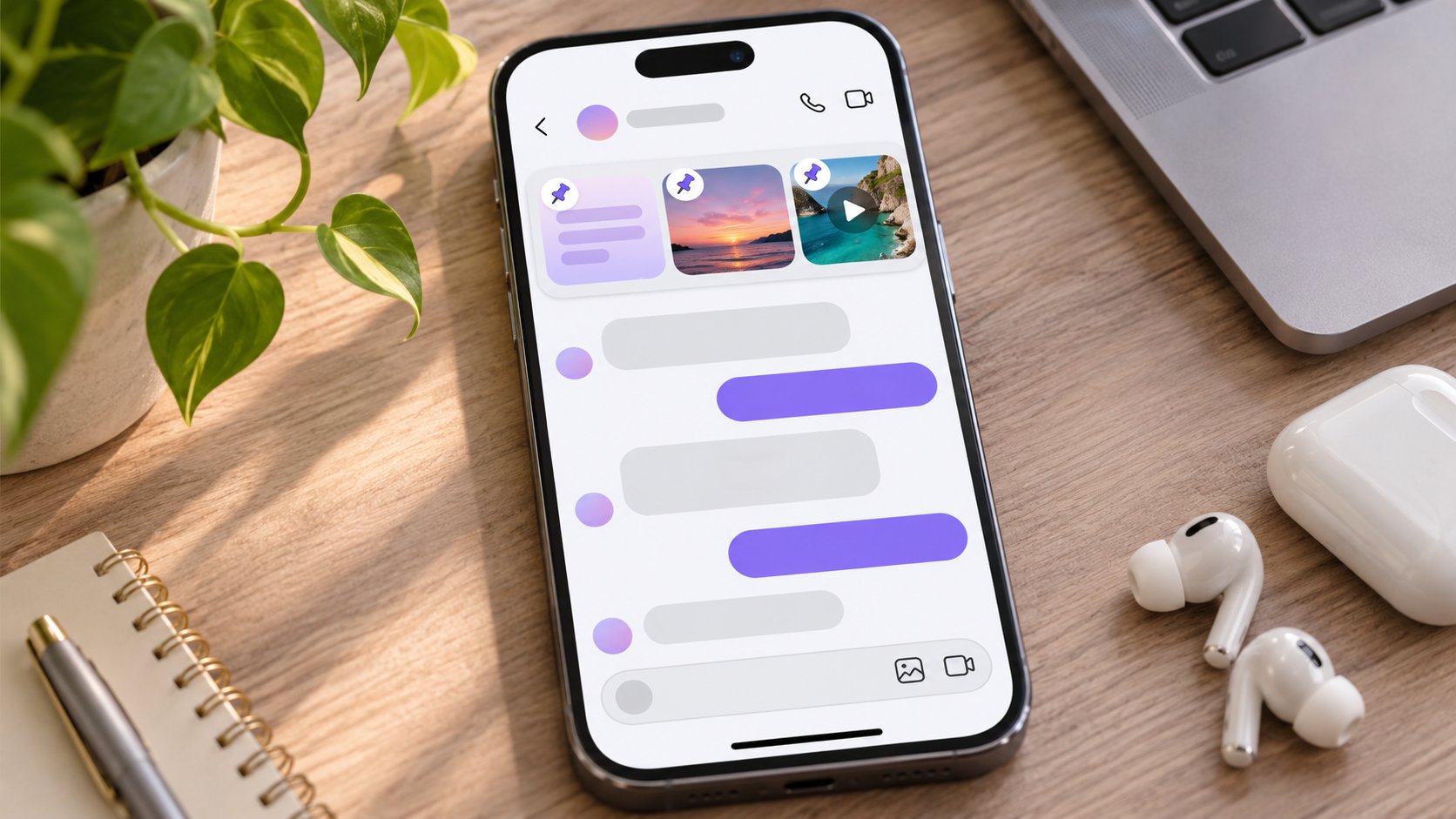
TL;DR: Open an Instagram conversation, press and hold a message, shared photo, or Reel, then select Pin. You can keep up to three pinned items per conversation, including one-to-one and group chats. To remove one, press and hold it and choose Unpin. Pinned content appears within the conversation for its participants; pinning an entire chat to your inbox is a different feature. Use the Instagram mobile app for the most reliable controls.
The important address was sent on Monday. By Thursday, it is buried beneath 46 reactions, two unrelated Reels, and a discussion about lunch. This is precisely the sort of small, irritating problem Instagram’s message-pinning feature is designed to solve.
What Does Pinning a Message on Instagram Actually Do?
Pinning highlights an existing item in a direct-message conversation. Instead of searching through the chat each time someone asks for the meeting place or the Reel containing a useful tutorial, participants can return to the pinned area. The message remains part of the original conversation; it is not sent again, turned into a new post, or moved into a separate private folder.
Instagram introduced inbox-level chat pinning in 2024 and expanded the feature to individual messages and shared content in 2025. The two controls sound nearly identical, and people understandably mix them up. Yet they solve separate problems.
|
Feature |
Pin a message, photo, or Reel |
Pin an entire chat |
|---|
|
What stays accessible |
A selected item inside a conversation |
A conversation in your DM inbox |
|
Where you use it |
Open the chat and hold the item |
Open the inbox and use the chat’s menu |
|
Standard limit |
Three items per conversation |
Three conversations in your inbox |
|
Who can see the result |
Participants in that conversation |
Your own inbox view |
|
Best use |
Directions, links, shared media, decisions |
Frequent contacts and active groups |
|
How to undo it |
Hold the item and tap Unpin |
Open the thread’s inbox menu and choose Unpin |
How to Pin a Message in Instagram DMs on iPhone or Android
The procedure is short, provided you start inside the conversation rather than at the inbox screen. The same basic long-press gesture applies to the Instagram apps on iPhone and Android, although menu placement and wording may vary slightly between versions.
- Open Instagram. Sign in to the account that contains the conversation.
- Go to Direct Messages. Tap the messaging icon and select the individual or group chat.
- Find the message. Scroll to the text, photo, shared post, or Reel you want to keep accessible.
- Press and hold the item. Hold your finger on its message bubble or media card until the action menu appears.
- Choose Pin. If Instagram asks for confirmation, review the prompt and confirm.
- Check the top of the conversation. The selected item should now appear in the chat’s pinned-content area.
iPhone and Android: check where you press
On iPhone, swiping left on a chat in the inbox can expose chat-level options; on Android, holding the inbox conversation can do the same. For a content pin on either platform, open the thread first and hold its specific message bubble or media card. Check any overflow menu if Pin is not immediately visible.
How to Pin Photos and Shared Instagram Posts in a DM
A photo can reach Instagram Direct in several ways. Someone might send an ordinary image from their phone, share a public feed post, or drop a carousel into a conversation. For regular, persistent media in a DM, pinning follows the message workflow: locate its card in the chat, press and hold, and choose Pin when offered.
A few details are worth checking before treating any image as a dependable reference:
- Ordinary photo sent in chat: The persistent image message is the item to pin, assuming the option appears.
- Shared feed post or carousel: Pin the shared post card in the conversation. The underlying post still belongs to its creator.
- Disappearing photo or video: Do not assume a view-once or replay-limited attachment can be retained by pinning. Its temporary viewing rules are a different feature.
- Deleted or restricted material: A pin is not a backup. If the source becomes unavailable or its visibility changes, the shortcut may no longer provide access.
How to Pin a Reel in an Instagram DM
Reels are especially easy to lose. A friend sends a workout demonstration; another person replies with a recipe; soon the original video has disappeared into the scroll. Pinning the shared Reel message can make it quicker to revisit without searching for the creator again.
-
Open the Reel you want to discuss, and use Instagram’s Share option to send it to the intended conversation if it is not there already.
-
Return to that DM and locate the Reel’s shared preview or message card.
-
Press and hold the shared Reel inside the conversation.
-
Tap Pin and check that it appears in the pinned area.
-
When the Reel is no longer relevant, use Unpin to free the slot.
Sometimes your goal is to inspect a public creator’s videos rather than manage a private conversation. In that case, Dumpor’s Instagram Reels Viewer helps you browse available Reels from public accounts in a browser without signing in. It does not open your private DMs, show another person’s messages, or pin anything within Instagram.
How to Find, Unpin, and Replace Pinned Instagram Messages
To locate pinned content, open the relevant DM and look near the top of the conversation for the pinned item or its indicator. Tap the pinned preview where available to jump back to the corresponding message. If the layout looks different, inspect the conversation rather than hunting through the profile’s public posts or your main inbox.
To unpin a message, photo, or Reel, press and hold the pinned content and choose Unpin. The shortcut is removed; the original message ordinarily remains in its chronological place unless it has separately been deleted, unsent, or made unavailable. Unpinning is not the same as unsending, and it does not notify the app to erase the original content.
What happens when you reach the three-pin limit?
Instagram permits up to three pinned messages or shared items in a single conversation. That is three total—not three text messages plus three photos plus three Reels. A mixed set counts toward the same ceiling.
If a fourth item deserves attention, review the existing pins and unpin an outdated one before adding the replacement. Depending on the app version, Instagram may prompt you to manage an existing pin. Rather than relying on automatic replacement behavior, explicitly check which three items remain visible afterward.
We suggest a simple rotation:
- One action: The next decision, deadline, or task somebody must handle.
- One reference: An address, brief, link, or persistent photo that is still accurate.
- One shared resource: A Reel, post, or image the participants repeatedly need.
Can Everyone in a Group DM See Pinned Messages?
Yes. Pinned content is a conversation-level reference, not a secret bookmark belonging only to the person who selected it. In a group DM, other participants can see the pinned item in the chat, subject to the underlying content remaining accessible to them. For one-to-one conversations, the same distinction applies: pinning content within the thread is different from privately placing that entire conversation at the top of your own inbox.
Do not treat a pinned message as proof that everyone has read or approved it. A participant may have notifications muted, may not have opened the chat, or may have overlooked the pinned area entirely. Whether Instagram displays a service notice or sends a particular alert can vary with the interface and notification settings. The safe assumption is visible in the conversation, not guaranteed to be read.
Does pinning change read receipts or privacy?
No. A pin organizes information; it does not disable read receipts, bypass account privacy, or grant new access. Ordinary chat and media permissions still apply.
Why Can’t I Pin a Message on Instagram?
|
What you notice |
Likely explanation |
What to try |
|---|
|
Pin appears for a chat, not for a message |
You are using the inbox-level menu |
Open the conversation and hold the specific message |
|
The menu shows Reply or React but not Pin |
The command may be elsewhere, or that item may not be eligible |
Expand the action menu; try a regular text message |
|
A fourth item will not stay pinned |
The conversation has reached the three-item limit |
Unpin a stale item, then add the new one |
|
A temporary image cannot be pinned |
Disappearing media has different retention rules |
Use a regular, permitted photo message instead |
|
Controls differ on a computer |
Web messaging may not expose the mobile pinning workflow |
Open the current Instagram app on iPhone or Android |
|
The feature is missing across chats |
The app may be outdated or temporarily affected |
Update Instagram, restart it, and check again |
Update Instagram through your device’s official app store, then reopen it and check again. If the option still does not appear, the exact interface may differ for your account or app build. Avoid third-party extensions promising to unlock private chat functions; a missing control is not a reason to hand over login credentials.
What about Vanish Mode and disappearing messages?
Temporary messaging is designed around limited visibility or retention, whereas pinning is designed around returning to existing content. They work toward opposite ends. Do not count on Vanish Mode messages, view-once photos, or disappearing attachments being pinnable or preserved. If information must remain accessible, ask the sender to share an ordinary message or permitted non-disappearing file instead.
Pinning Is Useful. It Is Not a Filing System.
For creators and brand teams, it also helps to distinguish sending, scheduling, and pinning. Scheduling decides when a new text DM goes out; pinning highlights content already present in the chat. If you need the former, our guide to scheduling Instagram DMs and managing queued messages covers its separate controls and limitations.
Where Dumpor Fits—and Where It Doesn’t
Dumpor is designed for viewing available public Instagram content, including public Reels and profiles, without signing in to Instagram. That can be helpful when researching a creator, revisiting a publicly available video, or comparing references outside a private conversation. It is separate from Instagram’s DM pinning controls.
We cannot pin or unpin your messages, inspect private chats, retrieve disappearing DMs, or access private profiles through Dumpor. Those actions belong inside Instagram, under the permissions and controls of the account involved. Keeping that boundary clear helps you choose the right tool without mistaking a public-content viewer for a private inbox manager.
Have a question about using Dumpor for public Instagram research, or a suggestion for a future how-to guide? Send our team a request. Tell us what public-content task you are trying to complete; please do not include passwords or private DM screenshots.
FAQ
Frequently Asked Questions
How many messages, photos, or Reels can you pin in an Instagram DM?+
You can pin up to three items per conversation. The limit covers the pinned content as a whole, whether those items are text messages, shared images, or Reels. It does not reset for each media type or each participant. A group with six members still has a conversation-level three-item limit, not 18 individual slots. To add something new when all positions are occupied, unpin information that is no longer useful and then pin the new item. Separately, Instagram allows up to three entire conversations to be pinned in your inbox; those are different slots for a different feature.
Can you pin a photo someone else sent you on Instagram?+
Yes, when it is a regular eligible photo message within a conversation. Open the DM, find the image, press and hold its message card, and choose Pin if the action is available. You do not need to be the original sender. However, a temporary view-once photo is not equivalent to a persistent image in chat. Pinning also does not transfer copyright, create a permanent backup, or guarantee that media removed by its sender will remain available. For anything operationally important, retain a permitted copy in the appropriate place rather than depending on a pinned shortcut alone.
How do I pin a Reel that someone shared with me?+
Open the conversation containing the shared Reel and long-press the Reel’s preview or message card. Select Pin, then verify that the Reel appears in the pinned area at the top. If the Reel exists only in your feed, first use Instagram’s Share control to send it into that conversation; you cannot pin a Reel inside a DM until it is actually part of that chat. Remember that a pinned preview depends on the underlying video’s continued availability. The pin does not make a deleted or newly restricted Reel accessible again.
Can the other person see when I pin a message?+
Other participants can see pinned content within the shared conversation, so it should not be treated as a private bookmark. In a group, assume the pinned reference is intended for the group rather than only for your account. Instagram’s in-chat indicators and notification behavior may differ across devices and versions; do not promise that everyone receives a separate push alert, and do not interpret the absence of an alert as secrecy. If a pinned message communicates an urgent change, send an ordinary, explicit follow-up and ask the relevant people to acknowledge it.
How do I unpin an Instagram message without deleting it?+
Open the conversation, find the pinned message, and press and hold it. Choose Unpin from the available menu. This removes its special position at the top but does not, by itself, unsend the original message or delete the conversation. The text or media normally remains where it was originally sent, subject to ordinary deletion, privacy, and availability rules. If your objective is to withdraw a message you sent, that involves Instagram’s separate Unsend function; unpinning alone will not achieve it.
Why is the Pin option missing from my Instagram messages?+
Check that you are pressing an individual item inside an open conversation rather than pressing the chat in the main inbox. Expand the action menu if necessary, and test a standard text message instead of a disappearing attachment. Also check whether the conversation already has three pins. If the option remains unavailable, update the official Instagram app and reopen it. Some controls may be laid out differently, or unavailable on the web interface or for particular content types. Avoid giving your account credentials to a third-party service advertising a shortcut around those limitations.
Can you pin Instagram DMs on a laptop or desktop browser?+
Instagram’s documented pinning instructions focus on the mobile-app long-press gesture. The desktop messaging interface may not offer the same controls, even if you can read and send ordinary DMs there. If you cannot find Pin in a browser, use the official Instagram app on an iPhone or Android device and open the relevant conversation. This is different from a browser-based public Instagram viewer: a viewer can help you inspect available public media, but it cannot manage the private DM pins associated with your Instagram account.
Are pinned Instagram messages permanent, and can they disappear?+
No pin should be treated as a permanent archive. You or another participant may unpin an item, and an original message or linked post can later become unavailable. Shared Reels and posts remain subject to their creators’ account settings, deletion decisions, and other access restrictions. A pinned item also does not protect you against losing access to an account or conversation. Use pins for quick navigation and active coordination. For documents, approvals, and records that must last, use an appropriate storage method with the necessary permissions and backups.
What is the difference between pinning a chat and pinning a DM message?+
Pinning a chat keeps the conversation near the top of your inbox. Pinning a message highlights an item inside the conversation for participants to reference. Both features have a commonly documented limit of three, but those limits are separate. To pin a chat, use its menu in the inbox; to pin an item, open the conversation and long-press that message, photo, or Reel. Choosing the right level avoids a common mistake: making a conversation easy to open without making the information inside it any easier to locate.

 Telegram bot
|
TikTok Viewer