How to Save Instagram Highlight Cover Photos at Full Size
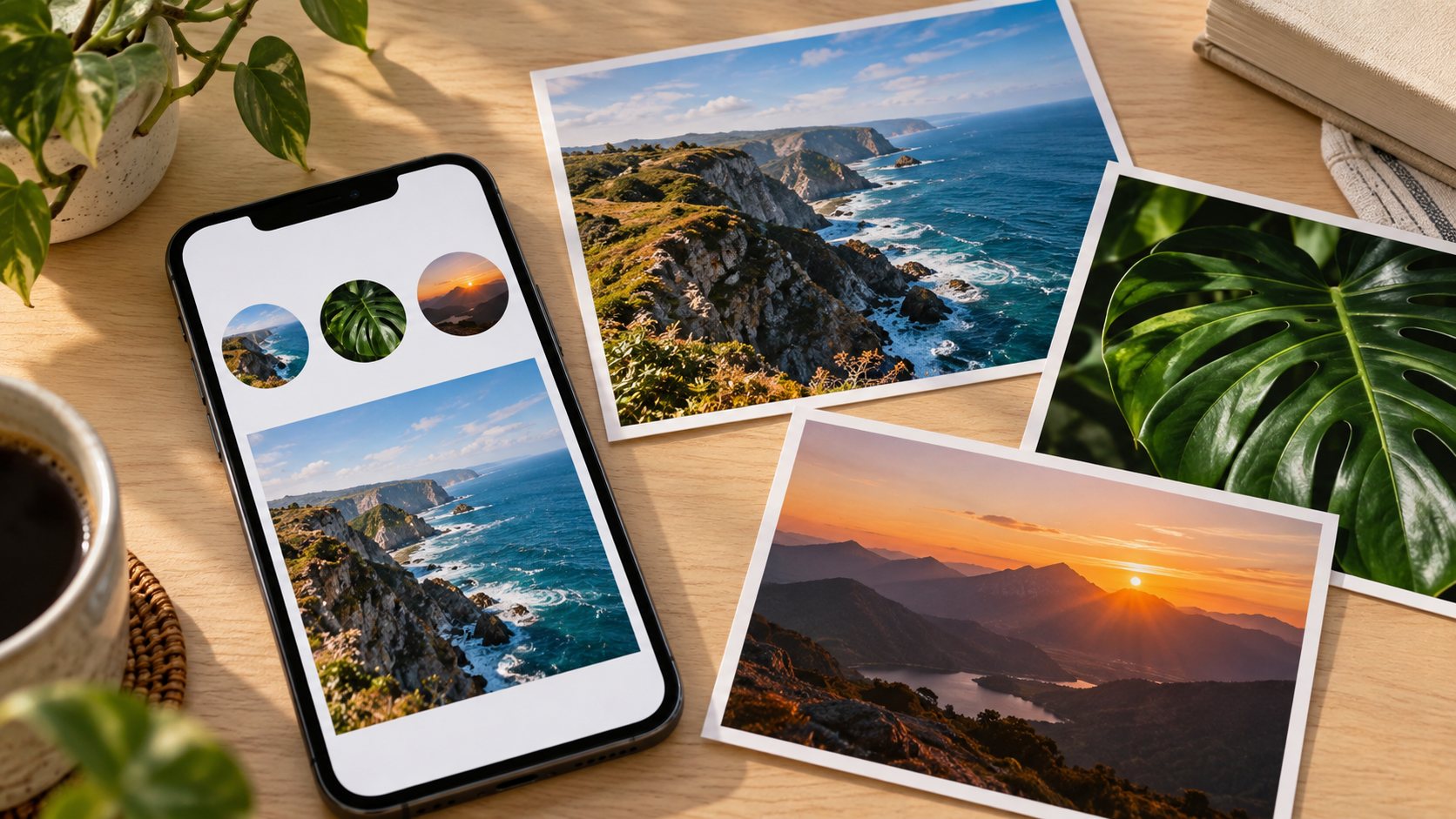
TL;DR
To download an Instagram Highlight cover photo in full size, use a tool that explicitly supports cover images, enter the public account’s username or supported link, and save the cover through its download control. Check the saved image’s pixel dimensions. A downloader can retrieve an available image, but “full size” does not necessarily mean the creator’s original upload. For your own cover, the original photo or design export is the strongest starting point. If only a thumbnail is available, enlarging it will not recover the missing original detail.
A cover looks sharp on a profile. You save it, open it on a laptop, and suddenly the lettering is a blur. The download may have worked perfectly; the file itself may simply be small.
At Dumpor, we recommend establishing which image you need before choosing a download method. The cover, the Story behind it, and the original artwork can be three different files. Getting that distinction right saves a surprising amount of trial and error.
What does “full size” mean for a Highlight cover?
An Instagram Highlight is a collection of Stories retained on a profile. Its cover is the image that identifies that collection. A cover may use a frame from a Story or separate artwork selected by the account owner. Downloading the Stories in the collection does not necessarily download that separate cover.
Four terms are useful here:
- Profile preview: the small cover representation visible while browsing the account.
- Available cover file: an image version that a browser or downloader can actually retrieve.
- Original artwork: the photograph or design file used before it was uploaded and processed.
- Upscaled copy: an enlarged version made by adding pixels through image processing.
For this guide, “full size” means the largest version you can legitimately retrieve from the available source. It is a practical description, not a fixed resolution or a guarantee that every part of the original composition survives.
Check the actual file. A button labelled “HD” does not establish its dimensions, and a large preview on a website does not establish its quality.
Choose the right download method
The most effective route depends on ownership, availability, and whether the cover also exists elsewhere as a photograph or design.
|
Your situation |
Best starting point |
What to expect |
|---|
|
You created the cover |
Original photo, design project, or backup |
Access to the source before Instagram processing |
|
Your cover came from your Story |
Original media, then the relevant Story or archive |
A possible match, with framing or overlays to check |
|
You need another public account’s cover |
A downloader with explicit cover support |
The cover version that the service can retrieve |
|
You can see the image in a desktop browser |
Image-saving options or browser developer tools |
The image resource actually loaded by the page |
|
You need artwork from a private account |
Ask its owner for the file |
An authorised copy, subject to their agreement |
|
You only need a visual reference |
Screenshot, if appropriate |
A capture of the displayed preview, with limited detail |
How to download a public Instagram Highlight cover
Use this workflow with a service whose current interface specifically offers cover downloads. A general Highlight downloader may only retrieve the photos and videos inside the collection.
1. Identify the account and the exact cover
Record the username and Highlight title. Copy the profile address if the tool accepts links, and check that you have the correct account. Display names can be similar; handles are more useful for locating a particular profile.
To locate the saved collection, open our Instagram Highlights Viewer, enter the public username or profile link, and select the relevant account. Browse its available Highlights and identify the cover you need. Separate cover downloads still depend on the options available for that image.
2. Check what the downloader accepts
Some services request a username. Others accept a profile URL or a direct Highlight link. Follow the input instructions on the page rather than assuming every Instagram address works everywhere.
Look for a specific reference to “Highlight covers,” “cover images,” or “cover photos.” If the results only contain playable Stories, you may have opened the right account in the wrong type of tool.
3. Locate the cover image in the results
Match the artwork and title against the account. If a larger image view is offered, open it before saving. Use the control associated with the cover itself; selecting the surrounding collection may open its Stories instead.
4. Save the available image
Use the image’s download button where available. If the site opens the actual picture in a new tab, your browser may offer an image-saving command through its context menu or sharing controls.
Avoid saving the results page or a screenshot of the preview by mistake. The downloaded item should open as an image. If you receive an HTML page, an advertisement, or an unexpected installer, you have not obtained the cover file.
5. Check dimensions and composition
Open the saved image and view its information or properties. Record its width and height in pixels, then inspect the artwork at normal viewing size.
Does it contain the expected design? Are the edges already cropped? Is small text readable? These checks tell you more than the filename. A file called “original-HD” may still contain only a small preview.
If the result is limited, try locating the source artwork or contacting its owner. Repeating the same download does not make the underlying image larger.
Where Dumpor fits into the process
We help users explore publicly available Instagram content without requiring an Instagram login. Our published service information describes viewing Stories, Highlights, Reels, and profile photos, with downloads where available. Access depends on what public material can be retrieved.
Cover extraction deserves a separate check. Do not assume that seeing a Highlight in a viewer means its cover can be exported independently, or that a downloadable Story is the original image used for that cover.
If the artwork also appears in a public Instagram post, our Instagram photo and video downloader offers a post-link workflow. Paste the supported post address, process it, and use the download option on the resulting content page. Compare that photo with the cover before treating it as a match.
How to recover your own cover in the best quality
Your original file is usually the most useful asset for editing, rebranding, or creating a matching set. Begin with the places where the artwork was made and stored.
Search your photo library, cloud backups, shared brand folder, and design projects. Use the campaign name, approximate creation date, or designer’s filename. If an agency produced the covers, ask for the original exports and editable project rather than sending them a screenshot to reconstruct.
If the cover came from a Story
Locate the matching Story in your account or Stories archive, where available. Instagram provides options for saving your own Story media; the current menus and labels can vary by device and app version.
Inspect the saved result against the cover. The source Story may contain stickers, text, or a different framing, and a separately uploaded cover may never have appeared in a Story at all.
An archive is helpful, but it is not a universal cover backup. Keep looking in your design files if the artwork is absent.
If you have located the matching Story, our guide to downloading Instagram Story photos without screenshots explains saving your own images and available public Story photos on different devices.
If the original seems to be missing
Instagram also provides an information-export route through Accounts Center. This is worth considering for a broader account backup, although you should check the delivered files rather than assume the export contains a separate, untouched copy of every custom cover.
Saving a cover on your device
On iPhone or iPad, use the browser’s download control or the image-saving option where offered. A download may appear in Files rather than Photos, so check your browser’s downloads list and configured folder.
On Android, check the browser’s downloads list or Downloads folder. Whether the picture immediately appears in your gallery depends on the apps you use. Open its details panel to inspect the dimensions.
On Windows or macOS, save the image to a named folder and inspect its properties. For a set of covers, use descriptive filenames and record the source and date separately.
Changing devices mainly changes the saving process. The quality still depends on the image file you retrieve.
Can you use Inspect Element to save the image?
Sometimes. Browser developer tools can help you locate an image that a webpage has already loaded. They cannot guarantee access to a larger version that the page never received.
In a desktop Chromium browser, the Network panel provides a way to inspect loaded resources:
-
Open the page displaying the cover and launch developer tools.
-
Select Network, then reload the page to capture its requests.
-
Filter for image requests and inspect the previews.
-
Identify the matching artwork and open its resource if the browser offers that option.
-
Save the image and check its dimensions.
Treat this as a diagnostic method. If the resource contains only a small thumbnail, developer tools have found a thumbnail. Editing width values in the page changes how it is displayed; it does not replace the source with an original photograph.
Old tutorials may suggest removing a size marker from an image URL. Such edits are not a dependable general method: the altered address may be invalid or inaccessible. Work with resources you are authorised to access, and avoid running unfamiliar console scripts to retrieve an image.
Why a downloaded cover looks blurry or cropped
A small preview can look convincing until you enlarge it. Once stretched across a presentation slide or a website banner, its limitations become obvious.
Consider a hypothetical 150 × 150-pixel download. Expanding it to 1080 × 1080 creates a larger image grid, but it does not supply the original fine detail. Resampling adds or removes pixels; it is a different operation from recovering a higher-resolution source.
Check three things before editing:
- Pixel dimensions: compare width and height, not just file size in kilobytes.
- Framing: determine whether the source already excludes parts of the artwork.
- Visible detail: examine edges and text without judging solely by an enlarged preview.
Converting a small JPEG into PNG will not bring back missing information. Nor will placing it on a larger canvas. Both may be useful editing steps, but neither establishes original quality.
What to do when the download fails
|
Problem |
Possible explanation |
Useful next step |
|---|
|
No profile appears |
Mistyped handle, renamed account, or retrieval failure |
Check the current username and try again later |
|
Profile appears without Highlights |
No accessible collections or incomplete retrieval |
Confirm whether the expected Highlight is still available |
|
Stories download, but the cover does not |
The tool supports collection contents only |
Look for explicit cover support or obtain the source |
|
The image is small |
A limited cover version was retrieved |
Check for another source; avoid repeated enlargement |
|
The saved item is a webpage |
The browser saved the page instead of the image |
Use the image-specific download control |
|
The artwork differs from the current cover |
The cover changed or a cached version appeared |
Compare with the current profile and retry later |
|
An image address no longer opens |
The resource is unavailable or the link is no longer valid |
Return to the content page and request it again |
Before you reuse someone else’s artwork
Public visibility does not by itself give you permission to republish a cover or adopt it as your branding. Obtain permission or a suitable licence for your intended use, particularly when the image will appear in advertising, on a commercial website, or on a client’s account.
Need help with a public-content download on Dumpor? Send our team a support request with the page address, your device and browser, and a short description of the problem. Include the saved image dimensions if quality is the issue. Please leave out passwords and login codes; the useful details are the source and what happened.
FAQ
Frequently Asked Questions
Can I download Instagram Highlight cover photos in full size?+
You can save the largest cover version made available through a supported download method. That may be larger than the profile preview, but it is not necessarily the creator’s original file. Check the saved dimensions and composition. For an untouched original, use your own source artwork or request the file from its owner.
Is a Highlight cover downloader the same as a Highlight downloader?+
Not necessarily. A Highlight downloader may save the Stories inside a collection, while a cover downloader targets the image representing that collection. Some tools provide both. Check the results and controls before downloading, especially when the cover is a custom icon that does not appear in any Story.
Why is the downloaded image only 150 × 150 pixels?+
That result indicates you obtained a small image version; it does not prove that every cover has the same dimensions. The service or page may only have exposed that version. Look for a matching source photograph, check your own backups, or ask the creator. Renaming or enlarging the file will not recover original detail.
Can I download a cover without logging in to Instagram?+
Some third-party services support public-content viewing and downloads without an Instagram login. Dumpor describes its service as public-only and no-login. Availability still depends on the particular content and supported feature. Do not assume that a tool can retrieve private Highlights because it accepts a username without asking you to sign in.
Can I save covers from a private Instagram account?+
Dumpor does not bypass private-account restrictions. If you need a cover from a private profile, ask its owner to send the artwork and clarify your intended use. For a private account you manage yourself, look in your original files and account tools rather than attempting to expose it through a public viewer.
Is taking a screenshot a good alternative?+
A screenshot can serve as a quick visual reference, but it records the displayed representation. It may include interface elements and a cropped, small cover. Even a high-resolution screenshot does not necessarily contain a high-resolution version of the artwork within it. For editing or publication, seek the image file or original design.
What dimensions should I use when recreating my own cover?+
For a new design, a 1080 × 1080 square canvas is a practical working choice; a 1080 × 1920 canvas is useful when the artwork will also serve as a vertical Story. These are design choices, not promised download dimensions. Keep the main symbol central and preview the crop in your current Instagram interface before publishing.
Does changing a downloaded cover from JPG to PNG improve quality?+
It does not restore detail already lost in the source. PNG can be useful when exporting freshly created icons or graphics, but converting a compressed photograph simply changes how the existing image is stored. Keep the downloaded file, edit a copy, and return to the original artwork whenever you need a cleaner result.
Can I recover an old cover after it has been changed?+
Start with your photo library, design history, cloud backups, and previous brand exports. A Story archive may help if the artwork appeared in a Story. A public viewer should not be treated as a dependable history of earlier covers, and an account information export should be checked rather than assumed to contain every previous version.
Why can I see the cover but find no download button?+
The image may be present only as a navigation thumbnail for opening a Highlight. Visibility and separate download support are different capabilities. Check whether the service explicitly offers cover extraction. If it does not, use an available image-saving method, locate the artwork elsewhere, or request the source from the owner.

 Telegram bot
|
TikTok Viewer
Telegram bot
|
TikTok Viewer