How to Remove Location Metadata From Photos Before Uploading to Instagram
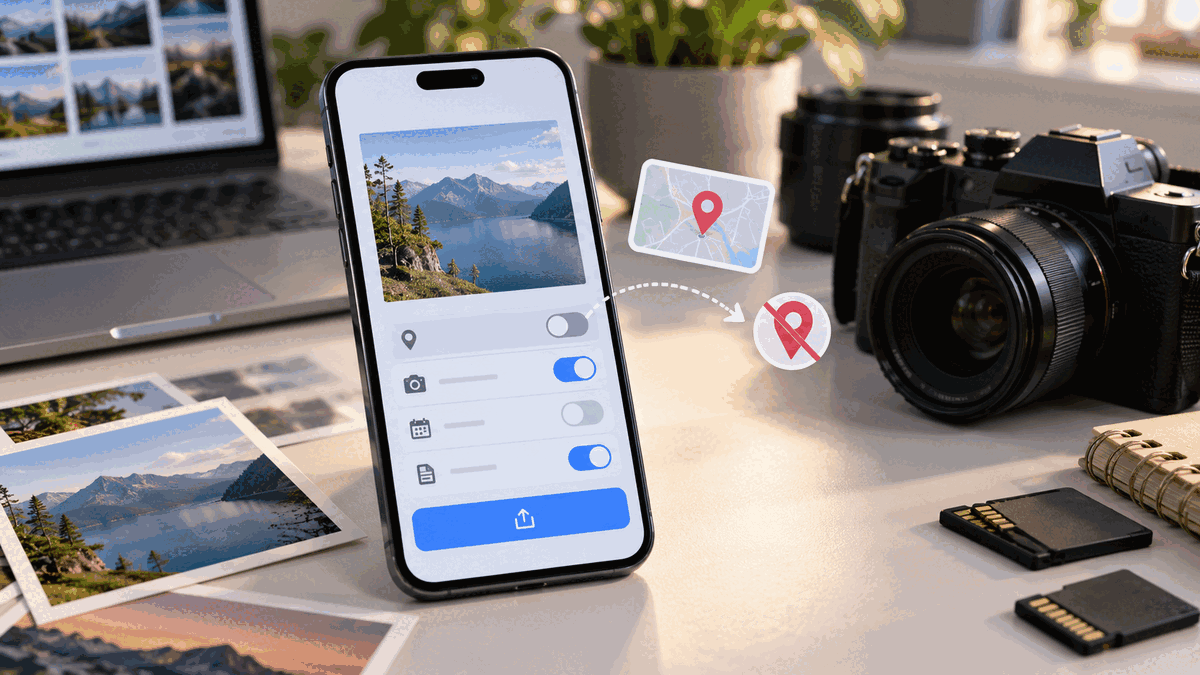
TL;DR
To remove location metadata before posting on Instagram, create a copy of your photo, delete its GPS coordinates, verify that the copy is clean, and upload that exact file. On iPhone, use Photos’ location controls; on supported Samsung phones, use Gallery’s location editor. Other Android devices may need a trusted offline metadata tool. Windows provides a file-properties removal option, while Mac users can manage location in Photos and inspect exports in Preview. For future shots, disable camera geotagging.
One distinction matters more than any menu: embedded photo GPS data, a visible Instagram location tag, and Instagram Map location sharing are different features. Removing one does not switch off the others. Nor should you assume Instagram will remove sensitive information on your behalf.
A picture of morning coffee may conceal the GPS coordinates of the home where it was taken. At Dumpor, we encourage privacy decisions before publication. This guide concerns your own photos, not tracking other users through location searches.
What exactly does a photograph reveal?
EXIF data may store GPS coordinates, capture time, device model, and camera settings. Location can also appear in XMP or IPTC fields. Not every image has GPS: screenshots and edited exports often lack the camera original’s coordinates. A library may estimate a location from landmarks; that is different from embedded GPS.
|
Location information |
Where it lives |
What you need to change |
|---|
|
GPS coordinates / EXIF |
Image file |
Camera setting or file metadata |
|
Library-estimated place |
Photos app database |
Photo library location controls |
|
Instagram post geotag |
Visible place on a post or Reel |
Publishing or post-editing screen |
|
Story location sticker |
Story overlay |
Story editor |
|
Instagram Map sharing |
Separate audience-sharing feature |
Map settings and device permissions |
|
Recognizable street or address |
Image pixels or caption |
Crop, redact, or revise the post |
Disabling GPS today does not clean older photos. Match the fix to the problem.
The pre-upload checklist: seven small decisions
- Duplicate the original. Keep a private master, then work with a publishing copy.
- Inspect the source. Find its information panel and check for a map or GPS fields.
- Remove the coordinates. Use a device feature that edits the file or a trustworthy offline cleaner.
- Verify the output. Examine the exact file you intend to select in Instagram.
- Review the picture. Look for house numbers, mail, street signs, school logos, and reflections.
- Review the caption. Delete unnecessary address details, venue names, and real-time clues.
- Upload the cleaned copy. Leave Instagram’s Add location field blank when privacy is the priority.
Do not accidentally select the untouched original.
iPhone: remove location data before posting
Apple provides three distinct controls.
Remove a stored location in Photos
-
Open Photos and select the picture.
-
Swipe up or tap Info to inspect its location.
-
Open More → Adjust Info → Adjust Location (the route may differ slightly by iOS version).
-
Choose No Location, then check the photo again.
Afterward, verify any exported file separately: an editing screen cannot prove every metadata field is empty.
Exclude GPS when sharing from the Photos app
Select the picture, tap Share → Options, turn Location off, and confirm that the share sheet indicates the location will not be included. Complete the share through that route.
Caution: This is a Photos share-sheet option. It is not a blanket guarantee for an image you later select inside Instagram’s own media picker. If your goal is certainty, export or prepare a separate clean file and inspect it before uploading.
Stop tagging new iPhone photos
Go to Settings → Privacy & Security → Location Services → Camera → Never. This affects new Camera captures, not older images or other camera apps.
Android: choose the method for your phone
Android Gallery menus vary across Samsung, Pixel, and other phones.
Disable GPS capture for future photographs
Open Camera → Settings and find Location tags, Save location, or equivalent wording. Switch it off. On Samsung Galaxy, Location tags is a Camera setting. Review the Camera app’s system location permission as a second check. Existing photos remain unchanged.
Remove a location on Samsung Galaxy
On supported versions of Gallery, open the photo, choose More options → Details → Edit, tap the minus sign beside the location, and save. Reopen the result and inspect it. If your device lacks that option, use an appropriate offline file editor instead of assuming a hidden menu exists.
The Google Photos limitation
Google Photos can remove estimated or manually added places. Its location editor cannot remove camera-written GPS from the original file. Album-sharing controls do not sanitize a separate export.
For camera GPS, create a copy with a manufacturer tool or trusted offline remover; inspect the file before uploading.
Windows and Mac: prepare the actual upload file
Windows File Explorer
-
Right-click your image and open Properties → Details.
-
Review any GPS latitude or longitude fields.
-
Click Remove Properties and Personal Information, if available.
-
Choose Create a copy with all possible properties removed.
-
Inspect the new copy under Details before posting.
All possible covers only properties Windows can edit for that format. Check JPEG, HEIC, and other exports individually; use an offline cleaner if GPS remains.
macOS Photos and Preview
In Photos, inspect the picture’s information and use its location-management controls, such as Image → Location → Hide Location, where available. During export, disable location inclusion if the export dialog offers that choice.
Open the resulting file in Preview → Tools → Show Location Info. If the option is dimmed, Preview does not detect GPS information it can display. For high-sensitivity use, also inspect EXIF, XMP, and IPTC fields with a reputable offline metadata viewer. Test the exported copy, not only the item still sitting in Photos.
How to check that location metadata is gone
Some apps hide locations without rewriting the file. Neither a reassuring filename nor a missing map thumbnail proves sanitization.
|
Check |
What to look for |
|---|
|
EXIF GPS latitude / longitude |
No coordinates in the upload file |
|
GPS altitude or direction |
No unwanted geographic fields |
|
XMP / IPTC location |
No sensitive coordinates or location names |
|
Creator and comment fields |
No private names or notes |
|
Filename and capture time |
No identifying clues you did not intend to share |
|
Picture and caption |
No address, landmark, badge, or precise routine exposed |
Prefer a local inspector to uploading private pictures to unknown websites. Preserve color profiles and orientation where needed. Sensitive work may warrant checking more than GPS alone.
Does Instagram strip EXIF metadata automatically?
Public Instagram downloads commonly lack original EXIF GPS fields. Yet a downloaded copy cannot establish what Meta received or how every upload format behaves.
Remove location information before upload rather than relying on a downstream copy. A retrieved photo with no GPS coordinates does not prove that the original uploaded file was clean.
Our guide to downloading Instagram photos in their available quality explores the distinction between the camera original and a copy served publicly. Downloading a public image is not the same thing as sanitizing a photo on your device.
EXIF data is not an Instagram location tag
An Instagram post may display a place because its author selected Add location. A Story may contain a location sticker. Neither requires the image to retain GPS EXIF coordinates. Conversely, deleting the location label does not necessarily remove metadata from your local original.
Instagram Map has another setting for sharing your last active location with selected people; this is opt-in. Location-tagged content can appear on the Map in supported experiences even when personal Map sharing is off. Check Map settings separately and select No one if you do not want to share your location. For existing posts, edit or remove the geotag individually where Instagram permits.
Disabling Instagram location permission does not conceal a manually tagged venue or a visible street sign.
The location clues hiding in plain sight
Even clean EXIF cannot conceal a recognizable skyline. Check for:
-
Parcel labels, house numbers, ID badges, and paperwork on desks.
-
Street signs, transit stops, shop names, and reflections in windows.
-
School or workplace uniforms, logos, and schedules.
-
Apartment views or interiors that identify a specific building.
-
Captions announcing where you are right now, or repeated times that expose routines.
-
Friends’ tags or collaborators’ posts that reintroduce the place.
Crop or obscure details in the publishing copy. For private text, use opaque redaction. Avoid real-time posts from sensitive places. A technically clean picture can still be revealing.
If you already uploaded the wrong picture
First identify the issue. If it is a visible location tag, edit the post and remove the selected place. If the photo itself shows an address or a sensitive person, consider archiving or deleting it. Changing a tag does not retrieve screenshots or copies already saved by others. For future uploads, clean the source file on your device and replace the post only after reviewing the final image.
If you want to see how your publicly available Instagram profile appears outside a logged-in session, Dumpor’s Instagram Profile Viewer can help with a public-facing appearance check. It is not a GPS or EXIF scanner and cannot inspect Meta’s internal upload records or private posts.
Make privacy a publishing habit
Keep Originals private and export checked copies into Ready for Instagram. For teams, assign someone to review captions, location tags, and file exports.
For questions about public-content visibility through our service, contact Dumpor. We can address Dumpor-related inquiries, not clean your device files or delete a post from Instagram. Please do not attach private originals or GPS coordinates to a general request.
Before Share, ask whether this particular file, caption, or scene discloses a private place. Once published, you cannot control every copy.
FAQ
Frequently Asked Questions
How do I remove location metadata from an iPhone photo before Instagram?+
In Photos, inspect the picture, open More → Adjust Info → Adjust Location, and select No Location; labels may vary slightly across iOS versions. If you share directly from Photos, the Share → Options → Location toggle can exclude coordinates for that sharing route. Do not assume this toggle automatically changes files later selected through Instagram. For sensitive pictures, export a separate posting copy and verify that the exported file contains no GPS coordinates. Keep your untouched original for personal use.
Can I remove GPS data from Android photos without installing another app?+
Sometimes. Samsung Galaxy Gallery offers a built-in location editor for supported files. Other Android manufacturers may provide equivalent controls, but their menus and behavior vary. Google Photos can remove estimated or manually added places, not GPS locations recorded by the camera through that editor. If your phone cannot change the embedded GPS fields, use a trusted offline tool on a copy. Turning off Camera location tags is worthwhile for future photos, but it will not retroactively clean older ones.
Does Instagram automatically remove photo location data?+
Photos downloaded from public Instagram posts often have no original EXIF GPS data, but that is not a universal assurance about every upload route or what Meta receives. The absence of GPS in a downloadable copy cannot prove the source upload had none. Strip coordinates before publishing and confirm the exact file you are uploading. Also check visible location tags and photo details; removing EXIF cannot hide an address printed in the picture. Your privacy decision should not depend on undocumented platform processing.
What is the difference between a photo’s GPS data and an Instagram geotag?+
GPS metadata is embedded in the image file, when present. An Instagram geotag is a place chosen in the posting interface; the place name may appear visibly on the post. A Story location sticker is another publishing element. Instagram Map’s optional sharing of your last active location is separate again. Removing photo GPS does not erase a selected venue, while editing a post’s tag does not clean your camera file. Review each control independently rather than relying on one “location off” switch.
How can I confirm that my exported photo has no GPS coordinates?+
Check the actual export you plan to upload. On Windows, open Properties → Details; on Mac, try Preview → Tools → Show Location Info. For a fuller check, use a reputable offline metadata inspector to examine GPS, XMP, and IPTC location fields. Do not rely solely on whether your photo library shows a map. If another editor or conversion tool creates a new file later, verify that last version too. Finally, inspect visible street signs, labels, and captions, which metadata viewers cannot judge.
Will removing EXIF data reduce the quality of my picture?+
Removing metadata alone does not require changing the image pixels. However, some photo editors recompress images while creating a new file, which can affect sharpness, dimensions, orientation, or color. Save the original separately and compare the output. When quality matters, use a tool that removes the necessary metadata while preserving image data and color profiles. Do not assume every “cleaner” does this equally well. A smaller file does not necessarily mean a safer one.
Is switching off Instagram location permission enough to keep my address private?+
No. Blocking Instagram’s access to your device location can limit certain location-aware features, but it will not remove existing camera metadata, a location tag you choose manually, or a house number visible in your picture. Camera permissions, file sanitization, post geotags, and Map sharing operate independently. For stronger privacy, disable unnecessary camera location capture, verify the prepared photo, skip precise place labels, and review your account’s audience. Avoid publishing your current location when doing so creates a safety concern.
What if I already posted a photo that reveals where I live?+
Assess whether the exposure is a place tag, an address visible in the image, or simply GPS stored in your private camera original. Remove or edit the tag where possible. If the image reveals an address or another serious detail, consider archiving or deleting the post, along with related Stories and cross-posts. There is no reliable way to recall copies other people already saved. Prepare a cleaned, visually reviewed image before reposting. If you face stalking or a credible threat, seek appropriate safety support rather than relying on metadata changes alone.

 Telegram bot
|
TikTok Viewer
Telegram bot
|
TikTok Viewer