Instagram Video Audio Out of Sync After Posting: Where to Troubleshoot First
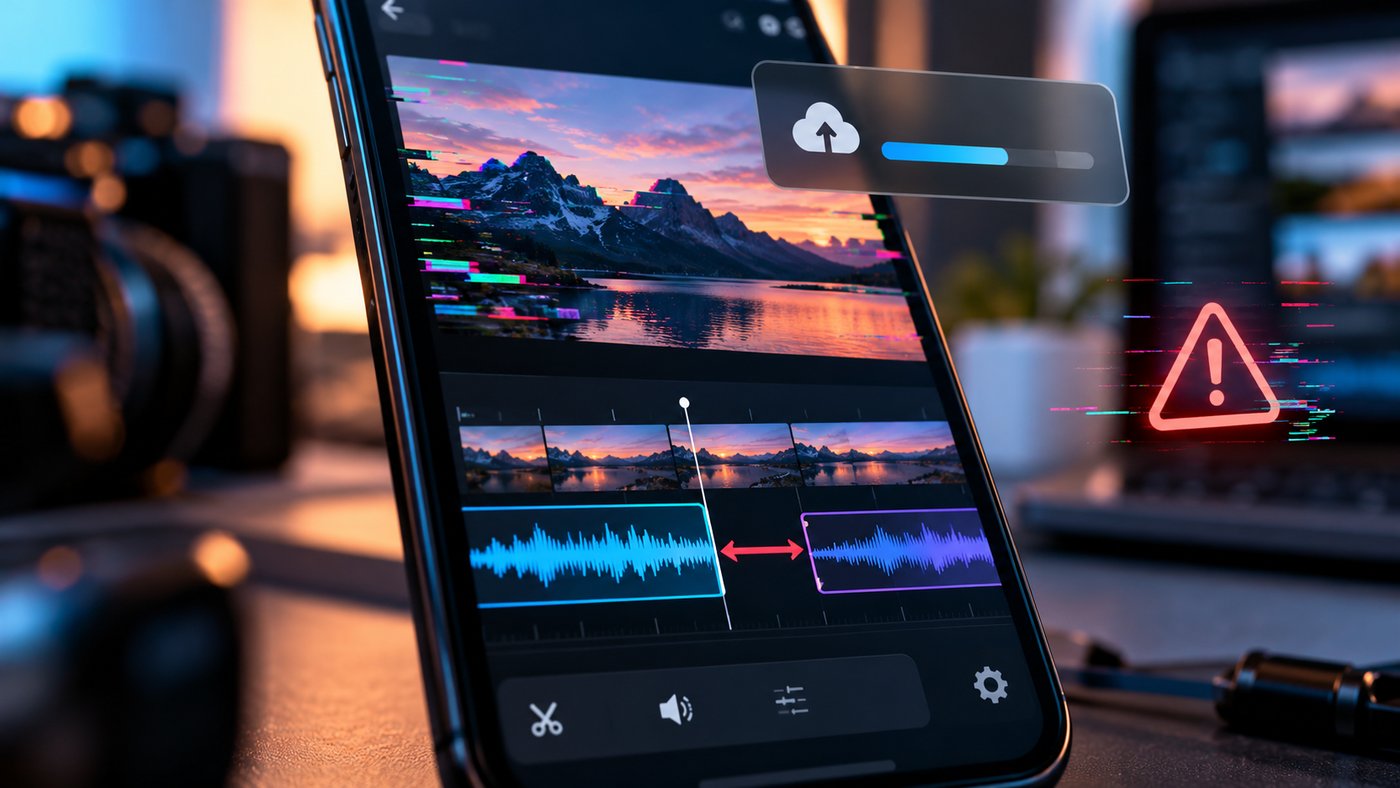 The speaker finishes a sentence, but their lips are still moving. Or a transition lands just after the beat it was meant to hit. The sound is there; its timing is wrong. That distinction determines where to start.
At Dumpor, we recommend checking where the mismatch first appears before changing the edit. A delay in wireless headphones, an offset in the exported file, and drift introduced somewhere in the publishing workflow can look similar. They need different fixes.
TL;DR
If Instagram video audio is out of sync after posting, replay the published video through your phone’s speaker, then check it on another device. Compare that result with the exact file you uploaded, played outside the editor. Check a clear visual-and-audio event near the beginning, middle, and end.
A similar delay throughout suggests a fixed offset. A gap that grows suggests a timing or duration mismatch. A problem that appears only on one device points first to playback. Preserve your project and source files, change one variable at a time, and avoid deleting the published post until you have confirmed the fault and tested a replacement.
First, establish what “out of sync” means
Lip-sync is easiest to judge when a visible action produces a distinct sound: a hand clap, a tap on a table, or a clearly spoken consonant. A montage with background music is harder to assess because an off-beat cut may be an editing choice rather than a playback error.
Pick a repeatable reference point. Watch the same moment several times instead of deciding from the opening second while the video is loading. For a longer clip, choose additional reference points farther along the timeline.
The pattern gives you a direction, not a diagnosis. Progressive drift can involve recording clocks, speed changes, time interpretation, or problematic media timing. It is not proof that a particular frame rate is wrong.
|
What you observe |
Where to investigate first |
What not to assume |
|---|
|
Sound is consistently late or early |
Playback output, track alignment, or a start-time offset |
Every delay needs a frame-rate change |
|
Sync begins correctly and gradually worsens |
Source timing, separate recordings, speed changes, or export duration |
Moving the whole audio track will fix the entire clip |
|
Timing jumps after one cut |
That edit, transition, speed effect, or inserted clip |
The whole upload is defective |
|
Only wireless headphones sound late |
Bluetooth playback latency |
The published media must be replaced |
|
The local export is wrong too |
Editing and export workflow |
Instagram caused the first error |
|
The export is correct but the post is wrong across devices |
Instagram editing, upload path, or platform processing |
One observation proves exactly which stage failed |
1. Rule out a playback delay before editing anything
Disconnect Bluetooth headphones and speakers, then replay the post using the phone’s built-in speaker. Wireless audio can introduce latency. If the timing becomes correct through the speaker, investigate the listening setup before touching the video timeline.
Next, play the same post on another device, preferably without wireless audio. If practical, compare the Instagram app with a browser view of the same post. Keep the media and reference point identical; otherwise, you are comparing different things.
If several unrelated videos sound delayed on one phone while they play normally elsewhere, focus on that phone. Reopen Instagram, restart the device, and install available app updates. A file-specific correction is unlikely to solve a problem affecting everything you watch.
A connection test can also help when playback stutters. Try a stable alternative network and replay the same section. Buffering or a stalled picture can resemble a sync problem, but a reliably identical offset across devices is a different symptom. Faster Wi-Fi will not repair audio already misaligned in the file.
2. Inspect the exact export you uploaded
Open the final video in a local player outside your editing app. Do not rely solely on a timeline preview: the preview and exported file are separate stages, and an overloaded editing session can itself play unevenly.
Check the beginning, middle, and end through the same audio output used for your Instagram test. If the export is already wrong, return to the project. If it is correct in more than one local player but wrong after publication, you have narrowed the investigation to the later workflow.
Do not use an Instagram download as your only reference. A downloaded copy has passed through additional handling and may differ from the original export. Keep the untouched upload file for comparison.
3. Separate a fixed offset from progressive drift
For a fixed offset, the audio is early or late by roughly the same amount at each reference point. If the mismatch exists in the export, a measured adjustment to the affected audio track may be appropriate. Make the adjustment in a duplicate project and check the full result.
Direction matters. When a sound occurs after its visible action, moving the audio earlier can correct a genuine source offset. When the sound arrives first, it may need moving later. Confirm this in the file itself, not while monitoring through a delayed wireless device.
Progressive drift is different. Aligning the first clap may leave the final sentence wrong; aligning the final sentence may spoil the beginning. Check clip duration, speed settings, and source timing before applying a time adjustment.
4. Check frame-rate handling without changing playback speed
Phone footage and screen recordings can use variable frame rate, meaning the intervals between frames are not uniform. Variable frame rate is not inherently broken. However, some editing and conversion workflows handle it less reliably than others.
If the symptoms point to media timing, inspect the source with your editor’s properties panel or a media-information utility. Check whether the recording is variable or constant frame rate and whether the project contains footage with different timing characteristics.
Converting a problematic source to constant frame rate can be a useful diagnostic step. The goal is to create regular frame timing while preserving the intended duration and sound alignment. Review the converted file before replacing anything in the project.
Do not confuse conversion with telling the editor to interpret the footage at a different rate. Reinterpreting frames can change the playback speed and duration. A clip that originally lasted ten seconds may no longer last ten seconds, which creates a new problem if its sound remains tied to the old timing.
5. Review audio timing and create a clean test export
Inspect any audio that was recorded separately, stretched, detached, or replaced during editing. Confirm that the intended track begins at the correct timeline position and that you have not accidentally retained two versions of the same voice recording.
Two nearly aligned voice tracks can create an echo or hollow sound that resembles poor sync. Mute the unwanted duplicate and check again. This is a different fault from a single audio track slipping behind the image.
For a controlled compatibility test, export a fresh MP4 using H.264 video and AAC audio. A conventional 48 kHz audio export is a reasonable starting point for a video workflow. These are troubleshooting choices, not a guarantee that Instagram will process every file perfectly.
A 44.1 kHz source is not automatically defective. Editing software can resample audio correctly. Changing the sample-rate label without properly converting the samples, however, is not a safe repair. Keep duration and playback speed intact, and let a suitable editor or converter perform the resampling.
Use these checks for the test export:
-
Export from the original project rather than recompressing a downloaded post.
-
Confirm the intended video duration and audio start position.
-
Use a conventional MP4, H.264, and AAC combination.
-
If testing constant frame rate, select that mode explicitly where available.
-
Play the exported file from start to finish before uploading it.
-
Keep the previous export so you can compare the two versions.
6. Isolate changes made inside Instagram
Was the uploaded file already complete, or did you add music, voiceover, speed changes, and trims inside Instagram? That distinction is useful. A correct local export does not tell you whether every later timeline adjustment remained aligned.
For footage with embedded speech, try a controlled version without additional Instagram audio or timing edits. If that version stays aligned, add back the relevant changes one at a time. This can help isolate a workflow problem without claiming that a particular feature is universally faulty.
When editing to music, distinguish lip-sync from beat alignment. Speech may be correct while the selected song excerpt starts at the wrong point. Review the chosen section of music and the placement of cuts instead of shifting the entire soundtrack blindly.
7. Test the publishing stage without repeatedly deleting the post
If the uploaded file is correct and the published result is wrong on multiple devices, keep the source and note the affected post address. Reopen the published video and repeat the comparison before deciding that replacement is necessary.
There is no universal waiting period that guarantees Instagram will repair timing. A temporary playback or processing problem may resolve, but persistent, repeatable misalignment needs further investigation. Avoid promising yourself that another hour will fix it.
Use an appropriate test account or limited audience where available, and verify the selected audience before publishing. A draft preview is useful but does not reproduce every step of published playback. Treat it as one check, not the final verdict.
Fixes that deserve caution
Clearing an app cache may help a local playback problem, but it does not rewrite a published video’s media. On Android, distinguish clearing cache from clearing app storage or data. On any device, preserve project files and important drafts before reinstalling or taking actions that may remove locally stored work.
Turning on a higher-quality upload option is not a dedicated sync correction. It may affect the delivery workflow, but it cannot align an audio track that was already misplaced in the export.
Keep a short troubleshooting record
A simple record prevents circular testing. Note the file version, device, audio output, upload method, and result at your chosen reference points. Describe whether the gap is constant, grows gradually, or begins at a particular edit.
|
Test |
Result to record |
What it helps establish |
|---|
|
Local export through phone speaker |
Correct, fixed offset, or drift |
Whether the export already contains the fault |
|
Published post through the same speaker |
Same or different timing |
Whether the later workflow changes the result |
|
Published post on a second device |
Reproduced or not reproduced |
Whether the issue extends beyond one playback setup |
|
Simplified export with no in-app timing edits |
Improved or unchanged |
Whether a simpler workflow changes the outcome |
|
One controlled change |
Exact setting and observed effect |
Whether the proposed fix actually helps |
If the issue persists, report it through Instagram’s in-app help or problem-reporting option. Include the post address, device and app version, the affected timestamps, and the tests that reproduce the mismatch. A precise description is more useful than “the sound is broken.”
For public-content browsing, Dumpor serves a different role from Instagram’s publishing tools. An external viewer should not be your only reference for judging the timing of the original post, and it cannot repair the audio alignment of an upload on your behalf.
You can find more explanations of Instagram behaviour in the Dumpor blog. If the timing problem appears specifically in content displayed through our service, contact Dumpor with the public page address, device, browser, and the moment where the mismatch occurs. That helps distinguish a display issue from a problem already present in the published video.
FAQ
Why is my Instagram Reel out of sync only after posting?
Can Bluetooth headphones make an Instagram video seem out of sync?+
Yes. Wireless playback can introduce a delay between the image and the sound you hear. Replay the same moment through the phone’s speaker or an appropriate wired connection before editing. If the speaker version is aligned, work on the listening setup. Moving audio in the project to compensate for headphone latency can make a correct video wrong for other viewers.
Should I export every Reel at 30 fps to fix audio drift?+
No single frame rate guarantees correct timing. A constant-frame-rate test may help with a problematic source or workflow, but the conversion should preserve the intended duration. Do not simply reinterpret footage at another rate. Inspect the source, project, and export settings first, and verify the beginning and end of the new file before uploading it.
Why does the audio start correctly but drift later?+
The audio and picture may be running on slightly different timing, or a later edit may introduce an error. Possible areas to inspect include separate recordings, speed changes, variable-frame-rate handling, and incorrect time interpretation. A single shift moves the entire audio track equally, so it cannot correct a gap that keeps growing. Check the underlying duration relationship instead.
Can I fix the audio timing on a Reel that is already published?+
Do not assume the post-editing controls provide a way to retime the underlying audio and video. Caption changes will not correct lip-sync. If the fault is in the published media and no suitable repair control is available, prepare and verify a corrected export before deciding whether to publish a replacement. Preserve the source and consider existing comments and engagement before removing the original.
Will clearing Instagram’s cache fix the problem?+
It may help when one device is playing content incorrectly. It will not correct misaligned audio already present in the source file or reliably repair a faulty published version for everyone. Compare playback on another device first. Keep cache clearing separate from clearing storage or reinstalling, because those actions can have different effects on locally saved work.
Should I move the audio earlier before uploading?+
Only make a timing adjustment when you have measured a genuine offset in the version you are correcting. Do not pre-shift an otherwise correct export to compensate for a guessed Instagram delay. Check the result without Bluetooth and at several points in the video. If the mismatch grows over time, a simple earlier-or-later shift is not enough.
How can I avoid the same issue on future videos?+
Keep the original recordings and project, use a consistent export workflow, and check the actual exported file rather than only the editor preview. Review sync at the beginning, middle, and end through a reliable audio output. After publishing, repeat those checks on the live post. When a problem appears, change one variable at a time and record which adjustment resolved it.

 Telegram bot
|
TikTok Viewer
Telegram bot
|
TikTok Viewer