How to Organize Instagram Saved Posts Into Collections by Project
TL;DR
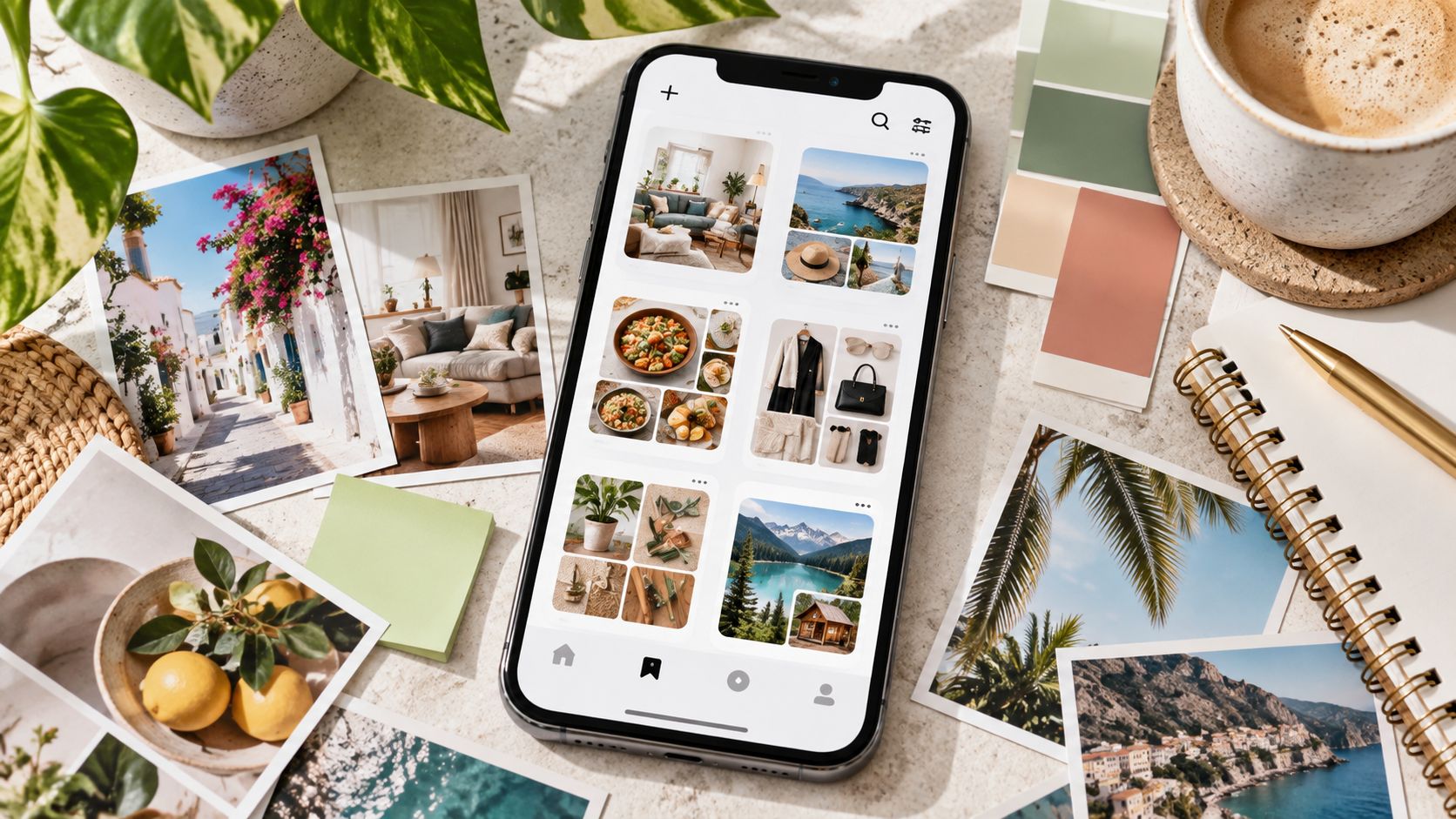
Instagram Collections let you organize posts and Reels you have already saved into named groups. The most useful approach is to organize those groups around projects and decisions, rather than collecting everything under broad labels such as “Ideas,” “Food,” or “Inspiration.”
To organize existing saves:
-
Open Instagram on your iPhone or Android device.
-
Go to your profile.
-
Tap the three-line menu and select Saved.
-
Tap the + button to create a Collection.
-
Give it a project-specific name.
-
Select the saved posts you want to include.
-
Confirm the Collection.
For future posts, press and hold the bookmark icon, then choose an existing Collection or create a new one. The exact button labels may differ slightly between app versions.
A useful project structure might look like this:
HOME — Kitchen RenovationWORK — October CampaignTRAVEL — Lisbon WeekendEVENT — Wedding SuppliersLEARN — Photography Course
Regular Collections are private. Instagram also offers collaborative Collections that let selected people contribute through a shared conversation.
The important limitation: Collections are a bookmarking system, not a complete project-management tool. They do not automatically categorize every save, guarantee that the original post will remain available, or replace the notes and decisions you keep elsewhere.
A saved post should help you do something later.
Otherwise, it is just another square in an increasingly crowded grid.
The Problem With One Enormous Saved Folder
The bookmark icon makes saving effortless.
A recipe looks promising. Save it.
A clever office layout appears. Save that too.
Then a Reel explains a camera technique, another lists places to visit, and a carousel contains the exact color combination you wanted for a client presentation.
Six months later, Saved contains hundreds of posts, but you cannot remember which one had the useful kitchen measurements.
Nothing is technically lost.
Everything is effectively buried.
That is the problem Instagram Collections solve: they give already-saved content a destination.
The trick is choosing destinations that correspond to what you intend to do.
What Are Instagram Saved Collections?
A Collection is a named group of posts you have bookmarked inside Instagram.
Your Saved area contains the posts and Reels you have saved. Collections provide a more focused way to browse selected items from that larger library.
Think of the distinction this way:
|
Instagram feature |
What it does |
|---|
|
Saved / All Posts |
Holds your saved content |
|
Private Collection |
Groups selected saves for your own use |
|
Collaborative Collection |
Lets selected participants contribute to a shared group |
|
Downloaded file |
Stores a separate media file on your device |
|
External project tracker |
Holds notes, responsibilities, deadlines, and decisions |
Collections do not download the original photographs or videos to your phone.
They organize references to Instagram content.
That is useful because a project may need twenty references without needing twenty separate MP4 or JPG files.
Why Project-Based Collections Work Better Than Broad Categories
Consider these two systems.
System A:
-
Food
-
Travel
-
Home
-
Work
-
Ideas
System B:
-
TRAVEL — Rome, November
-
HOME — Balcony Makeover
-
WORK — Product Launch
-
FOOD — Dinner Party
-
PERSONAL — Running Plan
The second system tells you why the posts matter.
A restaurant Reel is not simply “Food.” It may be a candidate for your November Rome itinerary.
A lamp photograph is not merely “Home.” It may be a purchasing reference for the balcony project.
Project names turn passive saving into purposeful organization.
They also make cleanup easier. When the dinner party is over, you know exactly which Collection no longer needs your attention.
How to Find Your Saved Posts on Instagram
Start with the mobile app.
-
Open Instagram.
-
Tap your profile picture.
-
Open the three-line menu in the upper-right corner.
-
Select Saved.
-
Open All Posts or one of your existing Collections.
You should see your saved content and any Collections already associated with your account.
Instagram may change the arrangement of the Saved screen or individual buttons during updates. If the interface differs from older screenshots online, look for the same core elements: Saved, Collections, a plus button, and collection-management options.
For creating and managing Collections, the mobile app is generally the most dependable place to work.
How to Create a Collection From Posts You Already Saved
You do not have to start over.
Instagram supports creating a Collection from content already in your Saved area.
Step 1: Open Saved
Go to:
Profile → Menu → Saved
Step 2: Create the Collection
Tap the + button or the available new-collection control.
Step 3: Name the Project
Choose a name that makes its purpose immediately recognizable.
For example:
WORK — Spring Product Launch
Step 4: Select Existing Saves
Instagram can let you choose posts from your saved library to place in the new Collection.
Select the relevant items.
Step 5: Confirm
Tap Done, Save, or the equivalent confirmation control shown in your version of Instagram.
Your new Collection now provides a focused view of those references.
The original saves are not transformed into downloaded files. They remain Instagram bookmarks.
How to Add More Saved Posts to an Existing Collection
Projects develop.
Your kitchen renovation begins with lighting ideas, then expands to cabinet handles, countertops, storage, and paint.
You should not need a new Collection for every decision.
Open the relevant Collection and look for its menu or Add to Collection option. Where available, choose additional posts from your saved library and confirm.
You can also open an individual post and use its bookmark controls to add it to an appropriate Collection.
The exact interface varies, but the organizing principle remains the same: keep one useful project home and add references as the work develops.
How to Save New Posts Directly Into the Right Collection
This is the habit that prevents the backlog from returning.
When you find a useful post or Reel:
-
Press and hold its bookmark icon.
-
Choose the relevant Collection.
-
Create a new one only if the post belongs to a genuinely new project.
In some interface versions, tapping Save also opens a collection picker.
What matters is making the filing decision while you still remember why the post caught your attention.
A quick bookmark without a destination is easy.
Finding it three months later is less delightful.
Organize by Project, Not by Content Format
Avoid building your entire system around “Photos,” “Reels,” and “Carousels.”
Those labels describe the container.
They do not describe the purpose.
A website-redesign project might need:
-
a Reel showing an animated menu;
-
a carousel explaining navigation structure;
-
a photograph illustrating a color palette;
-
a video demonstrating a checkout interaction.
All four belong to the same project.
|
Less useful Collection |
More useful alternative |
|---|
|
Reels |
WORK — Video Campaign |
|
Photos |
HOME — Living Room |
|
Recipes |
EVENT — Birthday Dinner |
|
Travel |
TRAVEL — Japan, April |
|
Marketing |
WORK — Newsletter Launch |
|
Inspiration |
LEARN — Product Photography |
There is nothing wrong with a few permanent topic folders. Just do not let broad categories become substitutes for projects with clear outcomes.
A Naming System That Scales
Use three elements:
Area — Project — Optional status
Examples:
WORK — Brand RefreshWORK — Brand Refresh — ShortlistHOME — Bedroom — LightingTRAVEL — Paris — RestaurantsEVENT — Conference — Speakers
Start with the shortest useful version.
Only add another level when the project becomes difficult to navigate.
Instagram Collections are not a full nested-folder system, so excessively elaborate naming can become clumsy. A readable Collection name is more valuable than an elaborate taxonomy that nobody wants to use.
How Many Collections Should You Create?
There is no universal ideal number.
A person planning one holiday may need three.
A social-media manager handling several brands may need twenty or more.
The practical limit is cognitive rather than numerical: if choosing a Collection becomes a puzzle every time you save something, the system is too complicated.
A sensible starting structure is:
|
Collection type |
Purpose |
|---|
|
Active projects |
Current work with a clear outcome |
|
Recurring interests |
Topics you revisit regularly |
|
Waiting / Shortlist |
Options that need a decision |
|
Review later |
Temporary holding area |
|
Completed projects |
References worth retaining after the work ends |
Treat Review later as a temporary inbox.
Without a regular review, it becomes All Posts with a more optimistic name.
Use a Two-Level Project System Without Nested Folders
Instagram does not provide the full nested-folder flexibility of a conventional file manager.
You can still create a lightweight two-level system through naming.
For example:
WORK — Website — NavigationWORK — Website — PhotographyWORK — Website — CopyWORK — Website — Competitors
These Collections belong to the same broader project but separate decisions that would otherwise become tangled.
Do this only when the parent project is large enough to justify it.
For a weekend dinner, one Collection will do.
No need to build a small bureaucracy around the salad.
How to Organize a Large Backlog of Saved Posts
Hundreds of uncategorized saves can make the task feel larger than it is.
Do not attempt to sort everything in one sitting.
Use three passes.
Pass 1: Create the Active Projects
Identify the three to five projects you currently care about.
Create Collections for them first.
Pass 2: Sort the Most Recent Saves
Recent posts are easier to classify because you probably remember why you saved them.
Work through a manageable batch.
Pass 3: Review Older Content Selectively
Do not assume every old bookmark deserves a permanent home.
Ask:
-
Is this still relevant?
-
Does it support a current project?
-
Is there a clearer example already saved?
-
Will I realistically use it?
-
Is the original content still available?
If the answer is no, consider unsaving it.
The goal is not a perfectly categorized archive of every moment you ever found interesting.
The goal is to make useful references accessible.
The Ten-Minute Weekly Review
A simple maintenance routine prevents Collections from becoming another neglected feature.
Once a week:
-
Open Saved.
-
Check recently saved posts.
-
Place useful items into their project Collections.
-
Remove references that no longer matter.
-
Review one active project.
-
Check whether a decision has been made.
-
Archive the project outside Instagram if necessary.
Ten focused minutes can save a remarkable amount of scrolling later.
More importantly, your organization stays connected to real work rather than turning into a hobby of its own.
Can One Instagram Post Belong to Multiple Collections?
Instagram’s Collection system can allow the same saved post to appear in more than one Collection.
That is helpful when a reference serves several projects.
A short product-demonstration Reel might belong in:
WORK — Product LaunchLEARN — Video EditingWORK — Landing Page Ideas
However, duplication should be deliberate.
If everything belongs everywhere, Collections stop being filters.
Ask whether the post genuinely supports a second project or whether you are saving it twice because you cannot decide what it is for.
How to Move a Post Between Collections
Open the post and use the available bookmark or collection-management controls to adjust where it is filed.
Depending on your Instagram version, you may be able to add it to another Collection and remove it from the old one.
Be careful with Unsave.
Removing a post from a particular Collection and unsaving it from Instagram entirely are not the same intended action. Check the wording of the option you select.
If the interface offers Remove from collection, choose that when you want to retain the bookmark elsewhere.
Use Unsave when you no longer want that post in your saved library.
How to Rename a Collection
Project names change.
“Possible Apartment” becomes “New Apartment.” “Summer Launch” becomes “September Campaign.”
Open the Collection, find its management menu, and look for Edit Collection or a similar option. Update its name and confirm.
A useful name should reflect the project’s current purpose.
You do not need to preserve the original title simply because it was the first thing you thought of.
How to Delete a Collection Without Losing Your Plan
When a project finishes, decide whether its references are still useful.
If not, deleting the Collection can simplify your Saved area.
If the posts matter for future work, preserve the relevant bookmarks or transfer essential information into your project notes before removing the Collection.
Deleting a Collection is not the same as deleting Instagram’s original posts, and it should not be confused with deleting a separate file downloaded to your device.
Still, check the confirmation screen carefully. The effects of removing a Collection and unsaving individual posts are different actions.
Build Collections Around Decisions
This is where project organization becomes more useful than ordinary categorization.
Suppose you are planning a kitchen renovation.
Instead of saving fifty attractive kitchens, create Collections that correspond to decisions:
|
Collection |
Decision it supports |
|---|
|
HOME — Kitchen — Layout |
How should the space work? |
|
HOME — Kitchen — Materials |
Which surfaces fit the budget? |
|
HOME — Kitchen — Lighting |
What lighting approach works? |
|
HOME — Kitchen — Shortlist |
Which options remain under consideration? |
Now opening a Collection moves the project forward.
A useful reference has somewhere to go.
A decision has somewhere to happen.
How to Use Collections for Marketing Projects
For a brand campaign, organize around deliverables rather than broad “marketing inspiration.”
A launch might have:
WORK — Launch — MessagingWORK — Launch — Product DemosWORK — Launch — Customer QuestionsWORK — Launch — Visual DirectionWORK — Launch — Shortlist
The Collections help your team recognize the type of input required for each piece of work.
They should not become the final content calendar, client approval system, or asset-rights register.
Those functions need more than bookmarked posts.
For public-market research outside your personal Saved area, Dumpor can help you inspect available public Instagram content in a browser without requiring an Instagram login. It does not provide access to your private Saved Collections or synchronize them.
Private Collections vs. Collaborative Collections
Ordinary Collections are for your own saved library.
Collaborative Collections are designed for saving and discussing posts with selected people.
Instagram introduced the collaborative feature so friends or groups can contribute posts and Reels to shared collections connected with a conversation.
|
Feature |
Private Collection |
Collaborative Collection |
|---|
|
Main purpose |
Personal organization |
Shared planning |
|
Who can contribute |
You |
Selected participants |
|
Visibility |
Private to you |
Visible to participants |
|
Typical use |
Personal project |
Joint trip, event, shared research |
|
Communication |
Separate |
Connected to a DM conversation |
Meta’s announcement of collaborative Collections explains the shared-saving model.
The feature is useful, but privacy expectations should change once other people participate.
How to Create a Collaborative Collection
Where the option is available in your app:
-
Open a post or Reel.
-
Tap the save/bookmark control.
-
Choose to create a new Collection.
-
Enable the collaborative option.
-
Select the person or conversation.
-
Name the Collection.
-
Confirm.
You may also be able to create or add to a collaborative Collection from content shared in an Instagram DM.
Participants can contribute material, and new additions may generate activity in the associated chat.
Do not mistake this for a shared cloud-drive folder with detailed permissions, approvals, ownership records, and task assignments.
It is a shared bookmarking feature.
When a Collaborative Collection Makes Sense
Good examples include:
-
two people planning a holiday;
-
a couple furnishing an apartment;
-
friends choosing restaurants for an event;
-
a small team collecting public visual references;
-
collaborators choosing examples for a creative brief.
For client-sensitive work, be more cautious.
A collaborative Instagram Collection is not a confidential project workspace. Do not place restricted material there merely because the group is small.
Also remember that access to a saved post still depends on the original content’s availability and privacy settings.
A Project Collection Is Not a Project Plan
This deserves its own section because it prevents a common workflow mistake.
Collections are excellent at holding references.
They are not equally good at recording:
-
why a final option was chosen;
-
who approved it;
-
what it costs;
-
when it must be delivered;
-
which supplier is responsible;
-
what changed after a meeting.
For larger projects, use Instagram as the reference layer and a document, spreadsheet, task manager, or notes system as the decision layer.
The two work well together.
The External Project Index
Create a small project record outside Instagram when the work becomes serious.
|
Field |
Example |
|---|
|
Project |
Autumn Brand Refresh |
|
Instagram Collection |
WORK — Brand Refresh |
|
Objective |
Update visual direction |
|
Decision owner |
Marketing team |
|
Deadline |
October |
|
Approved direction |
Warm neutral palette |
|
Important links |
Direct post or Reel URLs |
|
Next action |
Produce original design concepts |
This way, the saved Collection answers “What did we look at?”
The project record answers “What did we decide?”
That is a much healthier division of labor.
Keep Direct Links for Important References
Instagram bookmarks are convenient inside the app, but an important source may also deserve a direct URL in your project notes.
This is particularly useful for client discussions or shared documents.
A direct link provides context and makes it easier to identify the exact source without describing it as “the Reel with the blue kitchen and the person pointing at the wall.”
For help preserving the correct URLs, see our guide to sharing Instagram Story, Highlight, and Reel links.
Keep the creator’s identity and the reason for saving alongside important references.
A link is not a decision, but it is a much better breadcrumb than an anonymous screenshot.
What Happens if a Saved Post Is Deleted?
A Collection is not a permanent backup.
If the creator deletes the original post, deactivates the account, changes access settings, or the content becomes unavailable to you, its saved reference may stop working or disappear from your usable library.
That is not usually a Collection failure.
It is a consequence of bookmarking content that still belongs on someone else’s account.
For essential decisions, record the takeaway in your own project notes rather than relying exclusively on the Instagram post remaining available forever.
Do Collections Work for Reels and Carousels?
Yes. Saved content can include Reels and feed posts, including carousels.
A carousel remains a single post containing multiple slides. Saving it to a Collection does not normally turn every slide into a separately named item.
That means a carousel with one important diagram on slide seven may be harder to identify later than its cover suggests.
Where it matters, record a note outside Instagram:
Pricing comparison — slide 7
Tiny note.
Large future benefit.
Can You Search Inside Instagram Collections?
Collections improve navigation, but they should not be mistaken for a full-text research database.
Instagram does not offer the same flexible tagging, notes, custom fields, advanced sorting, and reliable cross-collection search that dedicated project tools provide.
If you need to find saved material by:
-
supplier;
-
project owner;
-
publication date;
-
decision status;
-
budget;
-
exact quotation;
maintain that information in an external project index.
Collection names should carry enough meaning to make browsing manageable without forcing Instagram to act like a database it was never designed to be.
Why Saved Posts Sometimes Seem to Disappear
Several situations can explain a missing reference:
-
the original post was deleted;
-
the creator changed account access;
-
the account became unavailable;
-
you accidentally unsaved the post;
-
you are looking in the wrong Collection;
-
the post was moved or removed during cleanup;
-
Instagram is experiencing a temporary display issue.
Before assuming the entire library is gone, check All Posts and the relevant Collections.
If only one item is missing, investigate that item.
If the whole Saved screen is unavailable, restart or update Instagram and test again.
Common Collection Problems
|
Problem |
Practical response |
|---|
|
Too many Collections |
Merge overlapping purposes |
|
Everything goes into All Posts |
File posts as you save |
|
One Collection contains hundreds of items |
Split by project decision |
|
Cannot find a specific carousel slide |
Keep a note with the URL |
|
Collaborative Collection feels too public |
Use a private Collection |
|
Old projects dominate Saved |
Review and remove inactive groups |
|
Important post disappears |
Keep the relevant takeaway elsewhere |
|
Team cannot see your private Collection |
Use an appropriate shared workflow |
The goal is not more folders.
It is less friction.
A Complete Example: Organizing a Three-Month Project
Imagine a small business preparing to open a second location.
The team has already saved sixty Instagram references:
-
interior photographs;
-
launch announcements;
-
customer-event Reels;
-
signage examples;
-
local-business posts;
-
product demonstrations.
Do not create sixty separate tasks or one enormous “Opening” folder.
Create:
OPENING — InteriorOPENING — SignageOPENING — Launch ContentOPENING — Event IdeasOPENING — Final Shortlist
Sort the existing saves into these groups.
Then use a separate project document to record approved decisions.
When opening day arrives, the team can distinguish visual references from selected actions. Nobody needs to rediscover the same Reel during every planning meeting.
That is the real return on organization.
The 15-Minute Project Collection Setup
Here is a practical starting routine:
-
Open Saved in Instagram.
-
Identify your three most active projects.
-
Create one Collection per project.
-
Give each Collection a specific name.
-
Add the most relevant existing posts.
-
Check whether any project needs a shortlist.
-
Remove references that no longer serve a purpose.
-
Start filing new posts directly into Collections.
-
Create an external decision note for complex projects.
-
Review the system next week.
Do not wait until you have invented the perfect structure.
Start with the project you are actually working on.
FAQ
Frequently Asked Questions
How do I organize Instagram saved posts into Collections?+
Open Instagram, go to your profile, tap the menu, and select Saved. Create a new Collection with the plus button, name it, and choose posts from your existing saved library. For future saves, use the bookmark control to place posts directly into the relevant Collection.
Can I organize Instagram posts I already saved?+
Yes. You do not need to unsave and rediscover them. Instagram supports creating Collections from previously saved posts and adding existing saves to project groups.
What is the best way to name Instagram Collections?+
Name them after a project or decision: “Kitchen Renovation,” “October Campaign,” or “Rome Restaurants.” Broad categories such as “Ideas” can become difficult to navigate because they do not explain why the content matters.
Can I save the same post to more than one Collection?+
Instagram can allow a saved post to appear in multiple Collections. Use that flexibility when a reference genuinely supports more than one project, but avoid placing everything everywhere.
Can I create Collections for Reels?+
Yes. Reels can be part of your Saved library and organized alongside feed posts. A project Collection can contain different content formats when they support the same objective.
Can I organize carousel posts by individual slide?+
A saved carousel is generally treated as a post rather than a set of separately named slide references. If a particular slide matters, record its number or relevant detail in your external project notes.
Are my Instagram Saved Collections private?+
Regular Collections are private to you. Collaborative Collections are different because selected participants can view and contribute to the shared group.
Does Instagram notify someone when I add their post to a private Collection?+
Adding another person’s post to your private Saved area does not normally send the creator a notification identifying you. Collaborative Collections can generate activity for their participants, which is a separate feature.
Can I share a Collection with another person?+
Instagram offers collaborative Collections for shared saving through selected conversations. A regular private Collection should not be assumed to function as a shared workspace.
Can I convert every private Collection into a collaborative one?+
Do not assume that every Collection can be converted in place. Feature options can vary, and creating a new collaborative Collection may be the practical route when you want to organize material with other people.
How do I remove a post from a Collection without losing it?+
Look for the Collection-specific removal option rather than selecting Unsave. The exact controls vary by interface version. Confirm whether you are removing the item from one Collection or removing the bookmark from your Saved library.
Does deleting a Collection delete the original Instagram posts?+
No. A Collection is an organizational layer around Instagram content. Deleting your group does not delete the creator’s original posts. Check the app’s confirmation screen to understand how your own saved references will be affected.
Can I search my Instagram Collections by keyword?+
Instagram Collections are primarily a folder-style organization feature, not a complete searchable project database. Use descriptive names and keep a separate index if you need notes, tags, budgets, or detailed keyword retrieval.
Why did a post disappear from my saved Collection?+
The original content may have been deleted or become unavailable, or the bookmark may have been removed. Check All Posts and other Collections before assuming it was permanently lost.
Can Dumpor access my private Instagram Collections?+
No. Dumpor works with publicly available Instagram content without requiring your Instagram login. It does not access your private Saved library or synchronize your personal Collections.
Should I download every post in a project Collection?+
No. Collections exist so you can organize Instagram references without turning every bookmark into a separate media file. Download only when you have a legitimate need and appropriate rights; keep important project decisions in your own notes.
Instagram’s bookmark button makes collecting easy.
Collections make collecting useful.
Start with the projects already on your plate. Create clear names, sort existing saves in manageable batches, and place new posts where they belong at the moment you save them. Use collaborative Collections when the planning is genuinely shared, and keep important decisions outside Instagram.
You do not need a flawless archive of everything you have ever liked.
You need to open the right Collection and find the reference that moves today’s project forward.
That is a much better use of Saved.

 Telegram bot
|
TikTok Viewer
Telegram bot
|
TikTok Viewer