Instagram Reels Without a Watermark: What Actually Works?
TL;DR
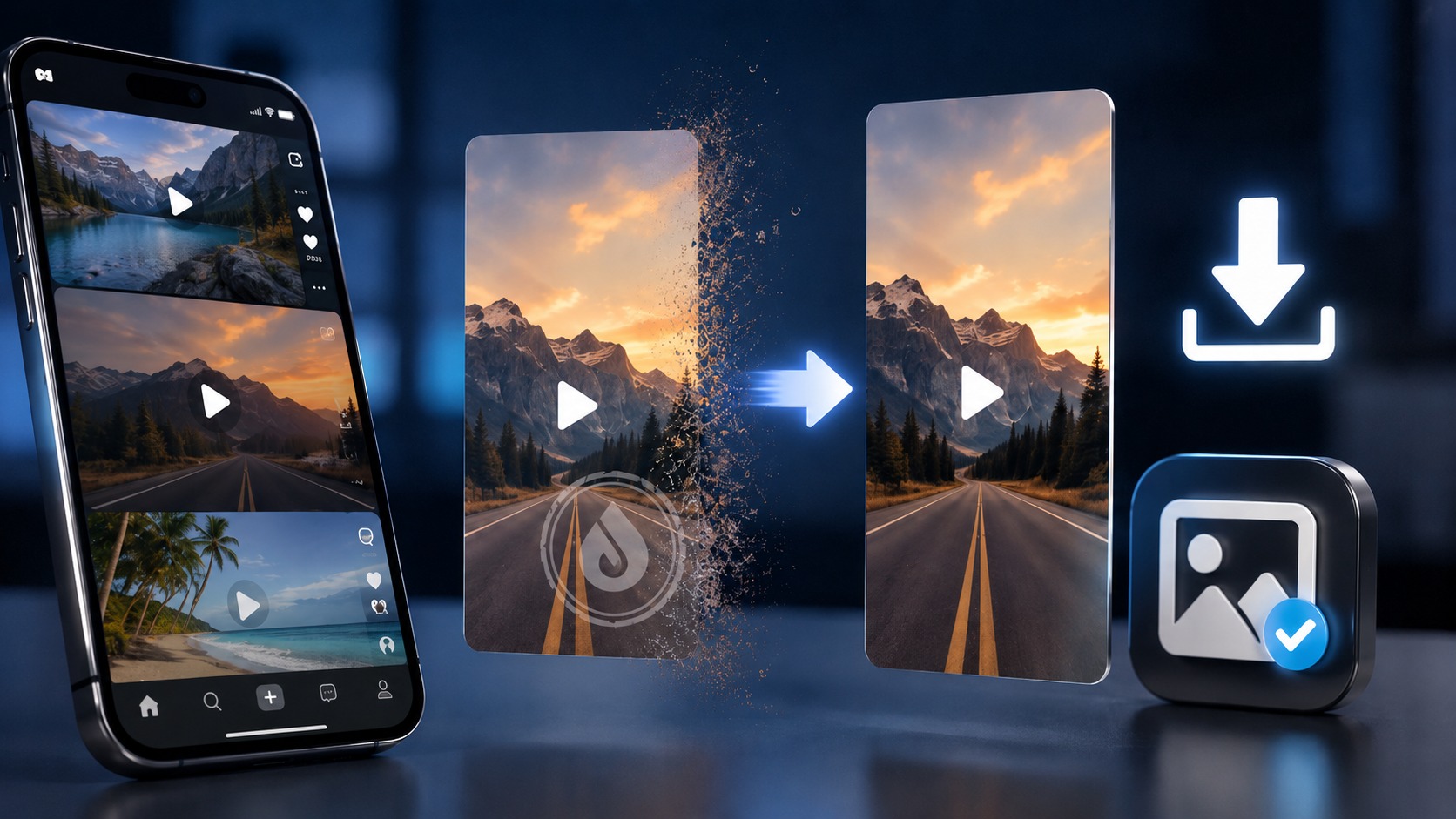
Yes, an Instagram Reel can sometimes be saved without the Instagram-added download watermark, but the answer depends on where that watermark came from.
Instagram’s built-in Share → Download feature for eligible public Reels normally adds Instagram attribution and the creator’s username to the downloaded file. A browser-based downloader may instead save an available public video rendition without adding that particular download overlay.
There is an important catch. If the creator already placed a logo, username, subtitle, TikTok watermark, agency mark, or other graphic directly inside the video before uploading it, downloading the Reel cannot magically remove it. That mark is part of the picture.
Think of Reel watermarks as three separate things:
|
What you see |
Can a clean download avoid it? |
|---|
|
Instagram watermark added during native download |
Sometimes, with a different permitted download route |
|
Downloader website’s own logo |
Yes, by using a service that does not add one |
|
Creator logo/text baked into the video |
No, not through downloading alone |
|
TikTok/other platform watermark already in source |
No, it is part of the uploaded frames |
|
Instagram UI buttons shown during screen recording |
Avoidable by downloading instead of recording |
For your own Reels, the cleanest option is always the original master video you exported before uploading.
For somebody else’s public Reel, keep the creator’s rights in mind. A technically watermark-free file is not automatically licensed for reposting, advertising, editing, or commercial use.
First, What Do People Mean by “No Watermark”?
This phrase causes more confusion than the download itself.
A person searches for “Instagram Reels downloader without watermark” and usually wants one of three different things.
Maybe they used Instagram’s native Download button and received a video with Instagram attribution.
Maybe an online downloader stamped its own enormous logo across the bottom corner. Charming.
Or perhaps the Reel already contains the creator’s handle, brand logo, subtitle template, TikTok mark, or editing-app branding.
Those are not the same problem.
A downloader can choose not to add a new watermark. It may also be able to retrieve an available public media file before Instagram’s native download attribution is applied. What it cannot do, merely by downloading, is reconstruct pixels hidden underneath text that is already part of the source video.
That would require video editing, cropping, inpainting, or another transformation.
Different job entirely.
Why Does Instagram Add a Watermark to Downloaded Reels?
Instagram’s native download feature is built for sharing public Reels outside the app while keeping a visible connection to their source.
For eligible public Reels, the mobile workflow is straightforward:
-
Open the Reel.
-
Tap Share.
-
Select Download.
-
Let Instagram save the video to your device.
The exported Reel includes attribution identifying Instagram and the account that created it.
From Instagram’s point of view, this makes sense. A Reel can travel through WhatsApp, Messages, email, or another social platform, yet the downloaded video still carries a clue about where it came from.
From the perspective of a creator trying to reuse their own video somewhere else?
Less convenient.
That is why the clean master file matters.
The Best Method for Your Own Reels: Keep the Original Video
If you created the Reel, do not make Instagram your archive.
Keep the final exported MP4 before uploading it.
That file normally gives you the cleanest version because it exists before:
-
Instagram compression;
-
Instagram download attribution;
-
platform UI;
-
later interface changes;
-
possible audio-export restrictions.
A basic creator workflow might look like this:
-
Edit the video.
-
Export a high-quality master.
-
Store the master locally or in cloud storage.
-
Upload a copy to Instagram.
-
Keep project files separately if future editing matters.
Boring advice?
A little.
It also saves an astonishing amount of trouble six months later when a client asks for “that clean Reel without the Instagram thing on it.”
Can You Download Your Own Reel Without Instagram’s Watermark?
Possibly, but the master is still preferable.
If the original file has vanished, check whether you still have the export in Photos, Gallery, Files, Downloads, iCloud Drive, Google Drive, editing-app storage, or your desktop project folder.
Creators sometimes go searching for an online watermark remover while the untouched 1080p file is sitting three folders away.
If the only copy left is the published Reel, a browser-based public-content downloader may be able to retrieve an available media rendition without adding Instagram’s native download overlay.
That still does not guarantee that you are recovering the exact file you originally uploaded.
Instagram processes and transcodes video.
“Available clean rendition” is the more accurate phrase.
How Browser-Based Reel Downloads Can Avoid the Instagram Watermark
Instagram’s watermark is associated with the native downloaded version.
The media used to play a public Reel can exist as a separate processed video rendition. A browser-based tool may retrieve that available public media rather than asking Instagram to generate the branded native-download copy.
That is why some browser downloads appear clean.
The distinction is subtle but useful:
- Instagram native download: Instagram prepares a downloadable version with attribution.
- Browser media retrieval: the tool may save an available public video rendition without adding that download overlay.
This does not mean the service has “removed” a watermark from the video.
Often, it simply downloaded a rendition to which that specific overlay was never added.
That is technically and ethically a much cleaner description.
How to Download a Public Reel Through Dumpor
Dumpor works with publicly available Instagram content and does not require an Instagram login.
When a public Reel is available for permitted download:
-
Open Dumpor.
-
Enter the public Instagram username.
-
Open the profile’s available Reels.
-
Select the Reel you want.
-
Use the available download option.
-
Save the video to your device.
Dumpor can provide optional HD downloads for supported public Reels where permitted.
It does not unlock private accounts.
Nor should it be treated as a magical logo eraser. If the video itself contains the creator’s branding, subtitles, embedded handle, or another platform’s watermark, those pixels remain part of the video.
How to Download a Reel Without Instagram’s Watermark on iPhone
If you use Instagram’s own Download button, expect attribution.
For a browser-based workflow on iPhone:
-
Open the public Reel in Instagram.
-
Tap Share.
-
Select Copy link, or note the creator’s username.
-
Open Safari.
-
Visit Dumpor or another reputable public-content downloader.
-
Locate the available Reel.
-
Download the video.
-
Check Files → Downloads if it does not immediately appear in Photos.
Safari often saves downloaded media to Files first.
To move the video into Photos:
-
Open Files.
-
Locate the MP4.
-
Tap Share.
-
Choose Save Video.
Before downloading, you can also keep the original Reel URL. Our guide to sharing an Instagram Story, Highlight, or Reel link explains how to copy and preserve those links.
How to Download Without a Watermark on Android
The Android process is much the same, with slightly easier file handling.
For an eligible public Reel:
-
Copy its Instagram link or note the username.
-
Open Chrome, Firefox, Samsung Internet, or another browser.
-
Open a reputable public Reel downloader.
-
Find the Reel.
-
Save the available video.
-
Check Downloads, Gallery, or Google Photos.
If you use Instagram’s native Share → Download route instead, the downloaded Reel normally carries Instagram/creator attribution.
Avoid installing random APK files merely because a webpage claims an app can “unlock original Instagram servers.”
A public URL is one thing.
Giving an unknown app broad access to your phone is another.
What About Windows and Mac?
Desktop is actually quite comfortable for this job.
You can keep the Instagram Reel open in one tab and a permitted browser-based viewer in another, then save the file directly into an organized folder.
On Windows or macOS:
-
Copy the public Reel URL or username.
-
Open your browser.
-
Locate the public Reel through the downloader.
-
Select the available download.
-
Save the MP4.
-
Rename it sensibly if you are keeping it for research.
For example:
creator-product-2026-09-04.mp4
is considerably more useful three months later than:
video_4837201948.mp4
Tiny habit. Big difference.
Instagram Watermark vs. Downloader Watermark
Do not assume every watermark came from Instagram.
Some downloader apps process the media and add their own branding. Others may re-encode the video unnecessarily.
Before using a service, ask:
-
Does it add its own logo?
-
Does it re-encode the video?
-
Does it preserve the available resolution?
-
Does it require an Instagram login?
-
Does it ask for an extension or APK?
-
Does it explain whether it works only with public content?
A decent downloader does not need to turn your saved Reel into advertising for the downloader.
And it definitely does not need your Instagram password to retrieve a publicly available Reel.
Can You Remove a Creator’s Watermark?
Not by downloading the file.
Suppose a creator edits:
@northernframes
directly into the lower-right corner before posting.
Every frame uploaded to Instagram already contains those pixels. A downloader receives them as part of the picture.
The same applies to:
-
company logos;
-
TikTok watermarks;
-
CapCut branding already exported into the video;
-
subtitle templates;
-
television channel bugs;
-
creator signatures.
A downloader may avoid adding a watermark. It cannot retrieve an imaginary pristine version that Instagram never received.
If somebody advertises “remove absolutely every watermark from every Reel,” read the fine print.
Or perhaps just keep walking.
Does Cropping Count as Removing a Watermark?
Technically, cropping can make a corner watermark disappear.
It can also make the composition worse.
You lose image area, potentially change the aspect ratio, and may cut into subtitles, products, faces, or framing. On vertical 9:16 video, there is not always much spare room.
More importantly, cropping out attribution does not change ownership of the video.
For somebody else’s creative work, a missing logo can actually make proper attribution harder.
If you are reposting with permission, keeping or adding a clear creator credit is usually the cleaner approach.
What Happens to Reel Quality?
“No watermark” and “HD” are separate questions.
A clean video can still be low quality.
Instagram processes uploads, and the available rendition may already be compressed. A downloader can preserve what it receives, but it cannot manufacture texture, sharpness, or detail that is no longer present.
A useful hierarchy looks like this:
|
Source |
Expected quality |
|---|
|
Your original editing master |
Best |
|
High-quality processed Instagram rendition |
Good |
|
Re-encoded downloader copy |
Variable |
|
Messaging-app copy |
Often reduced |
|
Screen recording |
Usually less desirable |
|
Repeatedly converted/reposted file |
Often worst |
Do not judge quality by filename alone.
reel_FULL_HD_1080P_FINAL.mp4
can still be mush.
Check the actual resolution and visual detail.
Why a Watermark-Free Reel May Have No Audio
Because video and music rights are not the same thing.
Instagram’s licensed music library operates under agreements with music rights holders. Meta explicitly notes that licensed music is generally intended for personal, non-commercial use.
A Reel may therefore play with a commercial song inside Instagram while an exported version behaves differently.
Possible outcomes include:
-
original audio remains;
-
licensed music is absent;
-
only part of the audio is available;
-
a browser-accessible rendition differs from Instagram’s native export.
Do not assume a downloader has “broken the sound.”
Music licensing is often the reason.
And if you intend to use downloaded music commercially, obtaining the video file does not grant the music rights.
Can Screen Recording Produce a Watermark-Free Reel?
Sometimes it produces a watermark-free-looking rectangle.
That does not make it a good download method.
Screen recording can introduce:
-
interface elements;
-
notification pop-ups;
-
scaling;
-
frame-rate differences;
-
reduced sharpness;
-
accidental touches;
-
unwanted audio changes.
You may crop the UI afterward, but now you are editing a recording of a playback rather than saving an available media file.
Use screen recording for your own material when there is a legitimate reason.
For preserving public video quality, a proper download is generally cleaner.
Is “Without Watermark” Better for Reposting?
Technically cleaner? Often.
Automatically appropriate? No.
A watermark-free file can be useful when:
-
you are downloading your own Reel;
-
a client supplied the content and rights;
-
you have creator permission;
-
you are maintaining an authorized media archive;
-
you need a clean editing source you already have rights to use.
It is not a license generator.
Downloading somebody else’s Reel without its visible Instagram attribution and reposting it as though you created it is a different matter altogether.
Keep the original URL.
Keep the creator name.
Ask permission where republication goes beyond ordinary personal reference.
Can Removing Watermarks Improve Reach on Other Platforms?
This question usually comes from creators republishing their own short-form videos across multiple platforms.
That is reasonable.
Platforms have historically discouraged recycled content carrying obvious branding from competing apps. For your own content, the cleanest workflow is therefore to export a neutral master from your editing software and upload that master separately to Instagram, TikTok, YouTube Shorts, and elsewhere.
Do not:
TikTok → download → Instagram → download → YouTube.
Do:
Master file → Instagram
Master file → TikTok
Master file → YouTube
One source. Multiple clean uploads.
Your future self says thanks.
How to Tell Whether the Watermark Is Baked Into the Reel
A quick visual test helps.
Play the Reel inside Instagram.
If the logo or username is already visible inside the video frame while it plays, it is probably embedded in the content.
If it appears only after using Instagram’s Download feature, it is likely download attribution.
Another clue is movement. Instagram-style native attribution may change position or appear according to platform formatting, whereas creator branding is often fixed in the same designed location.
Not foolproof.
Good enough for diagnosis.
Private Reels Are a Separate Boundary
A private account is not public media with an annoying technical lock.
It is private content.
A legitimate public Reel downloader should not promise to bypass that setting, retrieve a private user’s media, or ask you to paste Instagram session cookies to make the trick work.
Dumpor only surfaces publicly available Instagram content.
For more context on safe public viewing and what third-party services should not request from you, read our guide to anonymous Instagram viewer privacy and responsible browsing.
Red Flags in “No Watermark” Reel Downloaders
The useful promise is modest:
We can save an available public media file without adding our own branding.
The suspicious promises sound different:
-
“download any private Reel”;
-
“recover deleted Reels”;
-
“remove any creator logo automatically”;
-
“get true 4K from every Instagram video”;
-
“log into Instagram here to unlock HD”;
-
“install this unknown browser extension first”;
-
“enter your 2FA code.”
No thanks.
For public media, Instagram credentials should not be the price of admission.
Which Download Method Should You Choose?
|
Method |
Instagram download watermark |
Quality |
Best for |
|---|
|
Original master file |
No |
Highest |
Your own content |
|
Instagram native Download |
Usually yes |
Good |
Easy offline saving |
|
Public browser downloader |
May avoid native download overlay |
Depends on available source |
Permitted public media |
|
Screen recording |
Not necessarily, but UI may appear |
Variable |
Last-resort personal capture |
|
Reposted copy from another platform |
May contain baked-in watermark |
Variable |
Usually avoid |
For creators, the winner is obvious: master file.
For public material you are permitted to save, browser retrieval can be useful when you specifically need the available video without Instagram’s native download overlay.
A Clean Workflow for Your Own Content
If you regularly publish Reels, adopt this routine:
-
Create one watermark-free vertical master.
-
Export at the quality you actually need.
-
Save the master in an organized archive.
-
Upload independently to each platform.
-
Add platform-specific captions and music separately.
-
Never make a downloaded social-media copy your new master.
This protects both quality and flexibility.
It also means that “How do I remove the Instagram watermark?” becomes a question you rarely need to ask.
The 60-Second Checklist
Before downloading a Reel without a watermark:
-
Identify whose Reel it is.
-
If it is yours, look for the original master first.
-
Confirm another user’s Reel is public.
-
Copy and preserve the original Reel link.
-
Decide which watermark you are actually trying to avoid.
-
Remember that native Instagram downloads carry attribution.
-
Use a reputable public browser workflow where appropriate.
-
Do not expect a downloader to remove graphics already baked into the video.
-
Check audio before assuming the download failed.
-
Keep copyright and music rights separate from the technical file download.
A clean MP4 is easy to understand once you stop asking it to do six different jobs at once.
FAQ
Frequently Asked Questions
Can you download an Instagram Reel without a watermark?+
Sometimes. Instagram’s native Download feature adds platform/creator attribution to eligible public Reel downloads. A browser-based downloader may instead retrieve an available public video rendition without that particular download overlay. However, logos or text already embedded into the source video will remain.
Does Instagram add a watermark when you download a Reel?+
Yes, Instagram’s native public-Reel download system uses attribution that identifies Instagram and the creator’s account. If you need a clean copy of your own Reel, the best solution is the original master video rather than downloading the published Instagram version.
How can I download my own Instagram Reel without a watermark?+
First look for the original video you exported before uploading. Check Photos, Gallery, Files, cloud storage, or your editing application. That master generally gives you better quality and no Instagram download attribution. If the master is unavailable, a supported browser-based download of your public Reel may provide an available rendition without Instagram’s native download overlay.
Can I download Instagram Reels without a watermark on iPhone?+
Yes, for supported public content a browser-based workflow can be used on iPhone. Copy the Reel link or username, open a reputable public-content downloader in Safari, locate the Reel, and save the available file. Safari may put the MP4 in Files → Downloads before you move it to Photos.
Can I download Reels without a watermark on Android?+
For public Reels, browser-based download tools can save available media without requiring a dedicated Android app. Use Chrome or another browser, find the public Reel through a reputable downloader, and save the file. Avoid APKs requesting unnecessary permissions or Instagram credentials.
Can I download an Instagram Reel without a watermark on PC?+
Yes, when a clean public media rendition is available. A browser workflow on Windows or macOS is often the simplest approach: copy the public Reel link or locate the username, open the downloader, find the Reel, and save the available MP4.
Can a downloader remove a TikTok watermark from an Instagram Reel?+
Not simply by downloading it if the TikTok watermark is already encoded into the uploaded video frames. A downloader can avoid adding a new watermark, but removing an existing baked-in mark requires actual video editing and can affect the image.
Why does a no-watermark Reel download have no music?+
Licensed audio may be subject to separate rights and export restrictions. Instagram can have permission to play music inside its platform without providing the same rights in a downloaded file. Video availability and music licensing should therefore be treated separately.
Does downloading without a watermark reduce video quality?+
Not necessarily. A downloader that saves an available rendition without unnecessary re-encoding may preserve good quality. However, Instagram may already have compressed the upload. No downloader can restore source detail that has already been lost.
Is a watermark-free download the original file uploaded by the creator?+
Do not assume so. Instagram processes and transcodes uploaded videos. A clean downloaded file may be an Instagram-served media rendition without a download watermark, but it is not necessarily byte-for-byte identical to the creator’s original exported master.
Can I download a private Instagram Reel without a watermark?+
Not through a legitimate public-content downloader. Private content remains subject to the account owner’s access controls. Dumpor works only with publicly available Instagram content and does not bypass private-account restrictions.
Can I repost a Reel if I downloaded it without a watermark?+
The absence of a watermark does not grant copyright or redistribution rights. If the Reel belongs to another creator and you plan to repost, edit, advertise with, or commercially use it, obtain the appropriate permission and handle music rights separately where necessary.
Does Dumpor add or remove watermarks from Instagram Reels?+
Dumpor provides access to available public Instagram media and optional HD downloads where permitted. It should not be thought of as a tool that erases logos already embedded in a creator’s video. If branding or another watermark forms part of the source frames, downloading the file leaves it intact.
The phrase “Instagram Reel without watermark” sounds simple.
It is not, quite.
Instagram can add attribution when generating a native download. A third-party service can add its own branding. A creator can bake a logo directly into the footage. Each needs a different answer.
For your own work, save the master before publishing.
For public Reels you are permitted to download, use a clean browser workflow that does not demand Instagram credentials or pretend it can manufacture a pristine original that never existed.
And keep the source link.
A video without a watermark may look cleaner. It does not become ownerless.

 Telegram bot
|
TikTok Viewer
Telegram bot
|
TikTok Viewer