How to Connect or Disconnect Instagram From a Facebook Page
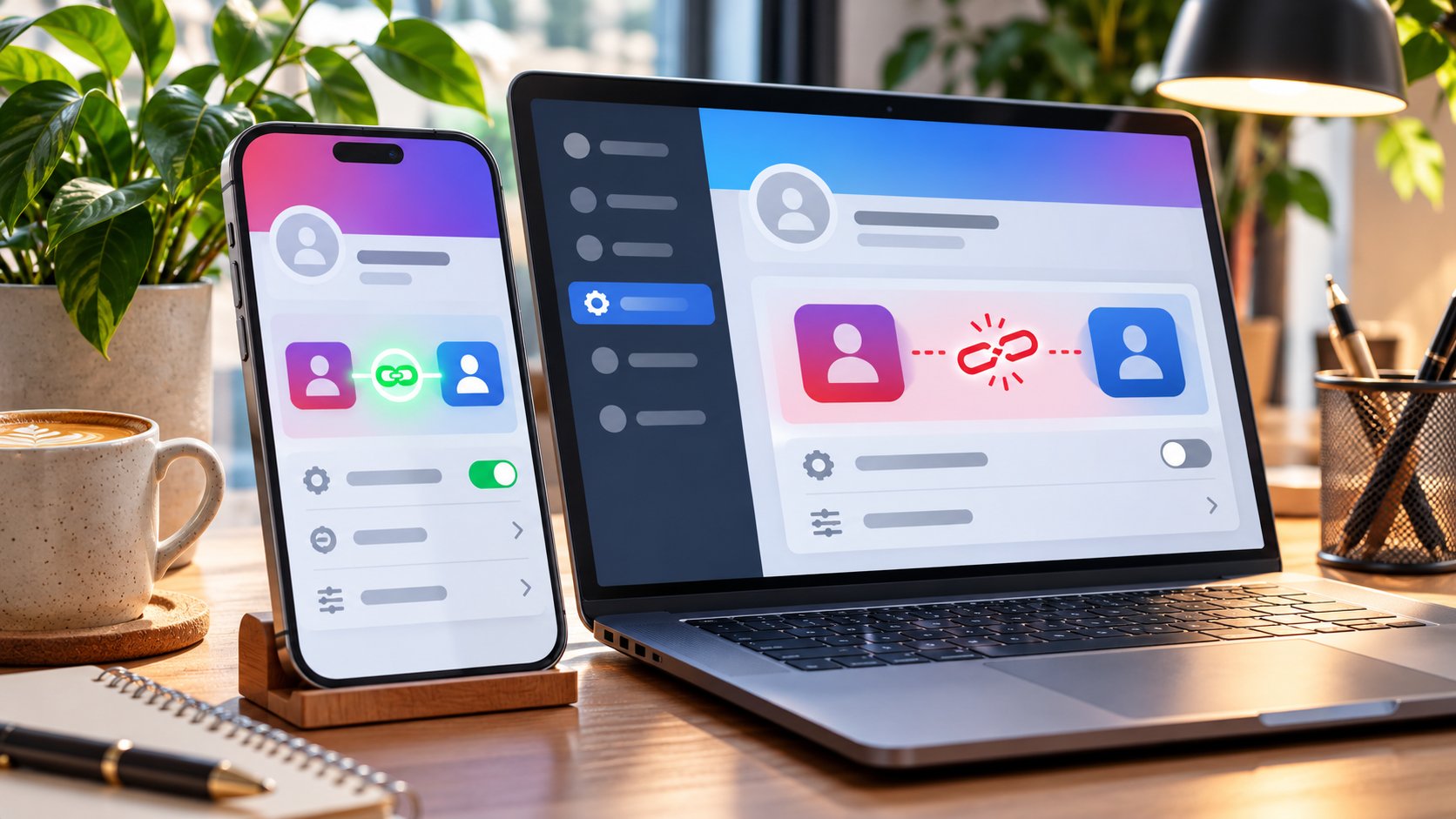
TL;DR: To connect a professional Instagram account, open Instagram → Edit profile → Page, select Connect or create, sign in to Facebook if prompted, and choose the correct Page. Alternatively, switch into your Page on Facebook and open Settings → Linked accounts → Instagram → Connect account. To unlink them, use Disconnect Page in Instagram or Disconnect account in the Page’s Linked accounts settings. Before disconnecting, review scheduled content, inbox access, ads and connected services. Accounts Center manages other connected experiences, so verify the Page connection in the Page settings itself.
A studio may have two similarly named Facebook Pages, an old Instagram login and an agency still handling its messages. Connecting the accounts takes only a few screens. Choosing the right accounts, with the right people in control, deserves more attention.
Check which connection you are managing
A Facebook Page represents a business, organisation or public presence. Your personal Facebook profile is the identity you use to sign in and manage that Page. During setup, Meta may ask you to log in through your personal profile to verify your access.
A Page connection can support shared management, publishing and messaging tools. Accounts Center handles experiences such as sharing across profiles and logging in across accounts. The two areas can appear during related setup flows, but they answer different questions.
|
Your goal |
Where to start |
What to verify |
|---|
|
Link Instagram to a business Page |
Instagram’s Page field or Facebook Page’s Linked accounts |
The exact Page and Instagram username |
|
Remove the Page connection |
Page → Linked accounts → Instagram |
The connected account before confirming |
|
Stop content appearing automatically on Facebook |
Crossposting or sharing settings |
The destination and content types enabled |
|
Change who manages the business |
Page access and business portfolio permissions |
Each person’s assigned access |
|
Remove a profile from Accounts Center |
Accounts Center → Accounts |
Login and connected-experience consequences |
|
Fix a scheduling service |
The service’s account connections |
Its permissions and the underlying Page link |
Before you connect Instagram to a Facebook Page
Use a professional Instagram account for the business workflow in this guide. Both Business and Creator are professional account types. A personal account may be prompted to switch during connection, and professional accounts are public.
Make sure you can sign in to Instagram and complete any two-factor authentication challenge. On Facebook, use a profile authorised to manage the intended Page.
For the most straightforward setup, have someone with Facebook access with full control complete the connection. Being able to publish through a business tool does not necessarily give a person access to all Page settings. A business portfolio may also require approval from someone with the appropriate control.
Before proceeding, check the following:
-
The Instagram username belongs to the account you intend to connect.
-
The Facebook Page is the current business Page, with the expected posts and audience.
-
You can access the required sign-in and recovery methods.
-
Any existing connection has been identified.
-
The people responsible for business access know which accounts are being linked.
If you are setting up a professional profile for the first time, also review the description visitors will see. Our guide explains how to add, change or hide an Instagram category label.
How to connect through the Instagram app
This route is convenient when you already manage Instagram on your phone. Menu wording can vary between Business and Creator accounts and across app versions.
-
Open Instagram and switch to the account you want to link.
-
Go to your profile and tap Edit profile.
-
Find Page under Public business information or Profile information.
-
Tap Connect or create, then continue through the prompts.
-
Sign in to the Facebook profile that has access to the intended Page.
-
Select the existing Page from the available list.
-
Confirm the connection and complete any requested approval.
-
Return to Edit profile → Page and check the displayed Page name.
If Instagram offers the wrong Facebook login, use the account-switching option before proceeding. If your Page is absent, check access before creating anything new.
How to connect through Facebook Page settings
The Facebook route lets you inspect the Page’s existing Instagram connection before replacing it. On a computer, begin by switching into the Page.
-
Sign in to Facebook with the profile that manages the Page.
-
Open the profile menu and choose See all profiles.
-
Select the Facebook Page you intend to connect.
-
Open Settings & privacy → Settings.
-
Under Permissions, find Linked accounts.
-
Select Instagram, or View beside Instagram.
-
Click Connect account and continue.
-
Review any option allowing access to Instagram messages in the business inbox.
-
Sign in to the correct Instagram account and complete authentication.
-
Return to Linked accounts → Instagram and verify the username.
Confirm the connection before using it
Check both ends. Facebook’s Linked accounts → Instagram should identify the expected Instagram account, and Instagram’s Edit profile → Page should identify the expected Facebook Page.
Then test the feature you actually connected them to use. In Meta Business Suite, inspect the selected business and available accounts. If your team uses a separate scheduler, refresh its connection and check which destinations it offers.
Also check automatic sharing preferences. Linking the accounts and deciding which future posts, Stories or Reels should be shared are separate settings to review.
What to review before disconnecting
Disconnecting is usually easy to reverse when you retain access to both accounts. The practical risk is interrupting something that relies on their connection.
|
Area |
What to inspect before unlinking |
What to check afterwards |
|---|
|
Scheduled content |
Queued posts in Meta Business Suite and external schedulers |
Destination access and any failed or pending jobs |
|
Messages |
Who handles Instagram enquiries through shared tools |
Whether staff can still reach the necessary inbox |
|
Advertising |
Active campaigns and the identities selected in ads |
Delivery warnings or requests to reconnect |
|
Booking and commerce tools |
Services depending on the Page–Instagram association |
The customer-facing booking or shopping journey |
|
Team access |
People, partners and portfolio assignments |
Any access that should be revised separately |
|
Subscriptions |
Terms or warnings for a subscription tied to the connected accounts |
Whether a subscription change is required |
If a Meta Verified subscription covers the connected business accounts, read the disconnection warning carefully. Unlinking a subscribed pair may affect or cancel the subscription.
Booking providers can also have their own connection requirements. If customers book through your profile, review how Instagram contact and action buttons work and test the provider connection after any change.
How to disconnect Instagram from Facebook
You can remove the Page link from either side. Choose the route where you have the required access and can clearly identify the current pair.
Disconnect through Facebook
-
Sign in to Facebook and switch into the connected Page.
-
Open Settings & privacy → Settings.
-
Go to Linked accounts → Instagram.
-
Check the Instagram username shown.
-
Select Disconnect account.
-
Read the confirmation and any account-specific warnings.
-
Select Yes, disconnect or the equivalent confirmation.
-
Reopen Linked accounts to verify that the association has been removed.
Disconnect through Instagram
-
Open the connected professional Instagram profile.
-
Tap Edit profile.
-
Tap Page in the professional information section.
-
Choose Disconnect Page if available.
-
Review the prompt and confirm.
-
Return to the Page field to check the result.
Removing a Facebook profile from Accounts Center is a separate change. Use that option when you intend to change those connected experiences, after checking how you will sign in independently.
How to connect Instagram to a different Facebook Page
Begin by confirming access to the replacement Page. Open its Linked accounts settings and check whether it already has an Instagram account attached.
A Page supports one linked Instagram account at a time. If the replacement Page is already connected, coordinate the change with the people who manage that account before disconnecting it.
Disconnect the old pair, then use one of the connection routes above to link the replacement Page. After the change, check the new Page name in Instagram and the Instagram username on Facebook. Review publishing destinations in any external tools, since they may still hold the previous connection or require renewed permission.
An agency handover needs an additional access review. Check people, partners and business portfolio assignments separately so that the new team has the permissions it needs and obsolete access is removed deliberately.
Why Instagram will not connect to your Page
The wording of the error usually points to the next useful check. Record it before changing settings.
|
Problem |
Likely area to inspect |
Practical next step |
|---|
|
The Page is absent from the list |
Facebook login and Page access |
Use the authorised profile and review its permissions |
|
Linked accounts is inaccessible |
Page management access |
Ask someone with full control to inspect the connection |
|
The Page is already connected |
Existing Instagram association |
Identify the current account and plan its replacement |
|
Confirmation is pending |
Page or business portfolio approval |
Ask the authorised owner to review the request |
|
The sign-in window never opens |
Browser pop-up handling |
Permit the sign-in window and retry |
|
An account belongs to another business |
Business portfolio ownership |
Contact the current administrator to resolve access |
|
Meta Business Suite shows the wrong assets |
Selected business and assignments |
Choose the correct portfolio and inspect its accounts |
|
The connection succeeds but sharing fails |
Sharing destination or tool permissions |
Review crossposting settings and refresh the affected tool |
Avoid using account-type changes as the first troubleshooting step. Start with the error, access and existing connection. If the same problem persists, use the support route available in Meta’s tools and include the Page name, Instagram username, error text and attempted steps.
FAQ
Is linking Instagram to a Facebook Page the same as adding Facebook in Accounts Center?
Can I connect a Creator account to a Facebook Page?+
Yes. Business and Creator accounts are professional Instagram accounts, and the Page connection can be managed from their profile editor. The section heading may differ, with Public business information on some Business profiles and Profile information on Creator profiles. Select the account type that suits your work, then check the requirements of any additional service you plan to use.
Why does setup ask me to log in to my personal Facebook profile?+
Facebook uses your personal profile to identify you and check which Pages you can manage. Carefully review the Page selected during the connection flow. If the expected Page is missing, inspect the permissions associated with that Facebook login before proceeding. Using another person’s credentials is unnecessary when the correct access has been assigned to your own profile.
Can I link several Instagram accounts to one Facebook Page?+
A Facebook Page can have one linked Instagram account at a time. If the Page already shows a username, check who uses that connection before replacing it. A business managing multiple brands should keep a clear record of its intended Page–Instagram pairs so publishing and messaging tools connect to the appropriate accounts.
Will disconnecting delete my posts or followers?+
Removing the Page connection does not itself delete the Instagram account, Facebook Page or their published content and followers. The main checks concern workflows that depend on the association. Review scheduled posts, shared inbox access and integrations, and distinguish those checks from content deletion or account deactivation.
Can I stop automatic Facebook sharing without unlinking the Page?+
Yes. Inspect the crossposting or sharing controls for your Instagram account and disable the content types you want to stop sharing. Check the destination shown and review the sharing toggle on your next post as well. This is appropriate when you want separate publishing choices while continuing to use other connected business tools.
Does disconnecting remove an agency’s access?+
Treat agency access as a separate review. People or partners may have permissions through the Page, a business portfolio, an integration or direct account access. Check those assignments and remove the ones that are no longer appropriate. For a handover, verify that the continuing owner has working access before withdrawing the previous team’s permissions.
Can I reconnect the accounts later?+
Usually, yes, provided you retain the required access and the accounts remain eligible. Repeat the connection process and complete any approval or authentication prompts. Then verify the pair and refresh external tools that need renewed permissions. Keep the account names and service details from the previous setup to make that review easier.
Do I need to switch Instagram back to personal before unlinking?+
The professional profile provides a Page disconnection setting, so changing account type is unnecessary for the standard process described here. Open Edit profile and inspect Page, or disconnect from Facebook’s Linked accounts settings. If the control is unavailable, investigate access and the account-specific message before changing professional features.
Can Dumpor connect or disconnect my accounts?+
Manage the connection through Instagram, Facebook or the relevant Meta business tools. Dumpor provides ways to browse available public Instagram content. For questions about one of our viewers, include the public username, the tool used and the result you expected. That information helps our team understand your request.
Need assistance using Dumpor for public-profile research? Send a request to the Dumpor team with a brief description of what you are trying to view and where the difficulty occurs.

 Telegram bot
|
TikTok Viewer